
This is the print version of this page. All content is copyright Indezine.com 2000-2026.
Thoughts and impressions of happenings in the world of PowerPoint and presentations, continuously updated since 2003.
See Also:
PowerPoint and Presenting Notes
PowerPoint and Presenting Glossary
We bring you an amazing collection of Countdown Timers — and then explore Adobe Presenter’s Collaboration and Package options. We then then creating countdown slides with video clips in PowerPoint 2013 and 2010 — we also explore removing Sections in PowerPoint 2010. And don’t miss the new discussions and templates of this week!

Read Indezine’s PowerPoint and Presenting News.
Filed Under:
Ezine
Tagged as: Ezine, Indezine, News, PowerPoint
Comments Off on PowerPoint and Presenting News: March 10, 2015
You have a 5 minute video or audio clip playing on your slide. And exactly after the clip has played for 30 seconds, you want some text to appear super-imposed above the video clip. It might seem difficult, but you can end up with these results quite easily using the Trigger Animation option. These Trigger animations typically happen as a result of a click on some other slide object — but in PowerPoint 2013, you can now cause Trigger animations to also happen on media playback through a Bookmark.

Filed Under:
PowerPoint 2013
Tagged as: Animation, PowerPoint 2013, Sounds, Tutorials, Video
Comments Off on Learn PowerPoint 2013 for Windows: Animating Slide Objects While Media is Playing
Sections in PowerPoint not only help you easily manage your presentation slides, but there’s so much more you can achieve using them. You can add and name Sections, move slides from one Section to another etc. And, at any point of time after creating a Section, you can also remove it — or also remove a Section along with its content slides. You can also remove Sections altogether in a presentation.
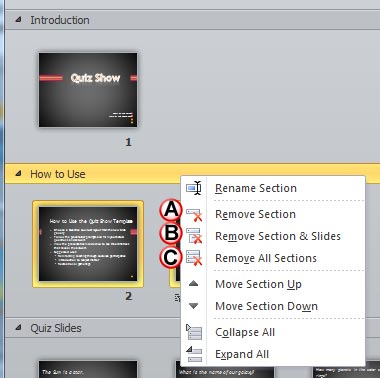
Learn how to remove Sections in PowerPoint 2010 for Windows.
Filed Under:
PowerPoint 2010
Tagged as: PowerPoint 2010, Slide Management, Tutorials
Comments Off on Learn PowerPoint 2010 for Windows: Removing Sections
Within Adobe Presenter, you can also enable analytics and collaboration options. When active, the analytic options provide info about how the eLearning course you have created is being used by learners. For example, you will be able to know how many learners have completed the course, what their level of completion is, and how their user engagement has been with each module. And within the collaboration option, learners will use a widget to ask questions in real-time and converse with the author and other peers. When you publish a module with the collaboration widget enabled, users can ask questions from within the module.

Learn how to enable analytics and collaboration options within Adobe Presenter.
Filed Under:
Add-ins
Tagged as: Add-in, Adobe Presenter, PowerPoint, Tutorials
Comments Off on Analytics and Collaboration Options in Adobe Presenter
Do you need to keep track of the time you spend while delivering your slides? What if you are in a situation where you must give your presentation within precisely 15 or 10 minutes, and then wrap up? In such a scenario, it becomes necessary that you keep an eye for the time. This tutorial explains how you can achieve this goal by adding a countdown timer within your presentation in PowerPoint 2010 using a ready-to-use video file.

Learn how you can use a video countdown timer across slides in PowerPoint 2010 for Windows.
Filed Under:
PowerPoint 2010
Tagged as: Animation, PowerPoint 2010, Tutorials, Video
Comments Off on Learn PowerPoint 2010 for Windows: Slides with Countdown Timers
Microsoft and the Office logo are trademarks or registered trademarks of Microsoft Corporation in the United States and/or other countries.