
This is the print version of this page. All content is copyright Indezine.com 2000-2026.
Thoughts and impressions of happenings in the world of PowerPoint and presentations, continuously updated since 2003.
See Also:
PowerPoint and Presenting Notes
PowerPoint and Presenting Glossary
You can crop pictures in PowerPoint, and of course you can animate them. But as you may observe frequently in life, synergy yields results that exceed the mere sum of two or more initiatives. And that’s true in a way for the technique we will explore on this page — we call this Slice and Animate. The two techniques being used for this synergy are cropping pictures and adding animation.

Learn how to slice and animate pictures in PowerPoint.
Filed Under:
PowerPoint All Versions
Tagged as: Animation, Pictures, PowerPoint, Tutorials
Comments Off on Slice and Animate Pictures in PowerPoint
Charts are a visual representation of data, and when seen on a PowerPoint slide from afar, you make out the value of a series by exploring where exactly it’s placed vis-à-vis the axis. Of course, if your chart has data labels, then this is less of an issue — however, typical charts have no data labels. For such a chart, you’ll find that Tick Marks placed on the axis will help us get a better idea.

Learn about the Major and Minor Tick Marks on Chart Axes in PowerPoint 2010 for Windows.
Filed Under:
PowerPoint 2010
Tagged as: Charting, PowerPoint 2010, Tutorials
Comments Off on Learn PowerPoint 2010 for Windows: Tick Marks on Chart Axes
Once you insert a video in your slide, you can crop it in almost the same way you crop a picture. Before you crop though, you must ascertain whether PowerPoint’s Crop option will help create a better result for your inserted video. The Crop option allows you to remove non-required areas of a video — for example, if the subject of your video is a person speaking who is surrounded by a large, distracting background of other people or moving objects, you may want to crop the video so that the cropped video now focuses more on the speaker, and gets rid of all the extra distractions.

Learn how crop a video clip in PowerPoint 2013 for Windows.
Filed Under:
PowerPoint 2013
Tagged as: PowerPoint 2013, Tutorials, Video
Comments Off on Learn PowerPoint 2013 for Windows: Crop Video
In the days of PowerPoint 2003 and older versions, you just had to insert a chart to end up with a 3D chart! Yes, that’s true – and to say that this chart looks horrible is an understatement. Comparatively, the default column chart you add in newer versions of PowerPoint is so much more cleaner. Of course, changing the defaults does not mean that you will not encounter any 3D charts since even in newer versions.
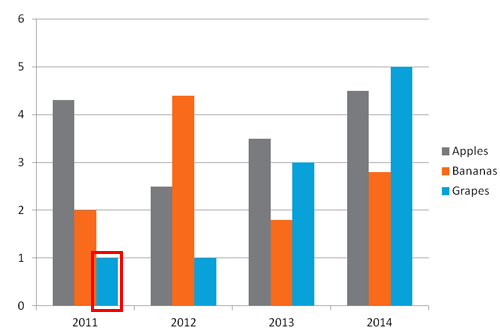
Learn why 3D charts may not be the best way to show your data.
Filed Under:
Charts and Diagrams
Tagged as: Charting, Design, PowerPoint, Tutorials
Comments Off on Stay away from 3D Charts
In a chart, the text used to label the chart axis is called Axis Title. All chart types other than Pie and Doughnut have axes — and although Radar charts have an axis, there is no provision to add axis titles for them. In all other chart types such as Column, Line, etc., axis titles don’t show up by default. You have to make them visible first, and then edit them as required — that’s exactly what you are going to learn in this tutorial.
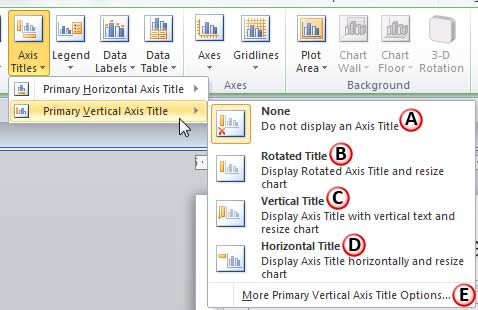
Learn how to add and edit axis titles in PowerPoint 2010 for Windows.
Filed Under:
PowerPoint 2010
Tagged as: Charting, PowerPoint 2010, Tutorials
Comments Off on Learn PowerPoint 2010 for Windows: Axis Titles
Microsoft and the Office logo are trademarks or registered trademarks of Microsoft Corporation in the United States and/or other countries.