
This is the print version of this page. All content is copyright Indezine.com 2000-2026.
Thoughts and impressions of happenings in the world of PowerPoint and presentations, continuously updated since 2003.
See Also:
PowerPoint and Presenting Notes
PowerPoint and Presenting Glossary
Do you want to create a jigsaw puzzle from a picture in PowerPoint 2011? This is actually much easier than it sounds — the tutorial on this page will lead you through the entire process step-by-step. By the time you are done with this tutorial, you will create a jigsaw on your own.

Learn how to create puzzle pictures from jigsaw shapes in PowerPoint 2011 for Mac.
Filed Under:
PowerPoint 2011
Tagged as: Graphics, Office for Mac, Pictures, PowerPoint 2011, Tutorials
Comments Off on Learn PowerPoint 2011 for Mac: Puzzle Pictures
One of the worst things that you can do to your PowerPoint presentation is to add a busy, multi-colored background to your slides. However, people do that all the time and in the process, they compromise the subtlety and contrast of any content on their slides. Fortunately, recoloring pictures can help.

Learn how to recolor a picture background in PowerPoint 2013 for Windows.
Filed Under:
PowerPoint 2013
Tagged as: Background, Pictures, PowerPoint 2013, Tutorials
Comments Off on Learn PowerPoint 2013 for Windows: Recolor Picture Backgrounds
By default, the table borders in PowerPoint take the color from the Theme applied to the presentation. However, you can change this color as required. Not only you can set the table border color for the new tables to be drawn, but also you can change the color of existing table borders.

Learn how to set color for table borders in PowerPoint 2011 for Mac.
Filed Under:
PowerPoint 2011
Tagged as: Office for Mac, PowerPoint 2011, Tables, Tutorials
Comments Off on Learn PowerPoint 2011 for Mac: Set Color for Table Borders
For most of our presentations, we all use pictures so often! A picture in PowerPoint can be used in many ways — as a picture you insert, as a picture you place within a shape, or even as something that covers the entire slide as a background. In this tutorial, we will look at the last option — that lets you use a picture as a slide background. Before you begin, you need to put in plenty of thought into whether the picture you are using will work as a slide background or not? So how do you determine if a picture will work as a background or not?

Learn how to apply picture fills as slide backgrounds in PowerPoint 2013 for Windows.
Filed Under:
PowerPoint 2013
Tagged as: Background, Pictures, PowerPoint 2013, Tutorials
Comments Off on Learn PowerPoint 2013 for Windows: Picture Fills for Slide Backgrounds
In our last post about Adobe Presenter, we looked at its beginnings as Presedia Producer. And that’s where the comparison ends. Adobe has added features and possibilities over successive versions to make this new version such a power-packed program that there’s little to compare.
Rather than do an introduction to Adobe Presenter conventionally, we decided to do this as a small FAQ post – so here are the questions and answers you want to explore!
The answer could be both: an add-in that works inside PowerPoint, or a standalone program — but if we had to choose just one answer, then this program is certainly an add-in. It does much more within PowerPoint than it does outside it.
Presenter shows up as a tab within the PowerPoint Ribbon, as shown in Figure 1, below.
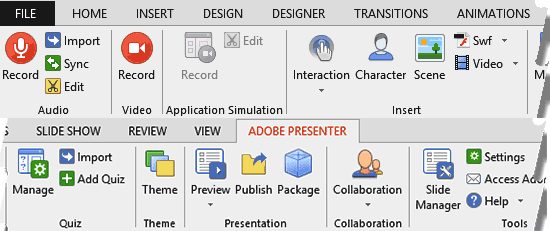
Figure 1: The Presenter tab within the PowerPoint Ribbon
The various options available are placed within groups:
Record, sync, import, and edit voice-overs.
Record your screen activity along with your webcam — and this is where Presenter springs up as a separate, standalone program outside of PowerPoint.
Record application simulations — this option requires that you also have Adobe Captivate installed on your system.
Insert characters, interactions, scenes, videos, and Flash movies.
Create and manage quizzes with a full featured module.
Apply Themes to create a standardized look for Presenter’s output — note that these Themes are not the same as PowerPoint’s Themes.
Publish your Presenter project as a finished file that can be shared — Presenter 9 allows you to publish to tablet platforms such as the iPad.
How much of a learning curve is required to be productive with Adobe Presenter?
Essentially, you must be a PowerPoint user to be able to work with Presenter — if you already know how to use PowerPoint, then Presenter will provide you with a feel of working within that same program — in fact the integration is so seamless, you may as well think you are working inside PowerPoint. Presenter is just another tab in your PowerPoint Ribbon and all options work in the same way as you would expect typical PowerPoint options to behave like.
What’s the newest version of Presenter, and how much does it cost?
The newest version is Presenter 9, and it costs $499. You can also upgrade from Presenter 8, the older version for $199. Additionally, Presenter is also available as a subscription product — you will pay $14.99 a month for an annual subscription.
Are there any resources that will tell me more about Adobe Presenter, and give me a head start with learning the program?
Here are some great resources:
Here’s a video that discusses Presenter 9, the newest version available.
Also here’s an informative video that walks you through Presenter
Filed Under:
Add-ins
Tagged as: Add-in, Adobe Presenter, Online Presentations, PowerPoint
Comments Off on About Adobe Presenter
Microsoft and the Office logo are trademarks or registered trademarks of Microsoft Corporation in the United States and/or other countries.