
This is the print version of this page. All content is copyright Indezine.com 2000-2026.
Thoughts and impressions of happenings in the world of PowerPoint and presentations, continuously updated since 2003.
See Also:
PowerPoint and Presenting Notes
PowerPoint and Presenting Glossary
In the charts you create within PowerPoint, the Chart Area doesn’t show any fill or any kind of formatting unless you have applied a particular Chart Style — in fact the Chart Area is completely transparent with no fill or outline attribute. This default status works well most of the time since essentially the Chart Area is just the area above which all chart elements are placed. However, you can opt to format this area as required — this is quite easy and entails just a few clicks.

Learn how to change appearance of the Chart Area in PowerPoint 2011 for Mac.
Filed Under:
PowerPoint 2011
Tagged as: Charting, Office for Mac, PowerPoint 2011, Tutorials
Comments Off on Learn PowerPoint 2011 for Mac: Chart Area Appearance Options
Gears are amazing as graphics, and even more amazing when they are animated in unison with each other. Gears denote that things are moving, something is happening, and it is happening concurrently as part of a team effort. Yes, gears mean action. Have you ever wanted to use animated or non-animated gear graphics in your PowerPoint slides? For many people, using gears and animating them in PowerPoint can be challenging! Why? That’s because gears come in all sorts of sizes, and even the size of teeth in your gears can differ! And more importantly, the teeth of your gears may not move with each other well. You may spend hours trying to sync gears with each other. Fortunately, we solved all these problems for you! We created these special gear graphics for you that animate perfectly all the time. What’s more, we animated each of these gears, so that you have a painless ready-to-use solution.

Download and use these gears in your slides.
Filed Under:
Clip Media
Tagged as: Animation, Design, Graphics, PowerPoint, Presentation Samples
Comments Off on Gear Graphics for PowerPoint (Series 1 of 5)
Gradient fills are typically blended fills between two or more colors that graduate from one color to another. Although shapes filled with gradients look so incredible, make sure you choose the colors that form the gradient very carefully. PowePoint’s basic gradients are all very useable since they just blend a basic color with white or black making the result lighter or darker.
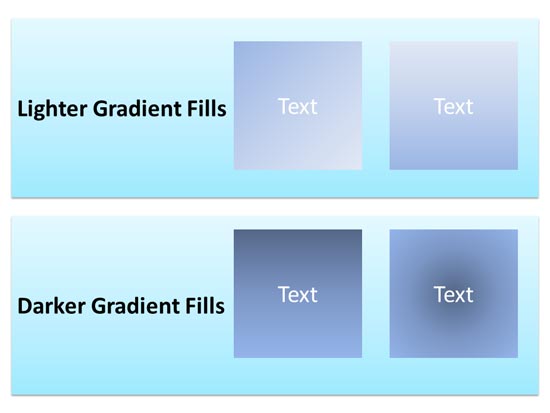
Learn how to add a Gradient fill to a selected shape in PowerPoint 2013 for Windows.
Filed Under:
PowerPoint 2013
Tagged as: Fills, PowerPoint 2013, Shapes, Tutorials
Comments Off on Learn PowerPoint 2013 for Windows: Add Gradient Fills to Shapes
The Chart Area is essentially the entire area that encompasses your chart. Everything on the chart is placed atop this area — thus you can say that the Chart Area is that part of your chart that’s placed below all other chart elements. By default, the Chart Area doesn’t show any fill or any formatting unless you have used a particular Chart Style. Even though this default status works well, you can opt to format as required. You can change the appearance of the Chart Area, or make the entire chart text use a single font attribute, or change the position of the chart on the slide with just a few clicks.

Learn about Chart Area in PowerPoint 2011 for Mac.
Filed Under:
PowerPoint 2011
Tagged as: Charting, Office for Mac, PowerPoint 2011, Tutorials
Comments Off on Learn PowerPoint 2011 for Mac: Chart Area
There is much more you can do to your picture fill after adding a picture fill to a shape — you can play around with the parameters for transparency, tiling, etc. This tutorial covers these advanced options for picture fills in PowerPoint 2013. These extra options can help you if you want your picture fill to stand apart and look out of the ordinary.

Learn how to use advanced picture fill options in PowerPoint 2013 for Windows.
Filed Under:
PowerPoint 2011
Tagged as: Fills, PowerPoint 2013, Shapes, Tutorials
Comments Off on Learn PowerPoint 2013 for Windows: Advanced Picture Fill Options
Microsoft and the Office logo are trademarks or registered trademarks of Microsoft Corporation in the United States and/or other countries.