
This is the print version of this page. All content is copyright Indezine.com 2000-2026.
Thoughts and impressions of happenings in the world of PowerPoint and presentations, continuously updated since 2003.
See Also:
PowerPoint and Presenting Notes
PowerPoint and Presenting Glossary
Drawing shapes is drop-dead easy with the vast repertoire of ready-made shapes available in PowerPoint 2013. You can easily insert these shapes with a click or two, but once in a while you may get stumped. One such scenario is when you need to draw a circle, you’ll find that PowerPoint’s Shape gallery has no Circle shape! Don’t worry, all is not lost because there is an Oval shape and that can be used to draw a perfect circle.

Learn how to draw a perfect circle in PowerPoint 2013 for Windows.
Filed Under:
PowerPoint 2013
Tagged as: PowerPoint 2013, Shapes, Tutorials
Comments Off on Drawing a Perfect Circle in PowerPoint 2013 for Windows
Any typical chart inserted in PowerPoint contains two types of data — one of these show as the Series within your charts, and the second data type ends up representing Categories. By default, the Series are shown as the individual chart elements — for example as individual columns in a column chart. Also, the Series show up as the Legend for the chart. Categories on the other hand constitute the groups of these individual columns. If needed, you can quickly swap the visual representation of Series and Categories in the chart.
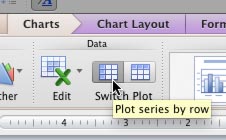
Learn how to switch data for your Series and Categories in PowerPoint 2011 for Mac.
Filed Under:
PowerPoint 2011
Tagged as: Charting, Office for Mac, PowerPoint 2011, Tutorials
Comments Off on Learn PowerPoint 2011 for Mac: Switch Series and Categories for Charts
In this issue, we first explore this new set of Sticky Tape graphics, all with a distinctive polka dot pattern. We then bring you a list of rarely known keyboard sequences that work almost like keyboard shortcuts — learn how you can use these sequences to change views and align objects in PowerPoint. PowerPoint 2013 for Windows users can learn how to space objects, group shapes, and nudge them. PowerPoint 2011 for Mac users can explore tricks with chart series. And finally, do not miss the new discussions and templates of this week!

Read Indezine’s PowerPoint and Presenting News.
Filed Under:
Ezine
Tagged as: Ezine, PowerPoint
Comments Off on PowerPoint and Presenting News: September 24, 2013
If your PowerPoint slide has umpteen shapes or slide objects, you may find that some of these objects are hidden or overlapped. Or you probably do not know if there are any objects hidden behind the large shape or picture on your slide? How can you tackle this issue? It’s easy to solve this problem if you know how to work with the Reorder options. These Reorder options allow you to bring forward any shape or slide object so that it stays right on top of all other objects. Similarly, you can send any shape or slide object behind everything else on your slide.

Learn how to change the order of shapes and other slide objects in PowerPoint 2013 for Windows.
Filed Under:
PowerPoint 2013
Tagged as: PowerPoint 2013, Shapes, Tutorials
Comments Off on Reorder Shapes and Slide Objects in PowerPoint 2013 for Windows
OK, so you want to change the order of your data series? Let’s say your data series are Grapes, Apples, and Bananas — and these show up in exactly the same order. Now, what if you want to change this order to Grapes, Bananas, and Apples? Yes, you could make these changes in the Excel sheet that contains the data for your PowerPoint chart — but there must be an easier way? Indeed, there is — read further to learn.

Learn how to change the order in which chart data series are displayed in PowerPoint 2011 for Mac.
Filed Under:
PowerPoint 2011
Tagged as: Charting, Office for Mac, PowerPoint 2011, Tutorials
Comments Off on Change Order of Chart Data Series in PowerPoint 2011 for Mac
Microsoft and the Office logo are trademarks or registered trademarks of Microsoft Corporation in the United States and/or other countries.