
This is the print version of this page. All content is copyright Indezine.com 2000-2026.
Thoughts and impressions of happenings in the world of PowerPoint and presentations, continuously updated since 2003.
See Also:
PowerPoint and Presenting Notes
PowerPoint and Presenting Glossary
Continuing our pushpin series, this set of pushpins looks a little different — in fact these pushpins look akin to map pins, just larger! If you need to use any of these ready-made pushpin graphics on your slides, then all you need to do is download the files. These pushpin graphics are made available in five colors within the downloaded PowerPoint slides. Just copy them and paste them on the edges of pictures in your presentation. Use these pushpin graphics on your slides to create a look that makes a picture, shape, or anything else appear as if it has been pushed onto a surface, notice-board, or wall with a pin! Have fun, and enjoy using these pushpins!

Download and use these pushpins in your slides.
Filed Under:
Presentation Bank
Tagged as: Design, Graphics, PowerPoint, Presentation Samples
Comments Off on Handmade Slides: Pushpins for PowerPoint – 06
Why would you want to add a video clip within a PowerPoint slide? There are plenty of wrong reasons, and a few good ones — let us explore the good reasons and then show you how you can add a video clip to your slide in PowerPoint 2011 for Mac. Here are some good reasons.

Learn how to insert a video (movie) clip in PowerPoint 2011 for Mac.
Filed Under:
PowerPoint 2011
Tagged as: Movies, Office for Mac, PowerPoint 2011, Tutorials, Video
Comments Off on Learn PowerPoint 2011 for Mac: Insert Video (Movie) Clips
Like Gridlines, Guides also allow you to position and snap your slide objects in place. When guides are enabled for the first time within PowerPoint, you can just see two guides by default. These guides are two dotted lines, one horizontal and the other vertical. They span to intersect exactly at the center of the slide.
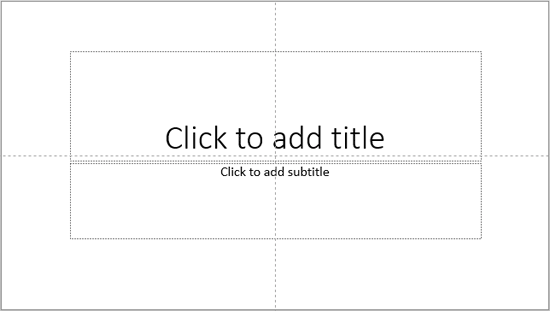
Learn about viewing and hiding Guides in PowerPoint 2013 for Windows.
Filed Under:
PowerPoint 2013
Tagged as: PowerPoint 2013, Tutorials
Comments Off on Learn PowerPoint 2013 for Windows: Guides
More pushpin graphics for your slides! These ready-made pushpin graphics are so easy to use since they are already placed within the presentation you will download. You’ll find them in five colors — just copy them from the downloaded slide and paste on your own slides! These pushpins make your pictures, shapes, or anything else appear as if they have been pushed onto a surface, notice-board, or wall with a pin!

Download and use these pushpins in your slides.
Filed Under:
Presentation Bank
Tagged as: Design, Graphics, PowerPoint, Presentation Samples
Comments Off on Handmade Slides: Pushpins for PowerPoint – 05
All the transform effects that you apply to your text may or may not suit your requirements every time. While some of these effects need to be made subtle, some other may need to be made more prominent. In fact, you can go ahead and tweak any of the presets to come up with your own distinctive transform effect. In this tutorial you’ll learn how to tweak the Transform text effect in PowerPoint.

Learn how you can tweak your text transforms beyond the available presets in PowerPoint 2011 for Mac.
Filed Under:
PowerPoint 2011
Tagged as: Office for Mac, PowerPoint 2011, Text, Tutorials
Comments Off on Learn PowerPoint 2011 for Mac: Advanced Text Transforms
Microsoft and the Office logo are trademarks or registered trademarks of Microsoft Corporation in the United States and/or other countries.