
This is the print version of this page. All content is copyright Indezine.com 2000-2026.
Thoughts and impressions of happenings in the world of PowerPoint and presentations, continuously updated since 2003.
See Also:
PowerPoint and Presenting Notes
PowerPoint and Presenting Glossary

Drew Banks is the Head of Marketing at Prezi. After treading across NC State’s “Brickyard” plaza and down MIT’s infinite corridor, Drew cut his entrepreneurial teeth within game-changing companies such as SAS and Silicon Graphics. Hooked on disruptive innovation, Drew co-founded Pie Digital in 2005 to make home networking easy as pie! At Prezi, Drew returns to his SGI-spawned passion to change the world through visualization. Drew also writes. He’s published a couple of business books on communications and social media, as well as a couple of novels on … life.
In this conversation, Drew discusses how Prezi evolved, and what sets it apart.
Geetesh: Prezi now has 20 million registered users. What does this large user base mean to the folks at Prezi? Can you share some thoughts?
Drew: Our 20+ million users — and growing at over a million users a month — are a vast source of inspiration. They inspire through the ideas they share through Prezi and through their feedback that helps us continually evolve our product. They also inspire us through their passionate evangelism of Prezi. This viral user advocacy has been core to Prezi’s success and proof that Prezi has a deep value that is worth sharing. That’s how great ideas spread.
Geetesh: Many people know little about how Prezi originated – can you share some history?
Drew: The first Prezi prototype was built by Adam Somlai-Fischer, an architect and designer in Budapest. Adam’s urban art installations were receiving international acclaim and he began speaking at conferences around the world. He needed a way to showcase his work so he hand-coded a ZUI (zoomable user interface) that enabled him to show an overview of his various projects and then zoom in and out of details.
A professor at Budapest University of Technology, Péter “HP” Halácsy, saw Adam’s tool and approached him about using it for an upcoming lecture. Soon after, Adam and HP partnered to work on a commercial editor so anyone could create zooming presentations and share their ideas. They sought some business advice from an entrepreneur, Peter Arvai, and Peter convinced HP and Adam to quit their full time jobs and form a company around this concept. Soon after Prezi launched in 2009, Peter persuaded Chris Anderson of TED Conferences to invest and the company opened its San Francisco office. The combination of Prezi’s disruptive product and shrewd model resulted in immediate financial success; the company has cash-flow positive since year one.

The views and opinions expressed in this blog post or content are those of the authors or the interviewees and do not necessarily reflect the official policy or position of any other agency, organization, employer, or company.
Filed Under:
Interviews
Tagged as: Interviews, Online Presentations, Prezi
Comments Off on 20 Million Prezi Users: Conversation with Drew Banks
Here’s another set of pushpin graphics that look like real pushpins on your slides! These ready-made pushpin graphics are contained within the presentation you will download and can be used within your slides to create a look that makes a picture, shape, or anything else appear as if it has been pushed onto a surface, notice-board, or wall with a pin! You’ll see them in five colors. Just copy them and paste them on the edges of pictures in your presentation.


Download and use these pushpins in your slides.
Filed Under:
Presentation Bank
Tagged as: Design, Graphics, PowerPoint, Presentation Samples
Comments Off on Handmade Slides: Pushpins for PowerPoint – 04
When working with multiple slide objects, you should have a visual cue about where you are placing slide objects. You can get exact coordinates of your slide objects using the positioning options in PowerPoint — but most of the time, you just need an approximate idea of where your objects are placed — and this can be easily obtained by using the Rulers available option in PowerPoint. By default, the Rulers may not visible, but when made visible — they are located on the top and left parts of the active slide.
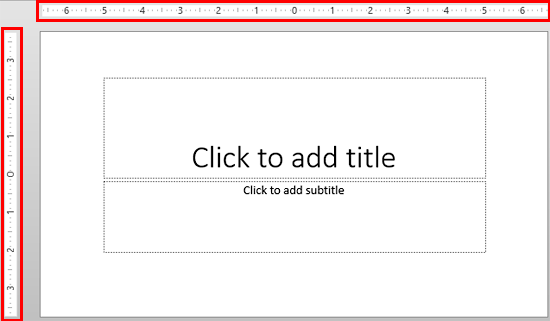
Learn about viewing and using Rulers in PowerPoint 2013 for Windows.
Filed Under:
PowerPoint 2013
Tagged as: PowerPoint 2013, Tutorials
Comments Off on Learn PowerPoint 2013 for Windows: Rulers
Text is best left alone most of the time — plain text with a solid color can look so clean and understated that it really does not make any sense playing too much with its appearance. Yet there are times when you want a single word or phrase to stand out — it’s for those few times that you should explore stylizing your text in PowerPoint. Among these stylizing options, we have already explored Text Fills and Text Outlines — and we have also learned how to apply various WordArt styles in PowerPoint. Now let us learn how to apply and edit various text effects such as Shadow, Reflection, Glow, 3-D Rotation, Transform, etc. to your text.

Learn about various Text Effects available in PowerPoint 2011 for Mac.
Filed Under:
PowerPoint 2011
Tagged as: Office for Mac, PowerPoint 2011, Text, Tutorials
Comments Off on Learn PowerPoint 2011 for Mac: Text Effects
PowerPoint 2013’s tri-paned interface has three regions: the Slides pane, the Slide area, and the Notes pane. The Notes pane is placed right below the Slide area. The Notes pane provides space to add speaker’s notes that can be so helpful to the presenter while presenting — you can also write any sort of information about the presentation or individual slide.

Learn about Notes Pane within PowerPoint 2013 for Windows.
Filed Under:
PowerPoint 2013
Tagged as: PowerPoint 2013, Tutorials
Comments Off on Learn PowerPoint 2013 for Windows: Notes Pane
Microsoft and the Office logo are trademarks or registered trademarks of Microsoft Corporation in the United States and/or other countries.