
This is the print version of this page. All content is copyright Indezine.com 2000-2026.
Thoughts and impressions of happenings in the world of PowerPoint and presentations, continuously updated since 2003.
See Also:
PowerPoint and Presenting Notes
PowerPoint and Presenting Glossary
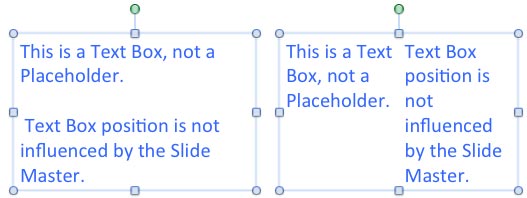
You might have seen columnar text layouts often in Word documents or even in published formats used by desktop publishing software. PowerPoint 2011 may not give you all those bells and whistles, but it does provide you with some essential column capabilities, although don’t expect anything close to the controls provided by word processing applications. In PowerPoint, you can set up a text container to possess multiple linked columns.
Filed Under:
PowerPoint 2011
Tagged as: Office for Mac, PowerPoint 2011, Text, Tutorials
Comments Off on Learn PowerPoint 2011 for Mac: Columns within Text Containers

Dag Hendrik Lerdal is a 29 year old entrepreneur and Software Engineer with an MSc in Communication Technology living in Trondheim, Norway. After finishing his Master’s degree at the Norwegian University of Science and Technology, he co-founded Preseria AS in 2008. The company develops technology and services related to planning, administration, execution and publishing of digital presentations in context of seminars, meetings and conferences.
In this conversation, Dag discusses the release of his new SlideDog program.
Geetesh: Can you share your thoughts about SlideDog, and how the beta helped shape the final product?
Dag: SlideDog has come a long way since we launched the beta earlier this year. The main issue people had with the beta was the waiting time between file switches. This has been fixed in the new release as we now pre-load all presentation files in the playlist before entering “show mode”. Users won’t experience any delay when switching between files using the new SlideDog. In addition to giving us feedback and providing us with usage metrics, the beta testers helped us gain a much clearer view on the presentation market and what people really need when doing presentations . We’ve temporarily removed some of the features that were included in the beta, but most of these and a couple of really cool new features will appear on www.slidedog.com very soon. We’re really excited to bring seamless presentations to the world!

Geetesh: What are the file formats that SlideDog can play with, and does the end user need any of those applications locally installed?
Dag: SlideDog currently supports PowerPoints, PDFs, Images, Prezis, Videos and Web pages. By web pages we mean that you can add any URL and hence show any presentation format that is playable in a web browser such as YouTube clips, Google Docs, SlideRocket presentations, etc. To show local files you need Office or PowerPoint Viewer, Adobe Reader or Acrobat, Google Chrome and VLC installed on your machine.

See Also: SlideDog Beta: Conversation with Dag Hendrik Lerdal
The views and opinions expressed in this blog post or content are those of the authors or the interviewees and do not necessarily reflect the official policy or position of any other agency, organization, employer, or company.
Filed Under:
Interviews
Tagged as: Interviews, Online Presentations, PowerPoint
Comments Off on SlideDog: Conversation with Dag Hendrik Lerdal
Besides many other new features, PowerPoint 2013’s most noticeable cosmetic change is its user interface. Additionally, PowerPoint 2013 (and all other applications of Office 2013) now introduces the concept of “Office Background”, which essentially is the small image strips visible on the top right area of the program interface. Looks like PowerPoint just got tattooed?

Learn how to change the Office Background in PowerPoint 2013 for Windows.
Filed Under:
PowerPoint 2013
Tagged as: PowerPoint 2013, Tutorials
Comments Off on Learn PowerPoint 2013 for Windows: Office Background
These frame corners are all included as graphics that you can copy from within the PowerPoint presentation that you download. Use these frame corners in your presentation and make your pictures stand out. You will find these frame corners in both black and white colors, and also filled with some solid colors, textures and gradients. Just copy and paste them as individual frame corners over your inserted pictures (or other slide objects). Place the first frame corner on the top-left corner of your picture and resize as required. For the remaining three corners, duplicate this frame corner, and place the duplicates on the other three corners, and rotate them as required.


Download and use these frame corners in your slides.
Filed Under:
Presentation Bank
Tagged as: Design, Graphics, PowerPoint, Presentation Samples
Comments Off on Handmade Slides: Frame Corners for PowerPoint – 05
To make a PowerPoint presentation visually strong you can add shapes and pictures. And of course you can fill your shapes with pictures — sometimes you end up with not so desirable results. Primarily, you’ll find that PowerPoint insists on filling the entire picture to a shape — in the process, the picture itself may appear distorted. This completely destroys the look you may want to attain. Fortunately, regaining the lost proportion is an easy option, as you will learn in this tutorial.

Filed Under:
Uncategorized
Tagged as: Pictures, PowerPoint 2010, Tutorials
Comments Off on Learn PowerPoint 2010 for Windows: Reposition Picture Fills with Crop
Microsoft and the Office logo are trademarks or registered trademarks of Microsoft Corporation in the United States and/or other countries.