
This is the print version of this page. All content is copyright Indezine.com 2000-2026.
Thoughts and impressions of happenings in the world of PowerPoint and presentations, continuously updated since 2003.
See Also:
PowerPoint and Presenting Notes
PowerPoint and Presenting Glossary

Dave Paradi is the author of “The Visual Slide Revolution” and “102 Tips to Communicate More Effectively Using PowerPoint”. He helps presenters communicate more effectively by using persuasive PowerPoint presentations. He has published over 270 issues of his bi-weekly newsletter, produced more than 70 slide makeover video podcasts and appears in media regularly. His web site is called Think Outside The Slide.
In this conversation, Dave discusses his new book, Present It So They Get It.
Geetesh: Your new book, Present It So They Get It focuses on the need for making your audiences “understand” effectively — what motivated you to write this book?
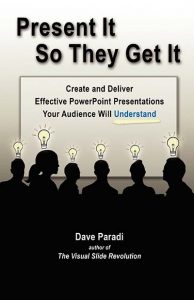 Dave: In last year’s survey of what annoys people about bad PowerPoint presentations, the message from audience members was clear that they are fed up with information overload. They want to understand the key message the presenter has to deliver, but the message gets lost in the overwhelming amount of text and data. Presenters and audiences alike want the message to be understood so people can take action. I realized that presenters needed a guide to help them plan a clear message that contains only the information the audience needs to hear, and a guide for creating effective slides to help communicate the message during the presentation. This book addresses both of those areas.
Geetesh: How are you sure that audiences don’t understand a lot, and what takeaways does your book provide to the reader to make audiences grasp more?
Dave: I hear from executives all the time that they need their people to be clearer, or else the decision makers can’t take action. We see this lack of clarity when an executive asks for another presentation on the same topic because the first presentation wasn’t clear. We hear a management team limit presenters to only a few slides, in an attempt to get presenters to be focused with their message.
In the book, I detail my six step RAPIDS approach to planning your presentation. One of the steps that participants in my workshops always comment on is the I, which stands for Information that is laser focused. I provide five strategies for reducing the amount of information in your presentation down to the minimum required. When participants see how they can dramatically reduce the amount of information they provide and actually make the message clearer, they are amazed. I also provide tips for applying the RAPIDS approach to the four most common types of presentation in business today, so readers have a guide to follow when planning their presentation. The second half of the book gives readers a step-by-step approach to creating effective slides with concrete examples and best practices. This practical guide is easy to follow and implement. In my workshops, participants often comment that they won’t be able to look at a PowerPoint presentation the same way now that they have learned the ideas and approaches in this book.
You May Also Like: 102 Tips to Communicate More Effectively Using PowerPoint: Conversation with Dave Paradi
The views and opinions expressed in this blog post or content are those of the authors or the interviewees and do not necessarily reflect the official policy or position of any other agency, organization, employer, or company.
Filed Under:
Interviews
Tagged as: Books, Dave Paradi, Interviews, PowerPoint, Presentation Skills
Comments Off on Present It So They Get It: Conversation with Dave Paradi
It’s been 5 years since Microsoft moved from the older Template format (POT) to the new Theme / Template formats (THMX and POTX) with the launch of PowerPoint 2007. Since then four PowerPoint versions for Mac and Windows have been launched with support for these new formats. Yet, most if not all PowerPoint templates that you will encounter in a typical Google search are limited to file formats that are many, many years old! Why is it so?
That’s because creating proper THMX Theme files is almost a dark art — many template vendors do not know where to begin! Converting their huge POT PowerPoint template collections would take ages — and they are happy to sell you their old stuff. There’s more — many users still have not upgraded to the newer PowerPoint versions, and they still need the older POT format! We understand that most of you therefore need a solution that not only keeps your PowerPoint template collection contemporary — but also allows you to work with older versions! And this solution is available to all of you as part of a never-before and probably never-after offer!
Filed Under:
Ezine
Tagged as: Ezine, PowerPoint, Templates, Themes
Comments Off on Amazing Ppted Offer
Internal margins control the amount of blank space between the perimeter (edge) and the actual text within all three types of text containers — text boxes, text placeholders and shapes. Although these margins are similar to the margins of pages in a word-processing document like Microsoft Word, there is a significant difference. Each text container has its own individual margins set, and you can have entirely different margins for one or more text containers, even if they reside on the same slide. In this tutorial, we will explore how to set and change these internal margins for text within a text container in PowerPoint 2011.

Learn about setting internal margins for text containers in PowerPoint 2011 for Mac.
Filed Under:
PowerPoint 2011
Tagged as: Office for Mac, PowerPoint 2011, Text, Tutorials
Comments Off on Learn PowerPoint 2011 for Mac: Internal Margin Options
We already broadly explored Crop options in PowerPoint 2010. While you can do conventional cropping within PowerPoint, you can also decide to not crop within the typical rectangular constraints, and use another shape instead. This tutorial explains the Crop to Shape option that lets you choose non-rectangular cropping shapes for your pictures — the results tend to look like a picture has been contained within a shape.

Learn how to crop pictures using Crop to Shape option in PowerPoint 2010 for Windows.
Filed Under:
PowerPoint 2010
Tagged as: Pictures, PowerPoint 2010, Tutorials
Comments Off on Learn PowerPoint 2010 for Windows: Crop Pictures (Crop to Shape)
These “pushpin” graphics are already placed in PowerPoint slides – just copy them and paste within your slides to create a look that makes a picture, shape, or anything else appear as if it has been pushed onto a surface, board, or wall with a pin! These ready-made pushpins are already within PowerPoint slides — and have been provided in five colors. Just copy them and paste them on your slides.


Download and use these pushpins in your slides.
Filed Under:
Presentation Bank
Tagged as: Design, Graphics, PowerPoint, Presentation Samples, Pushpins
Comments Off on Handmade Slides: Pushpins for PowerPoint – 01
Microsoft and the Office logo are trademarks or registered trademarks of Microsoft Corporation in the United States and/or other countries.