
This is the print version of this page. All content is copyright Indezine.com 2000-2026.
Thoughts and impressions of happenings in the world of PowerPoint and presentations, continuously updated since 2003.
See Also:
PowerPoint and Presenting Notes
PowerPoint and Presenting Glossary
There are so many ways in which you can create a better chart or a diagram using nothing apart from the tools available in PowerPoint — yet playing with all these options does take a fair amount of time. If you want something quick, and also want the graphic content of your slides to shine through, then you may want to explore our review product: CrystalGraphics Chart and Diagram Slides for PowerPoint. Charts and Diagram Slides for PowerPoint is from CrystalGraphics, a well-known vendor of PowerPoint add-ins for more than a decade. This add-in comprises over 1000 data-driven charts and editable diagrams. All the content is available as slides that you insert into your existing presentations. While the entire content is available as PowerPoint slides (in the PPTX format), the best way to use these is via a custom add-in that plugs into PowerPoint.

Explore CrystalGraphics Chart and Diagram Slides for PowerPoint.
Filed Under:
Reviews
Tagged as: Add-in, Charting, CrystalGraphics, Graphics, PowerPoint, Review
Comments Off on CrystalGraphics Chart and Diagram Slides for PowerPoint: The Indezine Review
After spending an inordinate amount of time to create your PowerPoint presentation, your computer unexpectedly crashes or your computer just shuts off due to a power failure. Or maybe just PowerPoint crashes for any number of reasons. Of course, since you had zero warnings, your files were not saved — you are thus left with the state of your last saved presentation. Not really because you can restart PowerPoint, and one of two occurrences might happen.

Learn how to automatically recover your unsaved presentation in PowerPoint 2010 for Windows.
Filed Under:
PowerPoint 2010
Tagged as: PowerPoint 2010, Tutorials
Comments Off on Learn PowerPoint 2010 for Windows: Recovering Presentations Automatically
After a typical presentation, how much do attendees remember when they walk out of the room? Are there some parts of a presentation that they remember more, and if that’s true, then why?
What can presenters and slide designers do so that the audience can have a better memory recall about their message and content?
These were the questions we sent to Dr. Carmen Simon earlier this year. Her response was that we typically forget approximately 70% of content after 48 hours. She also added that no one has verified the topic of memory when it applies to slides, namely: how many slides people remember (or forget) after 48 hours. She had already pondered these questions before and was intrigued enough to put together a study. She calls it a major endeavor and needs real audience input now — the purpose of her study is to find the answers to these questions. Empirically!

Filed Under:
Guest Posts
Tagged as: Carmen Simon, PowerPoint, Survey
Although PowerPoint 2011 for Mac provides several Theme Fonts sets, it doesn’t allow you to create custom Theme Fonts sets within PowerPoint or in any other Office program. This ability is provided in PowerPoint for Windows, but it’s one of those features that’s not available on Mac versions of the program. So why is it important to be able to edit and create custom Theme Fonts sets?
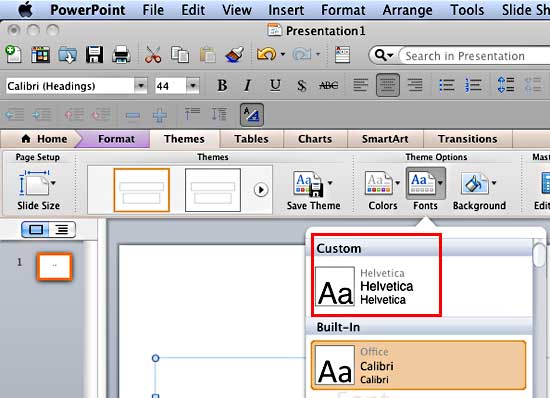
Learn how to share and delete the custom Theme Fonts in PowerPoint 2008 and 2011 for Mac.
Filed Under:
PowerPoint 2011
Tagged as: Fonts, Office for Mac, PowerPoint 2008, PowerPoint 2011, Text, Themes, Tutorials
Comments Off on Learn PowerPoint 2011 for Mac: Sharing and Deleting Custom Theme Fonts
Countless voices will tell you that it’s a sin to make your audiences suffer with slides that are populated with bullets, but ask for a solution and the voices will diminish to just one or two. And even then, you may not be able to use all the advice!
So, here’s one option: a no-bullets alternative that uses callouts as an alternative to bulleted lists. Make sure you notice ways to get in your pictures, charts, and tables within this callout style. Also this question and answer (you can just call it a “conversation”) format will help you involve your audience much better, especially if you animate the callouts and their connectors sequentially one after the other. Even better, use the Push transition effect for your slides to get the most from this style.

Download the sample presentation and use as required.
Filed Under:
Presentation Bank
Tagged as: No Bullets, PowerPoint, Presentation Samples
Comments Off on No Bullets Alternatives in PowerPoint — 01
Microsoft and the Office logo are trademarks or registered trademarks of Microsoft Corporation in the United States and/or other countries.