
This is the print version of this page. All content is copyright Indezine.com 2000-2026.
Thoughts and impressions of happenings in the world of PowerPoint and presentations, continuously updated since 2003.
See Also:
PowerPoint and Presenting Notes
PowerPoint and Presenting Glossary
In this series of tutorials on Slide Transition in PowerPoint 2011, you have already learned how to add Slide Transitions to your slides, and how you change the Transition Duration (speed). In this tutorial we’ll show you how to change Transition Time. Remember that Transition Duration and Transition Time are not the same. Transition Time is the actual time for which the slide stays on the screen during a slide show before moving on to the next slide. Transition Duration is the amount of time taken to move between slides.

Learn how to set the Slide Transition Time in PowerPoint 2011 for Mac.
Filed Under:
PowerPoint 2011
Tagged as: Office for Mac, PowerPoint 2011, Transitions, Tutorials
Comments Off on Learn PowerPoint 2011 for Mac: Slide Transition Time

Andy Zimmerman is chief marketing officer for Brainshark, Inc., Brainshark’s cloud-based software lets users create online and mobile video presentations — using simple business tools like PowerPoint and the phone or computer microphone — and share and track their content. Thousands of companies use Brainshark to improve the reach and results of their business communications, while dramatically reducing costs.
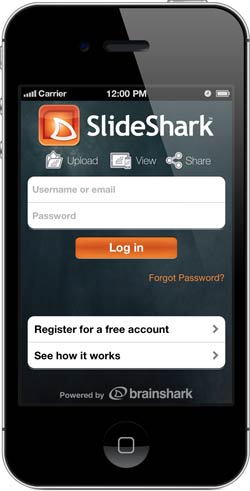
In this conversation, Andy discusses the SlideShark iPad app Brainshark debuted last fall — and today’s launch of SlideShark for the iPhone.
Geetesh: What is the new SlideShark iPhone app, and how is it different from your regular iPad app?
Andy: We’re very excited to be launching SlideShark on the iPhone today. It’s a free app, available in Apple’s App Store (link no longer exists) and at SlideShark site.
As you know, we introduced SlideShark as an iPad-only app last October. The app gives users the ability to view and show PowerPoints properly on their iPads — with fonts, animations, graphics and colors intact — while also providing a platform for sharing, tracking and managing PowerPoint content in the cloud. Prior to SlideShark, these types of interactions with PowerPoint just weren’t possible on the iPad, and so we’ve seen huge demand… with two downloads of the app per minute, 24×7. Cognizant of this market need, we wanted to extend SlideShark’s capabilities and benefits to other iOS users.
Our new SlideShark iPhone app, in effect, puts PowerPoint in your pocket. It solves the same problem our iPad app did — and enables iPhone and iPod touch users to view and present their PowerPoint decks properly and reliably, the way they were meant to be seen. This includes the ability to connect the iPhone or iPod touch to TVs or projectors to deliver presentations — easily and professionally — to large audiences. In addition, just like on an iPad, now you can use SlideShark to share links to online versions of PowerPoint presentations and track the viewing on an iPhone or iPod touch as well. And if you have multiple iOS devices — for example, an iPhone and an iPad — you can access all of your content, conveniently, from the same free, secure, cloud-based account.
It’s also worth noting that we’ve introduced a zoom feature for the SlideShark iPhone app, which is tailored to the small device form factor. Users now have the ability to zoom in and out using standard pinch gestures, so they can better view their slide content.
Geetesh: Why is the iPhone important as a delivery platform for SlideShark?
Andy: At Brainshark, we’re committed to supporting enterprise mobility. Tablets play a huge role — often helping business travelers leave their laptops at home — and smartphones continue to be an absolute must-have for business users on-the-go as well. No one leaves home without them! In both cases, Apple’s hugely popular and functional devices are seeing large adoption in the enterprise.
With this in mind, it was important to introduce SlideShark on the iPhone to open up SlideShark’s benefits to an even wider audience. iPhones are so pervasive among business users, and everyone carries their phone everywhere — so now sales reps, for instance, can whip out their devices and use SlideShark to quickly review an important presentation, show the slides during an impromptu conversation and tap share to send out an online version of the deck. They can also quickly plug their iPhone into a projector for a presentation to a larger group. The possibilities and uses are far-reaching.

As I mentioned, our new app also makes SlideShark even more useful to people with multiple iOS devices. They now have the flexibility to access their account and use SlideShark from whichever iOS device they prefer — be it iPad, iPhone or iPod touch.
We look forward to continuing to support mobile professionals with innovative functionality that makes their lives easier, and also look forward to our users’ feedback on this new app.
You May Also Like: iSpring Converter: The Indezine Review | Mad for the iPad Survey: Conversation with Joan Babinski
The views and opinions expressed in this blog post or content are those of the authors or the interviewees and do not necessarily reflect the official policy or position of any other agency, organization, employer, or company.
Filed Under:
Interviews
Tagged as: Andy Zimmerman, Brainshark, Interviews, iPhone, PowerPoint
In this issue of the newsletter, we explore the PowerPoint 2013 interface, and bring you a conversation with Art Holden of PresenterMedia about the use of their add-in to bring in visual content to your slides. We also bring you a compilation of keyboard shortcuts for PowerPoint 2011 for Mac. And you get more concept slides to download and use in your presentations: a two segment circle as well as a third series of people chain silhouettes. We also have tutorials on changing text case, sharing Theme Fonts, and media actions in PowerPoint 2010 for Windows, and the use of animations and transitions in PowerPoint 2011 for Mac.
Filed Under:
Ezine
Tagged as: Ezine, Indezine, News, PowerPoint
Comments Off on Indezine News: September 4, 2012
PowerPoint 2007, 2010, and 2013 include several built-in Theme Fonts sets. Additionally, you can also create custom Theme Fonts sets from within PowerPoint — however this provides limited abilities because you can only change the fonts used for the Latin script. If your organization uses multiple scripts, or if you want to explore extra options available within the Theme Fonts specifications, you can easily edit or create your own custom Theme Fonts by editing the actual files. Yes, all Theme Fonts sets comprise a few lines of code within an Open XML file. You can open any Theme Fonts file with the .XML extension, and then edit them within a text editor such as Notepad. Save this file with a new name in a designated folder and you actually end up creating your own custom Theme Fonts set!
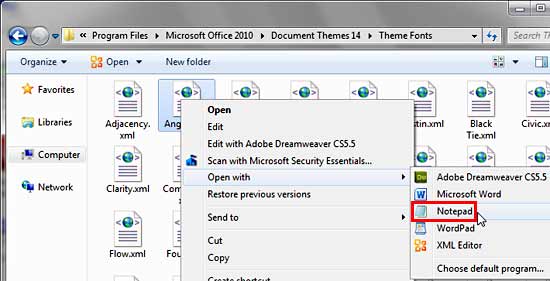
Learn how to create custom Theme Fonts using XML in Windows.
Filed Under:
PowerPoint 2010
Tagged as: Fonts, PowerPoint 2007, PowerPoint 2010, PowerPoint 2013, Text, Themes, Tutorials
Comments Off on Learn PowerPoint 2010 for Windows: Create Custom Theme Fonts Using XML
Slide transitions in PowerPoint have a fixed, default duration. While some slide transition effects such as Cut take a fraction of a second to take place, other effects like Reveal can take more than 3 seconds to occur. Now these are the default times for the effects — you are not limited to using only the available time spans since you can always increase or decrease the slide transition duration as you deem fit.

Learn how you can change the Slide Transition Duration in PowerPoint 2011 for Mac.
Filed Under:
PowerPoint 2011
Tagged as: Office for Mac, PowerPoint 2011, Transitions, Tutorials
Comments Off on Learn PowerPoint 2011 for Mac: Slide Transition Duration
Microsoft and the Office logo are trademarks or registered trademarks of Microsoft Corporation in the United States and/or other countries.