
This is the print version of this page. All content is copyright Indezine.com 2000-2026.
Thoughts and impressions of happenings in the world of PowerPoint and presentations, continuously updated since 2003.
See Also:
PowerPoint and Presenting Notes
PowerPoint and Presenting Glossary
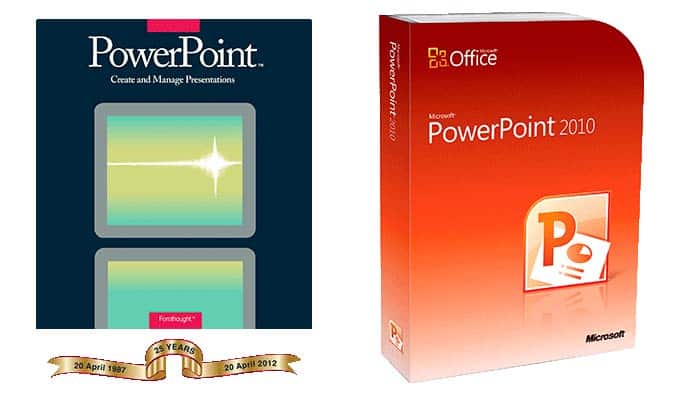
PowerPoint celebrated its 25th birthday last month, and in a special world exclusive, we have Robert Gaskins, the founder of PowerPoint reminisce about how PowerPoint might have been named Presenter if someone else did not trademark that name. And in a curious turn of events, one of the commentators of his post owns up to trademarking the Presenter name. Post 25 years, the world is a small place! We also look at the new PowerPoint 2013 from a developer perspective this week.
Filed Under:
Ezine
Tagged as: Ezine, Indezine, News, PowerPoint
Comments Off on Indezine News: PowerPoint at 25
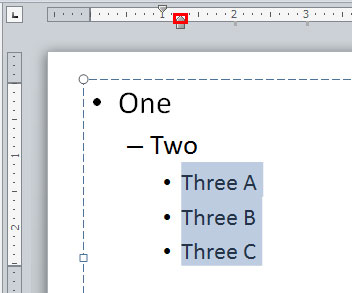
How your paragraphs get positioned as a bulleted list within PowerPoint’s text placeholders or another text object is influenced by three types of Indent Markers: The First Indent Marker, the Hanging Indent Marker, and the Left Indent Marker. Of the three Indent Markers you can see on the Ruler, the Hanging Indent Marker is used to tweak the position of the paragraph following the bullet. The Hanging Indent Marker is also known as the Middle Caret.
Filed Under:
PowerPoint 2010
Tagged as: PowerPoint 2010, Text, Tutorials
Comments Off on Learn PowerPoint 2010 for Windows: Hanging Indent Marker
Once you have an animation applied to a particular slide object, the need to change that animation may arise for several reasons: You realize that another animation effect would work better, or you want to make all animations across the entire presentation consistent. You may also want to use a more subtle or exciting animation effect. Typically, in the situations like these, users can just remove the animation and apply another animation to the slide object. But, PowerPoint’s Change Animation option makes this a one-click step.

Filed Under:
Uncategorized
Tagged as: Animation, Office for Mac, PowerPoint 2011, Tutorials
Comments Off on Learn PowerPoint 2011 for Mac: Change Animations
Among the various improvements that authorSTREAM made to their video engine, HD video conversion is the one that stands apart. This improvement is significant since it will make all the difference in the world to those who need to quickly create high resolution video output. So what do you need to create this high quality video output, and where can you use it? Let’s first answer the second question and then look at the first one for the rest of this post.
Video is no longer the realm of only those who sit in front of high end systems with software worth thousands of dollars installed. Everyone wants to create a quick video — perhaps for one of these reasons:
A new offer, product, or feature has been introduced and you need a quick video promotional — som1. ething quick, or even a prototype before you meet with your ad agency to do a shoot with models, locations, and hundreds of other nuances.
You work in a television studio and need a quick mock up of your ideas for a full production or just a single episode.
You are taking part in a large event that includes an expo — you can provide a quick 4 or 5 minute video clip that will be shown on LEDs all over the venue.
You want a quick video clip with music and photographs to show for a family wedding, anniversary, or birthday party. You’ll show this on a high res display — so the resolution has to be high quality.
You want to do a semi-presentation session that has slides with text — and also many pictures, animated objects, and video clips. However all this needs to be shown on a television without a laptop or tablet connected — and it may have to be a self running video clip.
Of course, we just highlighted five typical scenarios — and no doubt, there will many other situations that may be similar to these.
You can of course fire up PowerPoint and easily add all the pictures and text that you need. Add sound or video clips as required, and what do you do next? If you use PowerPoint 2010, you could use the Create a Video option — but that again has limitations. It does not loop media such as audio and video clips, and does not provide HD quality output. Also, you may be using an older version of PowerPoint — or one of PowerPoint’s Mac versions that has no Create a Video option.
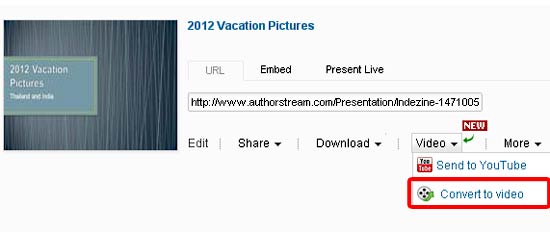
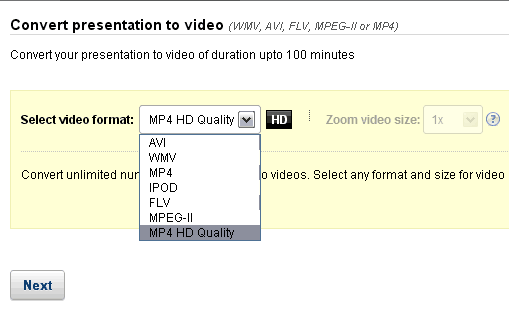
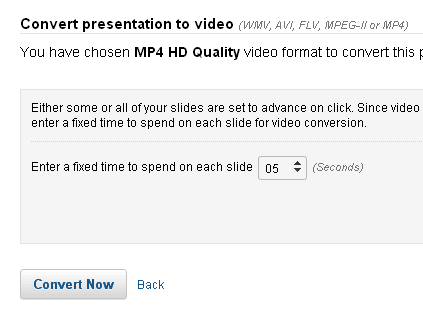
authorSTREAM’s solution lets you to upload your PowerPoint to their servers, and you then let them take care of the rest. Soon after you upload the slides to their site, you can choose an HD video output option. As soon as your HD video is ready, you’ll receive an email asking you to download your video clip!
Do note though that authorSTREAM’s HD output options are not free, and you may have to pay a small amount to access this feature. If you already are subscribed to one of their premium subscription plans, then the HD video output options are already included within the plan.
To get started, you can follow these steps:
Do note that the presentation we uploaded was in the wide screen format. If you still have not played the embedded presentation, above — then you might see a 4:3 window, but play it and it shows thereafter in 16:9. Although authorSTREAM doesn’t seem to officially support the 16:9 wide screen format, it did work for us!
Our contact at authorSTREAM for this post was Dinesh Awasthi. Thank you, Dinesh.
Filed Under:
Companion Programs
Tagged as: authorSTREAM, PowerPoint, Video
Comments Off on authorSTREAM’s HD Video Output
These ready-made silhouette graphics of people holding hands are inspiring, and also so practical to use since they don’t represent any community or nationality. You can use them to depict themes such as unity, togetherness, diversity, team spirit, etc.

Download the slides and use the silhouettes in your presentation.
Filed Under:
Presentation Bank
Tagged as: Graphics, PowerPoint, Presentation Samples
Comments Off on People Chain Silhouettes for PowerPoint – 02
Microsoft and the Office logo are trademarks or registered trademarks of Microsoft Corporation in the United States and/or other countries.