
This is the print version of this page. All content is copyright Indezine.com 2000-2026.
Thoughts and impressions of happenings in the world of PowerPoint and presentations, continuously updated since 2003.
See Also:
PowerPoint and Presenting Notes
PowerPoint and Presenting Glossary
You animate text just the way you animate any slide object in PowerPoint. Additionally, there’s more you can do to text animation, as we shall explore in this tutorial. By default, when you animate a text placeholder or text box, all the text contained animates at one go unless your text content is within a bulleted or numbered list — in that case, all text animates as sequenced bulleted lists. Even then, the animation is sequenced to first level paragraphs (first level bullets) only — and any sub-bullet levels contained in your text placeholders or text boxes animate along with its parent level. In this tutorial you will learn how you can access some specialized options for animating paragraphs and bulleted text sequentially by words, by letters, and by paragraph levels.
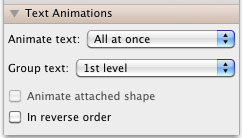
Explore the options available for text animation in PowerPoint 2011 for Mac.
Filed Under:
PowerPoint 2011
Tagged as: Animation, Office for Mac, PowerPoint 2011, Text, Tutorials
Comments Off on Learn PowerPoint 2011 for Mac: Animate Text
You may call them squares or rectangles, or if you are Metro-inspired, you may call them tiles. For the reasons of simplicity, let us just call them boxes. It does not matter what you call them, but most presenters use these boxes so often in their slides. It’s easy to understand why these boxes are so popular – they can be added to your slides with one click, and you can type any text right inside them.

Learn how to create organic looking boxes in PowerPoint.
Filed Under:
PowerPoint All Versions
Tagged as: Drawing, Graphics, PowerPoint, Tutorials
Comments Off on Create Organic Boxes in PowerPoint
We have explored how you can apply or change bulleted text within your text objects. By default, the actual bullet is always placed before the text that follows it. Also, there is no absolute position of any bullet you see on your slides — the bullet’s position is always relative to the position of the text object within which it is contained — and also how you adjust the spacing between the bullets and the text that follows. Most of the time, these default attributes work very well indeed — and you need not alter any parameters. But if you ever tried changing these parameters to alter the spacing for bullets, you might have discovered that these settings are not too intuitive, and can drive you crazy. In this tutorial, let us start with learning about the different interface parts that influence the position of the bullets.

Filed Under:
PowerPoint 2010
Tagged as: PowerPoint 2010, Text, Tutorials
Comments Off on Learn PowerPoint 2010 for Windows: Indent Markers (Carets) for Bulleted and Numbered Lists
 Duncan Peberdy has a wide experience of the AV industry gained over many years working with manufacturers, distributors and resellers, focusing on technology that improves meetings and meeting spaces. In 2009 Duncan pitched Brilliant Meetings to Prentice Hall, and co-authored with his business partner a definitive guide to improving meetings that has now been translated into four additional languages. (French, Chinese, Italian, and Arabic).
In this conversation, Duncan talks about his new Communicate, Collaborate, Educate using PowerPoint ebook.
Geetesh: Tell us about your new book, Communicate, Collaborate, Educate Using PowerPoint -– and what prompted you to author this title?
Duncan: When used as a broadcast tool, the information on a set of PowerPoint slides is delivered from A to Z as a one way communication until the “Any Questions” slide is reached. So many of us only experience PowerPoint in this way, resulting in the software receiving a dreadful reputation because the poor standard of presenting has become wrongly recognized as a consequence of using PowerPoint.
For any presentation to be effective, time must be invested to create the foundations of your communication that will result in objectives being met. Using PowerPoint effectively requires the same investment in time to author and deliver a compelling presentation; which should be the objective every time.
Instead of just launching PowerPoint, and creating a set of text-heavy slides, I wanted to show how approaching the construction of a presentation with a supporting PowerPoint slide show can be an engaging and even collaborative experience for the audience. Whether for business or education, just a small investment in time can produce subtle changes that will make all the difference. Changes that engage and motivate audiences as your passion and knowledge for a subject are clearly communicated. Changes that break-up the monotony of slide-after-slide read aloud word-for-word by the so-called presenter.
Microsoft incorporate annotation tools that allow information to be captured in real-time, third-party developers create enhancements for PowerPoint that allow you to see multiple slides simultaneously, embed anonymous participant feedback systems, or update slides with live Excel information, etc. Together with appropriate slide designs and images, such enhancements increase audience engagement, which in turn improves the effectiveness of the presentation. Being able to quickly move to any slide, annotate real-time feedback onto a slide, or get live feedback from your audience, are simple ways to improve the effectiveness of your presentation, and raise your profile as a credible and inspiring presenter. I hope my book will open eyes and minds to how much more effective everyone can be when presenting with PowerPoint from just a small investment in time and realistic change in approach.
Geetesh: You mention in your book about how you came full circle back to PowerPoint after exploring other presentation programs –- what attracted you again to PowerPoint?
Duncan: PowerPoint has suffered from being so readily accessible, that even people who should not be let anywhere near it think that they have the right to fill some slides and call it a presentation.
Ironically, the same measures of accessibility and familiarity mean that it’s a resource that everyone could use, and with a bit more care, thought and time, can use well.
It is the non-standard nature of other presentation solutions that has held back their adoption, and you only have to look at the presentation media used by 3rd party companies to create solutions for major corporations and government departments to know how important PowerPoint remains.
Over the last few years, I’ve seen some great 3rd party developments for PowerPoint which help deliver audience-engaging solutions into a mainstream facility. It doesn’t mean that PowerPoint is right for every occasion, but it certainly offers brilliant presentational support to the vast majority of presenters and educators, and in a format that everyone can work with.
The views and opinions expressed in this blog are those of the authors and do not necessarily reflect the official policy or position of any other agency, organization, employer, or company.
Filed Under:
Interviews
Tagged as: Books, Interviews, PowerPoint
Comments Off on Communicate, Collaborate, Educate using PowerPoint: Conversation with Duncan Peberdy
There’s so much happening in the world of PowerPoint and presenting these days — just take a look at the announcements and stories in the last few issues of this newsletter to refresh your memory! And so much more is waiting to happen — it almost looks like there’s no time to pause and assimilate all this new information, and decide how these developments will influence your presenting patterns. So we took a conscious decision to create a simple issue this time with no major announcements. Next week, watch out for a look at PowerPoint’s 25 years. And the week after next, you will hear more about how the past of presenting is influencing its future prospects. And there’s more info coming up to update you about PowerPoint 2013. Have a retrospective, forward looking week — make the most of this small pause. We are coming full circle!
Filed Under:
Ezine
Tagged as: Ezine, Indezine, News, PowerPoint
Comments Off on Indezine News: Full Circle
Microsoft and the Office logo are trademarks or registered trademarks of Microsoft Corporation in the United States and/or other countries.