
This is the print version of this page. All content is copyright Indezine.com 2000-2026.
Thoughts and impressions of happenings in the world of PowerPoint and presentations, continuously updated since 2003.
See Also:
PowerPoint and Presenting Notes
PowerPoint and Presenting Glossary
Animations are always numbered in the order as you apply them. So if you first animate a shape and then add animation to the text placeholder — then that’s going to be the sequence in which they will animate. However, it is possible to re-order your animations as needed. You may want to consider re-ordering of animations so that the sequencing happens as per some aesthetics and logic — also Entrance and Exit animations, if applied need to be the first and last animations for any slide object. PowerPoint’s Re-Order options for animations let you play with this sequencing.

Learn how to re-order animations on your slides in PowerPoint 2011 for Mac.
Filed Under:
PowerPoint 2011
Tagged as: Animation, Office for Mac, PowerPoint 2011, Tutorials
Comments Off on Learn PowerPoint 2011 for Mac: Re-Order Animations
It is the day of your talk. You’re ready. You stand up and reel off all the statistics on the slides you so carefully created. As you point out the numbers, you begin to feel uneasy. You don’t know what’s wrong, but your audience seems a bit detached. What’s the problem? You’re telling them the information on the slides. What more could they want?

Image: Yay Images
Filed Under:
Guest Posts
Tagged as: Claudyne Wilder, Guest Post, Opinion, PowerPoint
Comments Off on What Do You Add to the Talk?
Fonts are more than just pretty typefaces although even your choice of typefaces can have a profound effect on how readable your text is to the audience. We have already explored how you can format font styles to make your text bold, italicized, underlined, etc. Beyond these basic offerings, PowerPoint 2010’s Font dialog box offers some advanced format options for selected text. You can still change the font type, set the font size, color, and other font attributes in this dialog box, and you can also do more. In this tutorial, we’ll explore the font format options within the Font dialog box.

Explore options within the Font dialog box in PowerPoint 2010 for Windows.
Filed Under:
PowerPoint 2010
Tagged as: Fonts, PowerPoint 2010, Text, Tutorials
Comments Off on Learn PowerPoint 2010 for Windows: Font Dialog Box
Have your ever used keyboard shortcuts in PowerPoint? Or are you a complete keyboard aficionado? Do you want to learn about some new shortcuts? Or do you want to know if your favorite keyboard shortcuts are documented? Here’s the most comprehensive list of PowerPoint 2013 keyboard shortcuts that we know about — how many of these do you presently use?
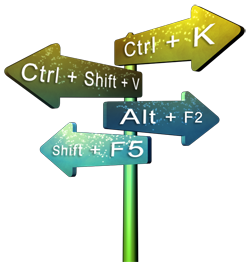
Explore keyboard shortcuts in PowerPoint 2013 for Windows.
Filed Under:
PowerPoint 2013
Tagged as: PowerPoint 2013, Tutorials
Comments Off on Keyboard Shortcuts: PowerPoint 2013 for Windows
You may want to remove the animation applied to a slide object for several reasons. First, you may have animated the wrong slide object, added animation by mistake, or you probably overdid your animations and ended up with a chaotic slide! Whatever your reasons may be, removing the animation is a simple select-and-click task. But before you do remove any animation, here are some thoughts and obvious scenarios to ponder about.

Learn how to remove animation applied to any slide object in PowerPoint 2011 for Mac.
Filed Under:
PowerPoint 2011
Tagged as: Animation, Office for Mac, PowerPoint 2011, Tutorials
Comments Off on Learn PowerPoint 2011 for Mac: Remove Animation
Microsoft and the Office logo are trademarks or registered trademarks of Microsoft Corporation in the United States and/or other countries.