
This is the print version of this page. All content is copyright Indezine.com 2000-2026.
Thoughts and impressions of happenings in the world of PowerPoint and presentations, continuously updated since 2003.
See Also:
PowerPoint and Presenting Notes
PowerPoint and Presenting Glossary

Gil Segal is the creator of ToolsToo and a senior software consultant. Gil is always on the lookout for ways to automate manual tasks in any software he uses and has been a PowerPoint power-user since the mid 90’s.
In this conversation, Gil talks about his ToolsToo add-in for Microsoft PowerPoint.
Geetesh: What motivated you to create ToolsToo, and evolve it with the comprehensive capabilities it possesses?
Gil: The motivation was to do things easier or faster. If there is something that I find myself doing manually over and over, I will generally automate it. But with PowerPoint, it was more than that -– it was also the desire to make slides look better, more aligned, more uniformly sized, spaced, formatted, etc.
An example of how the tools made things easier and faster is the Insert Picture from Clipboard tool. At the time I created the tool, I was doing a lot of screen captures and pasting them into a presentation. This required quite a lot of steps within PowerPoint: inserting a new slide, pasting the picture, scaling the picture, centering the picture on the slide. With the tool, just one click does all the work.
It all started with the alignment of shapes. Like most things, ToolsToo started out small, very small. Version 1.0 had just 6 tools: the basic alignment of shapes relative to the first shape. For a long time, I referred to it as ByFirstShape – the name ToolsToo came much later. Additional tools were added gradually over time. I recall one day, in particular, I was watching a presentation being given by a colleague and one slide caught my eye. The funny thing was that it was a slide that I had presented myself tens of times, but this time, I noticed that it did not look quite right. The Align Edge tools were born just a few days later to fix that slide.
Most of the tools arose from my own presentation editing needs. On any given day that I’m working on presentations, I will use nearly all of the Adjoin/Align Edge/Align Shape/Order tools and many of the Make Same tools. I can’t imagine creating a slide- other than a simple text-only slide – without these tools.
Geetesh: Can you share a story or a user experience about a particular ToolsToo option you added based on customer feedback?
Gil: I always welcome customer suggestions, but get surprisingly few requests for new features from my customers. Perhaps the most interesting request I did get was to add the Drawing group from PowerPoint’s Home tab to the ToolsToo tab. This is something I would have never thought of, but it turns out to be a major click-saver – just about all the shape tools you need are available directly within the ToolsToo tab, greatly reducing the need to go to other tabs and back. It also surprised me that such a great time-saver was very easy and quick to implement, as it required only one line of Ribbon customization code.
You May Also Like: ToolsToo 5.1: The Indezine Review
The views and opinions expressed in this blog are those of the authors and do not necessarily reflect the official policy or position of any other agency, organization, employer, or company.
Filed Under:
Interviews
Tagged as: Add-in, Gil Segal, Interviews, PowerPoint, ToolsToo
Comments Off on ToolsToo: Conversation with Gil Segal
PowerPoint 2013 is our topic of discussion again this week — and there’s so much information to share with you that we created a separate section below on all PowerPoint 2013 related topics. At this point of time, we are helping you install the Customer Preview version of Office 2013 — this includes PowerPoint 2013 and corresponding versions of other Office programs such as Word, Excel, Outlook, Access, etc. The installation itself is one big new feature for this version of Office — in fact, most users need not download an installation file since the install actually streams off Microsoft’s servers in a way that you would expect a YouTube movie or something from Netflix to play!
Filed Under:
Ezine
Tagged as: Ezine, Indezine, News, PowerPoint
Comments Off on Indezine News: Installing Office and PowerPoint 2013
The appearance of text makes a huge difference to any presentation. The font typeface used in your slides is dictated by the active Theme or Theme Fonts set of your presentation — you can certainly override these defaults and choose another font typeface and also change the font size. However, there are times when you need to highlight a word or a phrase contained within your text so that it stands apart and commands attention. To do so, you can apply font styling options that let you make your text bold, italics, underlined, etc. Often, slide titles in PowerPoint are formatted bold to attract attention; italicized text is mainly used to add emphasis or to mark foreign words. And you can underline text, add shadows, and even strike through any selected text. Read more to learn more about these font styles.

Filed Under:
PowerPoint 2010, Uncategorized
Tagged as: Fonts, PowerPoint 2010, Text, Tutorials
Comments Off on Learn PowerPoint 2010 for Windows: Format Font Styles
 Ruchit Garg is Founder & CEO of Seattle based 9SLIDES, an online platform which helps professionals capture and share experience of being there in the presentation room. Prior to founding 9SLIDES, Ruchit spent more than five years at Microsoft Corporation, where he most recently program managed XBOX Live and Windows Phone 7 integration.
In this conversation, Ruchit discusses 9SLIDES.
Geetesh: There are more than a dozen online presentation sites today –- so why did you create 9SLIDES? Was there something you wanted to do different and better?
Ruchit: True, there are lot of services out there today which are meant to share presentations online, but they enable sharing of slides, and not presentations. There is lot of difference between sharing slides and sharing presentations. Let’s look at the real world to understand this well. When you give presentations to a live audience, what makes you successful is your persona, your passion, and your delivery style. Slides are just a tool you use to emphasize your points and cater to people who are into reading more than hearing. But most of the online services today let you share just slides and not presentation, making your online presentations weak and ineffective.
9SLIDES allow users to capture experience of “being there” in the presentation room and share it over Internet to PC, Mac and even iPad. Synchronized video and slides enable professionals to effectively convey your message to colleagues, stakeholders and even potential customers. In three simple steps, (1) Upload, (2) Synchronize, and (3) Publish, one can create amazing interactive presentation experiences online.
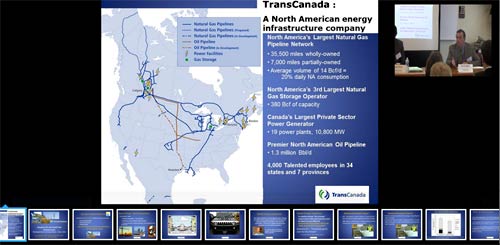
We as professionals often praise the beauty of TED presentations, which comes from the wonderful content and experience created by folks who record and publish high quality video presentations. However, it costs thousands of dollars and many long weeks before one can publish those online. 9SLIDES enables professionals to create much more interactive experience at a fraction of the cost.
Upload some good content and see the magic.
Geetesh: Tell us about some user experiences at 9Slides – when have you been pleasantly surprised in ways that 9Slides has been used?
Ruchit: We see a very wide spectrum of users on 9SLIDES. On one end of the spectrum, we have Fortune 500 CEOs using our system to announce recent merger and acquisition deals, and on the other side of the spectrum we have 4th grader who is using 9SLIDES to present his classroom project.
I believe the value 9SLIDES is bringing to the table is tremendously higher than many solutions which have ever existed, and its ease of use, flexibility and affordability is what is making it very popular. People have been using it for pitching their startups, announcing new organizational changes, class room lectures, product demo and many flavors where you can think of presentation getting used.
We are very excited about response we have received from presentation professionals so far, and we have new exciting offerings hitting market this year to complement what you already see it on our website.
The views and opinions expressed in this blog post or content are those of the authors or the interviewees and do not necessarily reflect the official policy or position of any other agency, organization, employer, or company.
Filed Under:
Interviews
Tagged as: Interviews, Online Presentations, PowerPoint
Comments Off on 9Slides: Conversation with Ruchit Garg
Once you add animation to a slide object, you will want to change some of its parameters — for instance, you might want to set the animation event so that the animation happens on a click or automatically. In addition, you can also set the speed of the animation. Every animation you add within PowerPoint 2011 has a fixed, default speed — also known as its duration. This speed or duration is typically shown in seconds or part thereof, and differs from animation to animation. For example, the default duration of a Fade animation is half a second (00.50) whereas for the Wheel animation, it is two seconds (02.00). You can change these default timings as required to anything from a split second to a longer time by increasing or decreasing the animation speed.

Learn how to set Animation Speed (Duration) in PowerPoint 2011 for Mac.
Filed Under:
PowerPoint 2011
Tagged as: Animation, Office for Mac, PowerPoint 2011, Tutorials
Comments Off on Learn PowerPoint 2011 for Mac: Animation Speed
Microsoft and the Office logo are trademarks or registered trademarks of Microsoft Corporation in the United States and/or other countries.