
This is the print version of this page. All content is copyright Indezine.com 2000-2026.
Thoughts and impressions of happenings in the world of PowerPoint and presentations, continuously updated since 2003.
See Also:
PowerPoint and Presenting Notes
PowerPoint and Presenting Glossary
Make titles and larger sub-titles on your slides stand out by applying these text effects to them. The presentation you will download includes 12 different text effect styles that can be applied to any text in PowerPoint 2007, 2010 or higher on Windows (and also PowerPoint 2008, 2011 or higher on Mac). Most of these text effects are subtle, yet beautiful – and all text styles are Theme aware. When applied to your slide titles, headings, sub-headings etc., they can enhance the value of your slides. Once you have downloaded the sample presentation, all you have to do is copy text attributes of the sample text using Format Painter button, and then paste them on to your text.

Download and use the text effects from this presentation.
Filed Under:
Presentation Bank
Tagged as: PowerPoint, Presentation Samples, Text
Comments Off on PowerPoint Text Effects – 06
When you type text within PowerPoint, the appearance of your text, such as its font type and size is based on the Theme which is applied to your presentation. So if you use PowerPoint’s default Office Theme, then anything you type into a text object may be in the Calibri typeface. You can easily change the Theme Fonts set altogether for your presentation, and all text instances will change to the default typefaces of the new Theme or Theme Fonts set. However, there may be times when you want to override these defaults and choose a typeface that is different — or even a different font size. In this tutorial, we use the terms typeface and font type interchangeably – let us now explore how you can choose different font types and change the font size of the selected text on the slide.

Explore how you can change font types and sizes in PowerPoint 2010 for Windows.
Filed Under:
PowerPoint 2010
Tagged as: Fonts, PowerPoint 2010, Text, Tutorials
Comments Off on Learn PowerPoint 2010 for Windows: Font Types and Sizes
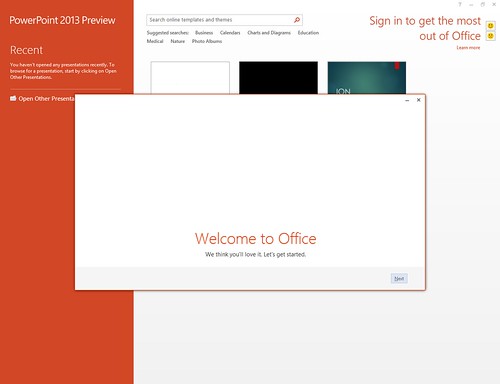
This post refers to the Office 2013 Preview — this was pre-release software that is no longer available. All techniques mentioned in this post will not work with the final release version of Office 2013.
While Microsoft provides you with a way to install the Office 2013 Customer Preview using a CTR (Click To Run) process where the actual install is streamed to your computer from the cloud, they also provide a less publicized download file that can be used to install the Office 2013 Customer Preview on your computer without having to use a few hours off your busy schedule. Or maybe you need to install on multiple machines, and a few hours per machine is not your idea of time well spent — when there clearly is a better alternative!
When you actually go to download this MSI file, the download page actually scares you (see red highlighted area in the screen-shot, below)!
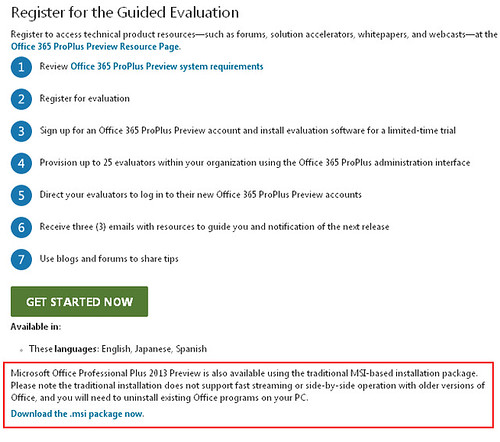
It tells you that “Microsoft Office Professional Plus 2013 Preview is also available using the traditional MSI-based installation package. Please note the traditional installation does not support fast streaming or side-by-side operation with older versions of Office, and you will need to uninstall existing Office programs on your PC“.
OK, first and foremost, that’s being economical with the truth! Nothing of this sort will happen, and you can run your older installation of Office alongside this new Office 2013 Customer Preview. Having said that, do remember that this is pre-release software and there may still be bugs in the Customer Preview version — so it’s a good idea not to install this on your work system — in fact, read these best practice tips before you proceed further.
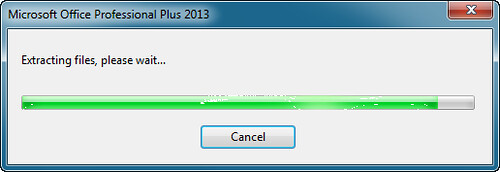
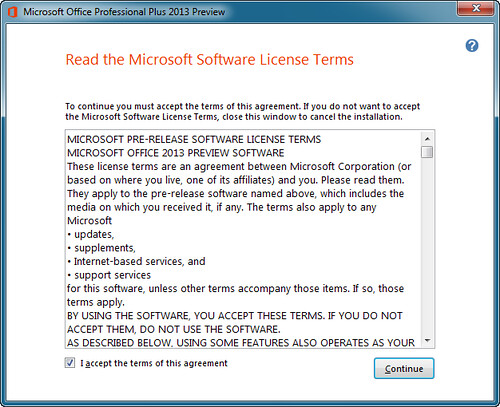
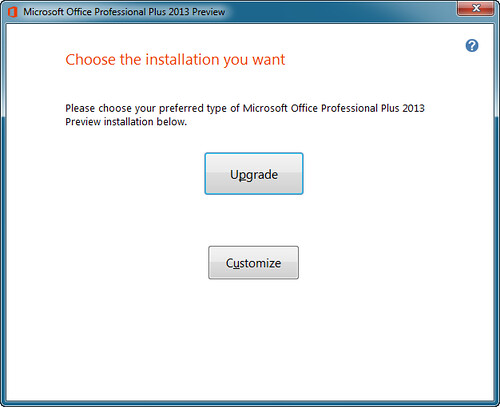
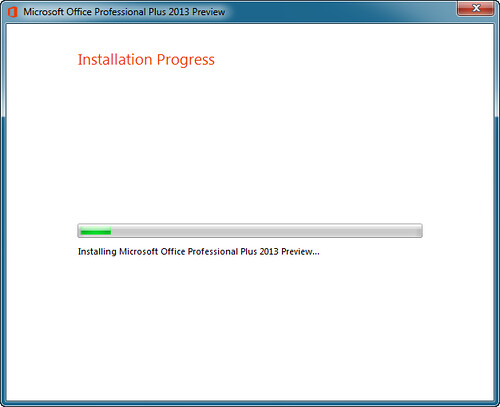
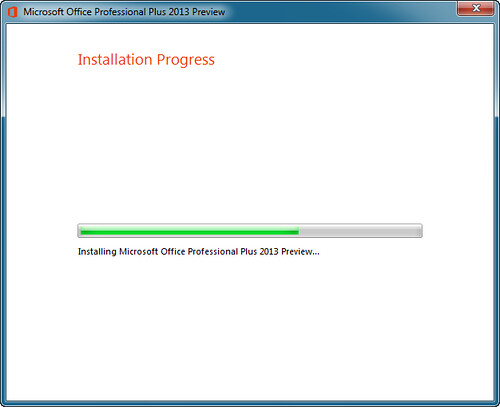
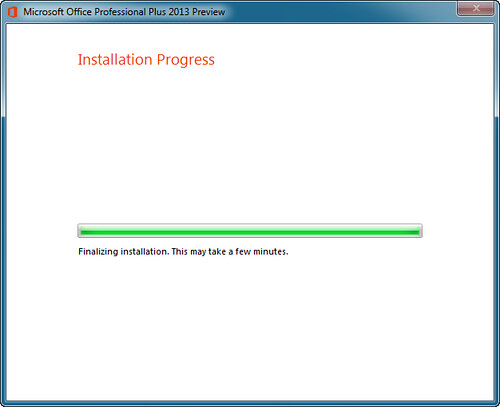
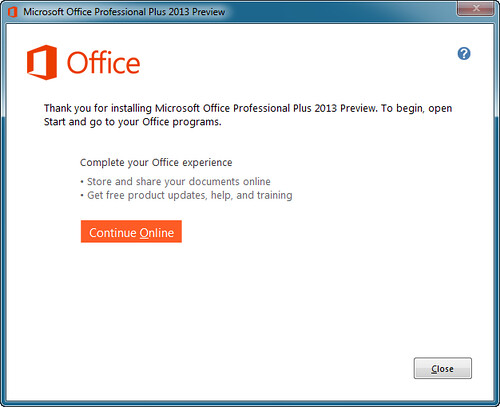
Now that you have been suitably warned, let us proceed with step-by-step instructions:

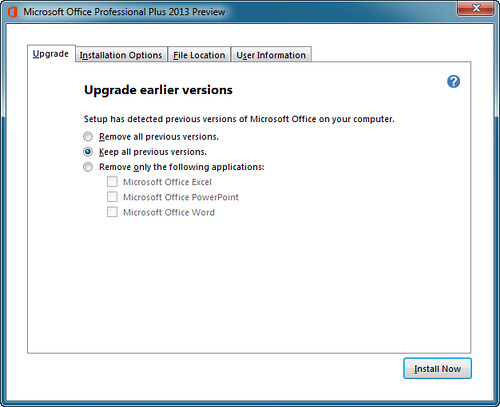
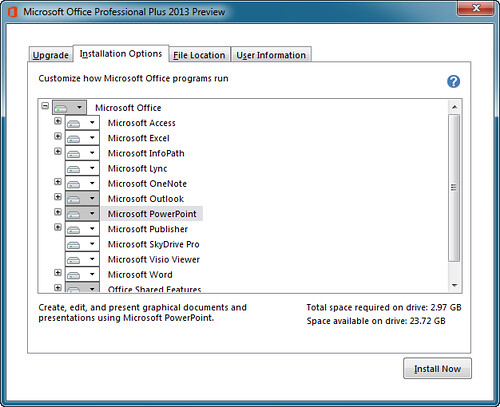
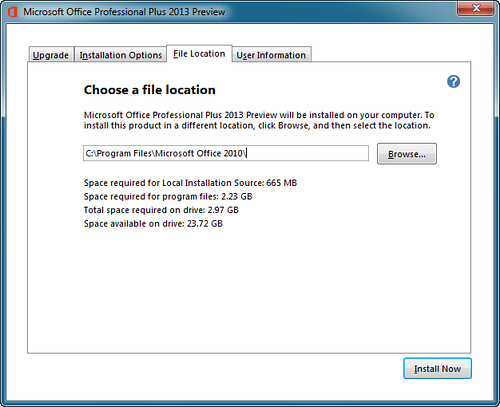
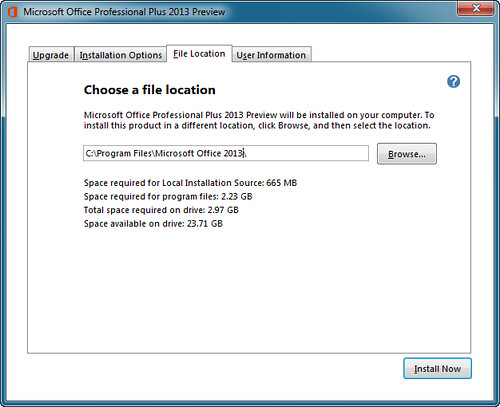


Filed Under:
PowerPoint 2013
Tagged as: Office 2013, PowerPoint 2013
Comments Off on Step-by-Step Install of the Office 2013 Preview MSI Download
The sample presentation that you download includes eight amazing badges on US Elections 2012. To use them in your presentations, first download the sample presentation, then copy all or any of the US Elections 2012 badges and paste them into your presentation slides. Later, you can resize, rotate, or reposition them on your slides as required, just like you do with any other PowerPoint shape or picture.

Download these badges and use in your slides or elsewhere.
Filed Under:
Presentation Bank
Tagged as: Graphics, PowerPoint, Presentation Samples
Comments Off on US Elections 2012 – PowerPoint Badges
When you view a presentation in Slide Show view, any animations applied to slide objects typically play when you click your mouse or press the spacebar. Another option to cause the animation to happen is by clicking a button on a presentation remote — each of these options advances one animation at a time on a slide. If there are no more animations on the slide, clicking will take you to the subsequent slide. While this approach works for slides that have an animation or two, you will quickly realize that this is certainly not the way to go if your slides have tens of animations, or more. If you add that many animations to any slide, you probably want your animations to be automatically sequenced to happen one after the other, or even at the same time — that’s exactly where PowerPoint’s Animation Events can help. PowerPoint supports three types of Animation Events.

Learn about Animation Events in PowerPoint 2011 for Mac.
Filed Under:
PowerPoint 2011
Tagged as: Animation, Office for Mac, PowerPoint 2011, Tutorials
Comments Off on Learn PowerPoint 2011 for Mac: Animation Events
Microsoft and the Office logo are trademarks or registered trademarks of Microsoft Corporation in the United States and/or other countries.