
This is the print version of this page. All content is copyright Indezine.com 2000-2026.
Thoughts and impressions of happenings in the world of PowerPoint and presentations, continuously updated since 2003.
See Also:
PowerPoint and Presenting Notes
PowerPoint and Presenting Glossary
With Theme Fonts, you get several sets of ready made choices in PowerPoint, and you can choose and apply from these pre-decided pairs of font choices, without changing the overall Theme. In this tutorial we’ll teach you how you can create your own Theme Fonts set, which can be used in all your presentations. Follow these steps learn more.

Learn how to create custom Theme Fonts sets in PowerPoint 2007 and 2010.
Filed Under:
PowerPoint 2010
Tagged as: Fonts, PowerPoint 2007, PowerPoint 2010, Text, Themes, Tutorials
Comments Off on Learn PowerPoint 2010 for Windows: Create Custom Theme Fonts
Have your ever used keyboard shortcuts in PowerPoint? Or are you a complete keyboard aficionado? Do you want to learn about some new shortcuts? Or do you want to know if your favorite keyboard shortcuts are documented? Go and view the most comprehensive link of PowerPoint 2010 keyboard shortcuts that we know about — if you discover a shortcut key not listed here, please get in touch with us.
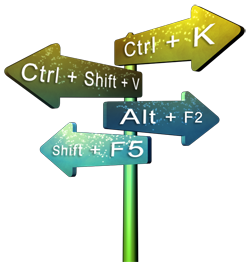
View our compilation of PowerPoint 2010 keyboard shortcuts.
Filed Under:
PowerPoint 2010
Tagged as: PowerPoint 2010, Tutorials
Comments Off on Keyboard Shortcuts: PowerPoint 2010 for Windows
We talked about PowerPoint 2013 last week, and promised you that you’ll hear from us soon. So here it is — in this issue, we are focusing on how you can participate in the Office Customer Preview, and install Office 2013, which of course includes PowerPoint 2013. First things first — if you head straight to the Office Customer Preview site and see no mention of Office 2013 anywhere on that site, don’t get confused! The Preview site uses the term Office 365 everywhere, and Microsoft’s vision of Office 365 is a set of services you subscribe to — and some Office 365 subscriptions include a desktop license for Office 2013. The free subscription that Microsoft is giving away as part of the Office Customer Preview thus is actually an Office 365 subscription plan with 5 licenses of Office 2013 included.
Filed Under:
Ezine
Tagged as: Ezine, Indezine, News, PowerPoint
Comments Off on Indezine News: More about PowerPoint 2013
In PowerPoint, a Motion Path is a path or route along which a slide object animates on your slide. Motion Paths can be either anchored to the slide object, or not. The anchoring (unlocking) and unanchoring (locking) of Motion Paths are rarely explored options, and that may be because these are not too well documented or even intuitive. However, it’s good to know more about anchoring of Motion Paths, since this knowledge can help you create better animations. You have already learned how to add a Motion Path animation to any slide object. We also explained the concept of reversing paths and opening or closing paths. Now, follow the steps below to learn how to access and use the options to unanchor / anchor Motion Paths.

Learn about the anchor options for Motion Paths in PowerPoint 2011 for Mac.
Filed Under:
PowerPoint 2011
Tagged as: Animation, Office for Mac, PowerPoint 2011, Tutorials
Comments Off on Learn PowerPoint 2011 for Mac: Anchor and Unanchor Motion Paths
This post refers to the Office 2013 Preview — this was pre-release software that is no longer available. All techniques mentioned in this post will not work with the final release version of Office 2013.
We already explored how you can install the Consumer Preview version of Office 2013 using the conventional CTR approach where the entire installation is streamed to your computer. This of course requires that you have lots of time, a fast internet connection — and worse, if you want to install the Consumer Preview on multiple machines, you’ll have to repeat the process for each machine!
Clearly there has to be an alternative option — and indeed there is. This download that runs the setup locally on your system is available as an MSI file. However, be aware that if you choose this download MSI option, you cannot run Office 2013 along with an older version of Office on the same system.
You get this download version by clicking the link right at the bottom of this page — Microsoft really went out of their way to hide this link!
Here’s a step-by-step walk through of the process:
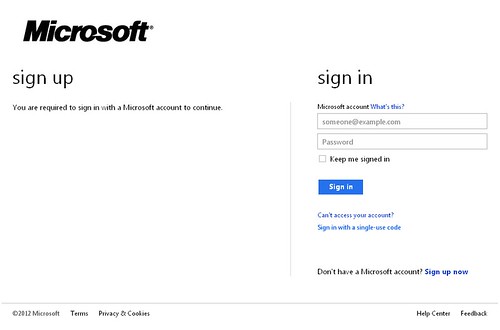
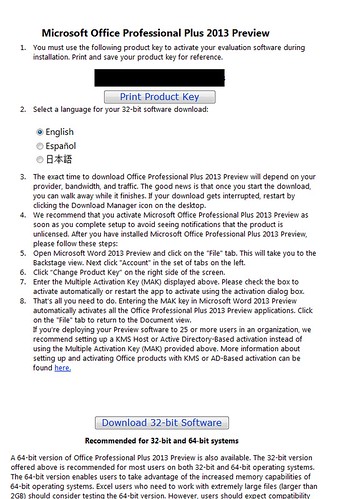
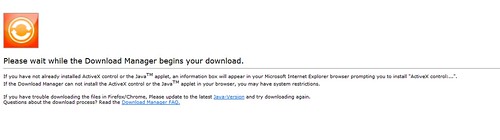


In the next post in this series, we will install the downloaded MSI file.
Filed Under:
PowerPoint 2013
Tagged as: Office 2013, PowerPoint 2013
Microsoft and the Office logo are trademarks or registered trademarks of Microsoft Corporation in the United States and/or other countries.