
This is the print version of this page. All content is copyright Indezine.com 2000-2026.
Thoughts and impressions of happenings in the world of PowerPoint and presentations, continuously updated since 2003.
See Also:
PowerPoint and Presenting Notes
PowerPoint and Presenting Glossary
Pattern fills are the last of the various fill options for slide backgrounds we have explored to use in PowerPoint 2011 for Mac. Patterns in PowerPoint are two-color designs comprising lines, dots, dashes, checks, etc. PowerPoint includes 48 such patterns with names like Plaid, Weaves, Shingle, and Zigzag. This tutorial builds upon what you have already learned in the Format Slide Background tutorial, and shows how you can use pattern fills for your slide background.
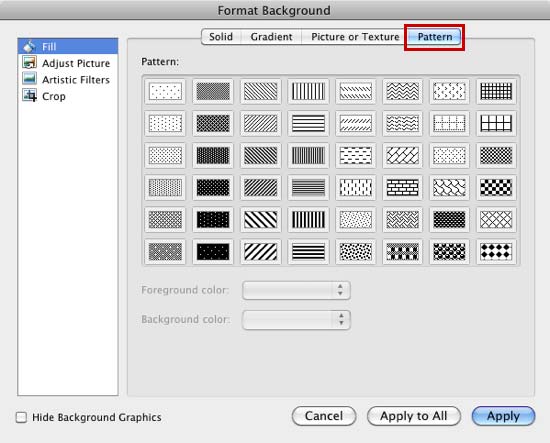
Learn how to apply pattern fills as slide backgrounds in PowerPoint 2011 for Mac.
Filed Under:
PowerPoint 2011
Tagged as: Background, Office for Mac, PowerPoint 2011, Tutorials
Comments Off on Learn PowerPoint 2011 for Mac: Pattern Fills for Slide Backgrounds
The businesswoman silhouettes that you are going to get within the download presentation are ready to use within your PowerPoint presentation slides. They have been provided in both black and white colors — both variations are contained within two separate slides in one presentation that you can download. To start with, you can also use other sample variations in the presentation you will download. These are applied with different fills and effects. Later, you can make these silhouettes appear coordinated with your slides using PowerPoint’s fills, lines, and effects.

Copy the silhouettes graphics (clip arts) of your choice from the downloaded presentation, and paste them into your PowerPoint presentation slides. All these silhouette graphics can be used and customized with Shape Styles just like any other PowerPoint shape. You can also paste them into a Word document, an Excel worksheet, or any other program.
Download and use this presentation.
Filed Under:
Presentation Bank
Tagged as: Graphics, PowerPoint, Presentation Samples
Comments Off on Businesswoman Silhouettes for PowerPoint – 05
Once you insert a video in your slide, you can crop it in almost the same way you crop a picture. Before you crop though, you must ascertain whether PowerPoint’s Crop option will help create a better result for your inserted video. The Crop option allows you to remove not-required areas of a video — for example, if the subject of your video is a person speaking who is surrounded by a large, distracting background of other people or moving objects, you may want to crop the video so that the cropped video now focuses more on the speaker, and gets rid of all the extra distractions. Note that cropping a video does not trim the timings of the video playback in any way – in fact trimming is a completely different option that will be explored in another tutorial. In the following tutorial, we will explore how you can crop a video clip.

Learn how crop a video clip in PowerPoint 2010 for Windows.
Filed Under:
PowerPoint 2010
Tagged as: PowerPoint 2010, Tutorials, Video
Comments Off on Learn PowerPoint 2010 for Windows: Crop Video
Being part of several groups and forums means that I get to know about the problems that everyday users face with their PowerPoint and presenting skills. Some topics end up being discussed repeatedly, and bring forth many opinions that differ, overlap, or even agree with each other. One of these is the debate about whether you should use bullet points in PowerPoint or not — and that is indeed a Pandora’s box, so we will leave that one aside for today! Another topic that gets discussed is the use of PowerPoint to create printed slides on paper — these printed slides are circulated to an audience before the presentation begins — needless to add, most of these slides are not projected and very rarely are these presentations given to an audience that comprises more than a handful of people.
Read this issue of our weekly newsletter.
Filed Under:
Ezine
Tagged as: Ezine, Indezine, News, PowerPoint
Comments Off on Indezine News: Presenting on Paper
In this series of tutorials on slide background fills, you have already explored various slide background styles available in PowerPoint 2011 for Mac: you have learned about solid, gradient, picture, and texture fills for slide backgrounds. When you use texture fills for your slide backgrounds, you need not limit yourself to only the default textures that PowerPoint offers. You can always explore some custom textures such as our own Ppted Background Texture Collection. Also some pictures lend themselves better to being used as textures, especially if they are seamless. In this tutorial you will learn how to use custom textures for your slide background fills.

Learn how to use custom texture fills for your slide backgrounds in PowerPoint 2011 for Mac.
Filed Under:
PowerPoint 2011
Tagged as: Background, Office for Mac, PowerPoint 2011, Tutorials
Comments Off on Learn PowerPoint 2011 for Mac: Using Custom Textures as Slide Backgrounds
Microsoft and the Office logo are trademarks or registered trademarks of Microsoft Corporation in the United States and/or other countries.