
This is the print version of this page. All content is copyright Indezine.com 2000-2026.
Thoughts and impressions of happenings in the world of PowerPoint and presentations, continuously updated since 2003.
See Also:
PowerPoint and Presenting Notes
PowerPoint and Presenting Glossary
There was no issue of the newsletter last week — that explains why we have a jumbo issue for you this week, and what can be better than giving you all a chance to win a free product as part of our giveaway!

We also have a great, new tutorial on how you can create an embroidered, running stich border around your PowerPoint slide objects — you can create this in almost any version of PowerPoint. There are some more silhouettes for you — this time we have Businesswoman graphics for you. And also do download our first series of PowerPoint text effects — many of you may not believe that these were created using just PowerPoint and nothing else.
Filed Under:
Ezine
Tagged as: Ezine, Indezine, News, PowerPoint
Comments Off on Indezine News Released
In PowerPoint, when there are multiple pictures inserted on a slide, their position and alignment matters a lot. Most of the time, pictures may be placed just randomly placed on the slide. In some cases, such a haphazard arrangement may work — but most of the time you will have to align objects in a proper way on your slide. Even before you align the pictures, you should explore whether all the pictures are the same size or not — we have already explained how you can resize pictures in our Resize, Rotate, and Flip Pictures tutorial.
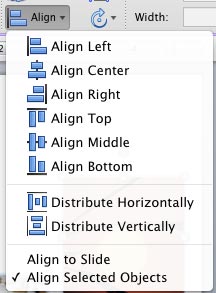
Learn to align and distribute pictures in PowerPoint 2011 for Windows.
Filed Under:
PowerPoint 2011
Tagged as: Office for Mac, Pictures, PowerPoint 2011, Tutorials
Comments Off on Learn PowerPoint 2011 for Mac: Align and Distribute Pictures
Let’s imagine you got your animation just right — you tweaked the speed, set the animation events, etc. You also added a series of simultaneous and sequential animations to the same slide object — so that it fades and wipes at the same time — then it grows in size, stays on screen without animation for a requisite amount of time (delay) — and finally the object exits using a simple fade animation. Now, you need to apply the same animation to 50 other slide objects within the presentation! Typically, you may have to spend an enormous amount of time for such a repetitive task, manually applying the animations so many times! That was before the introduction of the new Animation Painter feature, introduced in PowerPoint 2010, which works with animations exactly in the same way as Format Painter option works with slide objects.

Learn how to use the Animation Painter command effectively in PowerPoint 2010 for Windows.
Filed Under:
PowerPoint 2010
Tagged as: Animation, PowerPoint 2010, Tutorials
Comments Off on Learn PowerPoint 2010: Animation Painter
 Spencer Lambert has run a presentation design consultancy, Slideclinic, since 1997 and has worked on hundreds, if not thousands of presentations for companies such as Microsoft, Glaxo SmithKline, KPMG and Barclays. Spencer is responsible for driving the growth of Present.me.
In this conversation, Spencer discusses the released version of Present.me.
Geetesh: We spoke a year ago when Present.me was in beta –- now that it is a released product, tell us more about what Present.me does, and what does it do best?
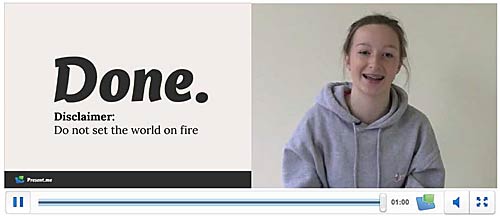
Spencer: Present.me is a better way of presenting online. It enables individuals and organisations to create and share presentations online, so that the viewer sees both content (slides, photos or document) and the presenter (via webcam or uploaded video) side-by-side, on-demand. Think YouTube meets Slideshare.
People talk about ‘sending a presentation’, and then just send slides. But the slides are only half the story. We need to see and hear the presenter as well, and at the same time. The problem was editing together the content and the recorded video in a simple way; we have solved that problem. Present.me is the next best thing to being in a room with them and in one respect it is better; because it is on-demand it is at everyone’s convenience.
We see it has having a whole host of uses across industries. Communicating with customers of clients, pitching for business, updating a team, setting assignments for students or applying for a job. You can see example presentmes for all of these uses on our site.
In terms of what it does best, well there are other services out there which allow you to present content, but Present.me really is the only one which allows you to create an online presentation with yourself presenting it, viewable on demand. I would say the best thing about it is it’s simplicity – it’s really easy to upload content, click record and talk into your webcam as you click through your slides. It’s in the cloud so you don’t need to install anything, and it’s mobile so will work in any browser, on an iPad and coming soon on any Android or iOS device with an app.
Geetesh: Can you tell us about the various free and paid plans that Present.me offers?
Spencer: Now Present.me has launched out of beta it’s publicly available to everyone. Our Free account allows you to upload three presentmes a month, one private, and 15 minutes each. The Plus account is $9 a month, allows 30 presentmes up to 60 minutes each and unlimited private. Then the Pro account is $39 a month and allows unlimited presentmes, again at 60 minutes each. We do offer corporate and education pricing on request.
See Also: Present.me: Conversation with Spencer Lambert
The views and opinions expressed in this blog post or content are those of the authors or the interviewees and do not necessarily reflect the official policy or position of any other agency, organization, employer, or company.
Filed Under:
Interviews
Tagged as: Interviews, Online Presentations, PowerPoint
Comments Off on Present.me Released: Conversation with Spencer Lambert
Imagine this scenario: you chose what you thought was a perfect picture. So you insert the picture, and then enhance it using the cool picture editing options available in PowerPoint 2011 for Mac. You may have gone further — for example, you could have applied some of the Adjust Picture options, added a border, applied some Picture Effects, etc. You went ahead and added a perfect combination of both the Fade and Zoom animations, and also timed it to happen at the speed you want. And then you discover a better picture, or your boss asked you to change to another picture. You also need to retain all the effects and animations! You could delete the original picture and start all over again, and yes, that is a long process! Or you can change any existing picture into another with just a couple of clicks.

Learn how to change one picture into another in PowerPoint 2011 for Mac.
Filed Under:
PowerPoint 2011
Tagged as: Office for Mac, Pictures, PowerPoint 2011, Tutorials
Comments Off on Learn PowerPoint 2011 for Mac: Change Picture
Microsoft and the Office logo are trademarks or registered trademarks of Microsoft Corporation in the United States and/or other countries.