
This is the print version of this page. All content is copyright Indezine.com 2000-2026.
Thoughts and impressions of happenings in the world of PowerPoint and presentations, continuously updated since 2003.
See Also:
PowerPoint and Presenting Notes
PowerPoint and Presenting Glossary

David Halpin is a seasoned executive with over 15 years of core product development experience at manager, senior manager and executive staff levels. He has managed geographically distributed, multi-faceted teams, which delivered world-class software solutions to F1000 customers. Halpin joined Quickoffice in 2006 to help lead and grow Quickoffice’s development operations, globally.
In this conversation, David discusses the new QuickOffice Pro HD release that adds new features for working with PowerPoint files in the iPad.
Filed Under:
iPad Presenting
Tagged as: Interviews, iPad, PowerPoint
Comments Off on QuickOffice Pro HD: Conversation with David Halpin
Animation is movement and a fine art at the same time — using animation’s powerful capabilities of attracting attention, you can effectively illustrate a concept, a process, or anything else. However, there’s a thin dividing line between mere movement and utter confusion. Imagine a training session where the presenter moves around the room explaining a concept — as he or she moves, the eye of the audience members follows him or her. There is a clear focus in the room, and the subject of that focus is the presenter. Now imagine another situation where the presenter and all the audience members in the room start moving in disparate directions just for the sake of movement — at this point of time, the movement has given way to chaos. The distinction between movement and chaos works similarly on PowerPoint slides — at any point of time, movement needs to have focus and direction, and more importantly, a reason to move!

Learn to build and sequence animations in PowerPoint 2010 for Windows.
Filed Under:
PowerPoint 2013
Tagged as: Animation, PowerPoint 2010, Tutorials
Comments Off on Learn PowerPoint 2010: Build and Sequence Animations
In this series of tutorials on working with pictures in PowerPoint 2011, you have already learned about adjusting picture options, and applying Picture Styles, Picture Effects, and Picture Borders that can help you to enhance the look of your inserted pictures. These skills will make your pictures look better and will provide you with ideas to make your pictures stand apart. Yet, there are some basic picture editing skills that are very significant — these include learning how you can resize, rotate, and flip pictures.

Learn how to resize, rotate, and flip pictures in PowerPoint 2011 for Mac.
Filed Under:
PowerPoint 2011
Tagged as: Office for Mac, Pictures, PowerPoint 2011, Tutorials
Comments Off on Learn PowerPoint 2011 for Mac: Resize, Rotate, and Flip Pictures
This sample presentation contains 12 different text effects that you can use with any text in PowerPoint 2007, 2010 or higher on Windows (and also PowerPoint 2008, 2011 or higher on Mac). Text effects range all the way from subtle to edgy, and from clean to grunge style. Some text effects may work better with larger text – play around to see which one works for you although none of these effects are suitable for body text. To use these effects, click on any of the sample text containers with the Format Painter button, and then click on the text where you want to copy these effects.
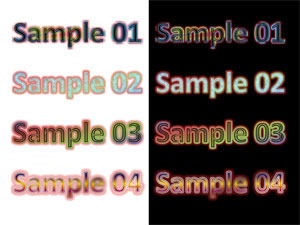
Download and use this slide for your own presentations.
Filed Under:
Presentation Bank
Tagged as: PowerPoint, Presentation Samples, Text
Comments Off on PowerPoint Text Effects – 01
Once you add animation to any slide object, you can set its animation speed and change its animation event. Other than speed and event, you can also alter the delay caused before the animation actually starts. So why would you add a delay? There are several reasons and primarily a delay can be beneficial if you want to maintain a time limit between two animations — as in having the second animation occur 10 seconds after the first one has concluded. Of course, that was just a simple example and animation delay can be helpful in many other scenarios. This delay is calculated in seconds.

Learn about Animation Delay, a new option introduced in PowerPoint 2010 for Windows.
Filed Under:
PowerPoint 2010
Tagged as: Animation, PowerPoint 2010, Tutorials
Comments Off on Learn PowerPoint 2010: Animation Delay
Microsoft and the Office logo are trademarks or registered trademarks of Microsoft Corporation in the United States and/or other countries.