
This is the print version of this page. All content is copyright Indezine.com 2000-2026.
Thoughts and impressions of happenings in the world of PowerPoint and presentations, continuously updated since 2003.
See Also:
PowerPoint and Presenting Notes
PowerPoint and Presenting Glossary
PowerPoint 2010’s default Animation Pane allows you to perform many tasks such as adding animation to any slide object, changing the animation event, and setting the speed of the animation, as required. Most of the time, that may be all you need — but at times, you may want more minute control. You might want two animations to start at the same time, but you want one of them to start just two seconds before the other. In situations like these, you’ll need to use the Advanced Timeline option. Unlike in PowerPoint 2007 and previous versions, you no longer need to change to the Advanced Timeline since that’s the one that is active by default. However, you may have turned it off to enable the Basic Timeline — read on to find out how you can make the Advanced Timeline visible or invisible by following these steps.

Filed Under:
PowerPoint 2010
Tagged as: Animation, PowerPoint 2010, Tutorials
Comments Off on Learn PowerPoint 2010: Show/Hide the Animation Advanced Timeline
Slidevana is a presentation toolkit which provides over 150 ready to use slide layouts including charts, diagrams, tables, and frameworks. Slidevana slide layouts use a clean, minimal design, and are available in dark and light color schemes which can be edited to meet your specific needs. You can also customize logos, graphics, and color palettes, or even add an entirely new layout.

Slidevana is already available for Keynote for Mac, iPad and iPhone. In this tutorial, we’ll explore Slidevana for PowerPoint, that works on both Windows and Mac versions of the program.
Learn about Slidevana, a collection of slide layouts that can be used within PowerPoint.
Filed Under:
Reviews
Tagged as: PowerPoint, Review, Templates
Comments Off on Slidevana for PowerPoint: The Indezine Review
PowerPoint’s adjust picture options enable you to customize inserted pictures in your slides in many ways. Additionally, PowerPoint also provides you with a collection of preset Picture Styles, which can be directly applied to any selected picture. Picture Styles are somewhat similar to the Shape Styles since they take just a single click to provide the selected picture with a great look –but, that’s where the similarity ends. Because the Picture Styles are not Theme specific. They just make the picture stylish by applying a border, changing the frame shape, or, by adding some 3-D effects.

Learn how to apply preset Picture Styles to your pictures in PowerPoint 2011 for Mac.
Filed Under:
PowerPoint 2011
Tagged as: Office for Mac, Pictures, PowerPoint 2011, Tutorials
Comments Off on Learn PowerPoint 2011 for Mac: Picture Styles
Silhouettes are the topic for this week’s editorial again — we already looked at them last week, and this week we have more free silhouettes for you to download and use in your slides. What sets these silhouettes apart from the other silhouettes that you can get from stock photo sites is that these are all PowerPoint native graphics. This means you can select any of these silhouette graphics and use any of PowerPoint’s fill, outline, and effect options to make the graphics look coordinated with the rest of your slides. Also let us explore more advantages of using silhouettes — since these don’t consume a large file size, the silhouettes can be animated easily, even if you use multiple animations happening at the same time.

Read more in the newsletter here.
Filed Under:
Ezine
Tagged as: Ezine, PowerPoint
Comments Off on Indezine News Released
Let’s say you have used a Fade animation for a slide object, and now you want to use a Wipe animation instead. It’s been observed that most of the time, typical users just remove an animation and apply another one rather than using the change animation option. This may be because in PowerPoint 2010, you see no Change option within the interface, but it’s still a very easy one-click operation to change an existing animation to another one, as you will learn in this tutorial.
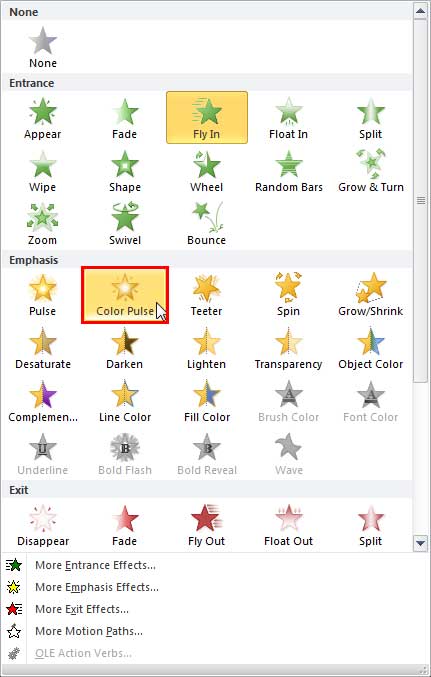
Learn how to change animations for a given slide object in PowerPoint 2010 for Windows.
Filed Under:
PowerPoint 2010
Tagged as: Animation, PowerPoint 2010, Tutorials
Comments Off on Learn PowerPoint 2010: Change an Animation
Microsoft and the Office logo are trademarks or registered trademarks of Microsoft Corporation in the United States and/or other countries.