
This is the print version of this page. All content is copyright Indezine.com 2000-2026.
Thoughts and impressions of happenings in the world of PowerPoint and presentations, continuously updated since 2003.
See Also:
PowerPoint and Presenting Notes
PowerPoint and Presenting Glossary

Don Brittain is the CEO and founder of Instant Effects, a California-based company that develops software to visually enhance presentations, communications, and collaboration. Dr. Brittain has designed commercial interactive graphics software for more than two decades, having been VP Research at Wavefront Technologies and one of the principal architects of 3dsmax from Autodesk prior to helping found Instant Effects almost a decade ago.
In this conversation, Don discusses 3D-Hub, a new 3D initiative spearheaded by Instant Effects (USA) and White Space Productions (UK).
Geetesh: What is 3D-Hub – and how can it benefit presenters, educators, or anyone else who wants to show interactive 3D content?
Don: 3D-Hub was designed to meet a rising need in classroom education. The basic goal is to promote 3D software and media to improve learning while maintaining the advantages that a traditional classroom learning environment already offers. This means that the media should be interactive (so that the teacher can easily respond to questions and encourage exploration), compelling (to keep the attention and interest of the students), and allow for animation (so processes, flows, and interlinked components become visually obvious). Furthermore, since many classroom-based studies have shown that using stereo 3D displays improves understanding, 3D-Hub is also able to take full advantage of stereo 3D projectors and 3D TVs wherever and whenever they are available.
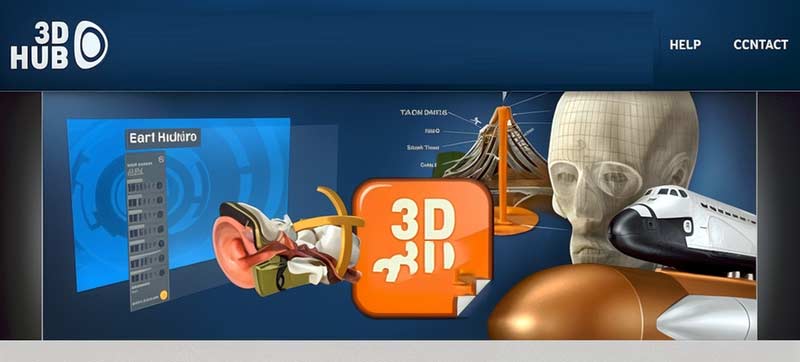
Finally, since all of this is on the leading edge, we have also built 3D-Hub to be an online community where people can go to discuss teaching techniques, request additional 3D models, and ask for improvements to current material to help improve its effectiveness. As such, the goal is for 3D-Hub to play a key role in moving classroom education forward in a meaningful way.
Geetesh: What are the 3D models that work with the 3D-Hub Player – what is available now, and what else can we look forward to in the near future?
Don: For our initial launch, 3D-Hub offers approximately 30 interactive models in the fields of biology, geography, space, and engineering. Many, many more models are under construction, and a key tenet of 3D-Hub is that users can ask for new models, and we will custom-create them and quickly make them available on the site. This allows us to meet the needs of real teachers and real students in a timely manner, with the models having the level of detail and interactivity most needed to achieve the best results in classroom education.
Another aspect of 3D-Hub is that we actively encourage others to offer content through our site. People with 3D content right now can offer it for download to the 3D-Hub community. Our media experts will make sure the models have been placed into a consistent presentation environment (designed to work with mouse interaction as well as with interactive white boards) so that navigation of the material will be consistent and easy to follow, no matter which model is loaded. And for the small subset of content that is best presented in “movie form” (e.g., a film of a live event), the 3D-Hub player also supports 3D videos directly.
One other point that may be of interest is that 3D-Hub benefits from the confluence of 3D special effects techniques, as used by the film and game industries, coupled with techniques honed by professional presenters designed to direct audience focus and provide efficient transfer of knowledge. The 3D-Hub models are built using our authoring toolkit plugin for 3dsmax (from Autodesk), and the user interface and interaction components are all originally authored in PowerPoint.
By interviewing hundreds of teachers, educators, and IT professionals working in schools, we have tailored our offerings to augment and complement traditional education techniques. We want to keep what works well while also moving education forward in a manner consistent with the high expectations of today’s students with respect to their media experiences.
The views and opinions expressed in this blog post or content are those of the authors or the interviewees and do not necessarily reflect the official policy or position of any other agency, organization, employer, or company.
Filed Under:
Interviews
Tagged as: 3D, Don Brittain, Interviews, PowerPoint
Comments Off on 3D-Hub: Conversation with Don Brittain
This combo package gets you three amazing options that will let you create better presentations quickly:
Your price for a limited time during this joint promotion is $50 for all 3 products! Get all details here.

Filed Under:
Ezine
Tagged as: Ezine, Indezine, News, PowerPoint
Comments Off on EBook and PowerPoint Themes Combo Package
Any given shape in PowerPoint is essentially an electronic drawing that is composed of both segments and points (vertexes). Think of a “connect-the-dots” drawing and the dots would be points, and the lines you draw between the dots would be segments. Both segments and vertexes are only visible as distinctly different drawing elements only in Edit Points mode. We discuss more about segments in a subsequent tutorial but for now, let us help you explore the different types of vertexes (points) in PowerPoint 2011. Essentially, these are of three types: Smooth, Straight, and Corner.
Learn about different types of points (vertexes) in PowerPoint 2011 for Mac.
Filed Under:
PowerPoint 2011
Tagged as: Office for Mac, PowerPoint 2011, Shapes, Tutorials
Comments Off on Learn PowerPoint 2011 for Mac: Types of Points (Vertexes)
Microsoft Office programs such as PowerPoint include proofing tools (spelling dictionaries, thesauri, and grammar rules) for more than one language. To proof text in a foreign language, you need to install and enable proofing tools for the language you require. When these tools are installed, you can tell PowerPoint if a particular text placeholder or text box needs to be proofed as a foreign language — we will cover the actual process of proofing in a foreign language later in a subsequent tutorial. First, you need to learn how you can ascertain which proofing tools are installed on your computer, and how you can add proofing tools for languages besides English within PowerPoint.
Filed Under:
PowerPoint 2010
Tagged as: PowerPoint 2010, Proofing, Text, Tutorials
Comments Off on Learn PowerPoint 2010: Add and Remove Proofing Dictionaries for Foreign Languages

Jay Wilder is director of product marketing at Brainshark, Inc. Brainshark’s cloud-based software lets users create online and mobile video presentations – using simple business tools like PowerPoint and the telephone – and then share and track their content. Thousands of companies use Brainshark to improve the reach and results of their business communications, while dramatically reducing costs.
In this conversation, Jay discusses SlideShark Team Edition, which Brainshark is launching today.
Geetesh: What is SlideShark Team Edition, and how does it build upon the SlideShark app for the iPad?
Jay: We’re excited to be launching SlideShark Team Edition today. It’s the first multi-user version we’re rolling out of the SlideShark app.
SlideShark, as your readers may recall, is a free app we announced last fall. It solved a major problem for iPad users around the world: that is, PowerPoint’s lack of compatibility on the device. With SlideShark, now you can view and show your PowerPoint presentations with animations, fonts, graphics, and colors intact. We’ve been pleased to report rapid adoption too –- getting two downloads per minute, 24×7, since SlideShark’s launch.
While the initial SlideShark app was more geared toward individuals, SlideShark Team Edition now provides powerful functionality to support teams within organizations. This new edition comes, in large part, due to requests from our enthusiastic user base. With SlideShark Team Edition, these users can now benefit from centralized content administration, team-wide access to content, and detailed usage analytics.

Geetesh: Can you share some info on what you consider are compelling features within the Team Edition of SlideShark?
Jay: Absolutely. New functionality, as I mentioned, provides valuable support to teams within organizations. Not only can they properly and easily view PowerPoints from their iPads – something unprecedented only a few months back – but they can also take advantage of features such as:
Users can securely access, view and present “shared team content” -– that is, PowerPoints that authorized administrators and team members have uploaded and designated for shared use.
Individual team members also have the ability to upload their own PowerPoint decks to SlideShark and convert them to an iPad-ready format for their own personal access and viewing.
Team account administrators can add or remove users, change user permissions, manage billing centrally and assign administrative controls.
Account administrators can also view and download reports that show which users are accessing and viewing content, and which presentations are most and least popular.
Teams have plenty of space for both shared content and personal user content – with 5GB of total storage, plus more as required.
As with SlideShark, SlideShark Team Edition users benefit from Brainshark’s highly secure, reliable and scalable enterprise-class cloud computing infrastructure.

We’ve priced SlideShark Team Edition at $149 per user on a team per year. Anyone can go to the SlideShark site and sign up for a 60-day free and full-featured trial. We’re looking forward to continuing to meet our users’ needs with this new edition of SlideShark –- helping them access content wherever they are, play it properly from their iPads and benefit from a host of powerful, multi-user features.
See Also: SlideShark: Conversation with Jay Wilder
The views and opinions expressed in this blog post or content are those of the authors or the interviewees and do not necessarily reflect the official policy or position of any other agency, organization, employer, or company.
Filed Under:
Interviews
Tagged as: Brainshark, Interviews, iPad, Jay Wilder, PowerPoint
Comments Off on SlideShark Team Edition: Conversation with Jay Wilder
Microsoft and the Office logo are trademarks or registered trademarks of Microsoft Corporation in the United States and/or other countries.