
By Olaf Nöhring
Probably you know this situation: your presentation gets longer and longer and you want to help your audience to know which topic you are on and help them keep track of what has been covered already and what is still coming up. Unfortunately, PowerPoint does not provide an easy way to implement a progress indicator like this. This is where the free Progress Indicator add-in comes into play.
The free Progress Indicator add-in provides an easy and intuitive way to add visual structure for your audience (and yourself), as well as easy and quick navigation options that allow you to jump to every slide of your presentation.
The Progress Indicator works on Microsoft PowerPoint 2010 and newer (currently 2016), on 32 and 64-bit versions of the software, and on Windows and Mac OS.
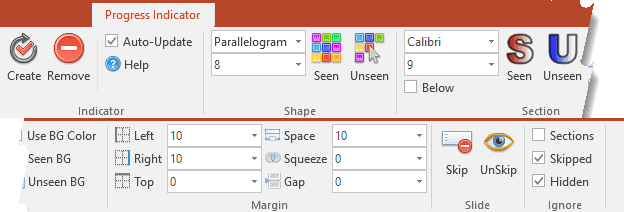
The add-in adds a new tab to the Ribbon. On the Progress Indicator tab, you find plenty of options to create a custom Progress Indicator that matches your individual presentation. Each time you change something, the Progress Indicator on your slides will update immediately.
On each slide, indicators are placed and color-coded depending on the position in your presentation: Indicators on slides that have been seen can use a different color than those on slides that have not been seen yet. You can choose from about 190 existing shapes. The most common ones are found at the top of the dropdown list. Of course, you can also select the size and use a color chooser to define the color you want the shapes to be. Each time the color-chooser opens it offers a wide range of colors that match the current theme.

Besides the indicators, the add-in also allows automatic partitioning of the indicators into your PowerPoint sections. The names of your sections can either be displayed not at all, above or below the indicator icons. As you guessed, you can set colors – as well as the font for the section titles. An easy font chooser allows simple selection from all installed fonts.

Special section names allow further customization: If you name your section PISectionHidden none of the slides in this section will have indicators. This is very useful if you have some additional slides at the end of your presentation which you do not plan to show.
Your hidden slides can be ignored as well so that the progress indicators are continuous. If you want to skip a single slide (maybe you have a video there and you do not need the indicator) you can easily do so with a single click.

In presentation mode, moving your mouse over an indicator or section title will bring up information about that slide and allow you to click and jump directly to that slide.
The Progress Indicator add-in is completely free. You can also find the source code on GitHub.

Olaf Nöhring is the founder of Datenbank-Projekt.de, and usually, develops customer-specific database solutions based on Microsoft Access for regional customers. Olaf has specialized in database design with Microsoft Access for almost 20 years and has experience in web development and a deep understanding of Microsoft Excel.
The views and opinions expressed in this blog are those of the authors and do not necessarily reflect the official policy or position of any other agency, organization, employer, or company.
Related Posts
 By Kurt Dupont The number of businesses using digital signage screens to share information has expanded over the years. Administrators of restaurants,...
 By Kurt DupontPowerPoint is a very resourceful tool that can help businesses achieve more. Unfortunately, there are several possibilities within Power...
 By Jan MetchelIn this guest post, I will introduce SlideProof. SlideProof is an all-in-one PowerPoint add-in to deliver presentations better and faste...
 By Kurt Dupont DataPoint is the PowerPoint add-on to display real-time information on your information screens. What more do you need? You can display...
Interesting add-in and even more interesting delivery approach. I’ve seen free add-ins before but not Open Source. If Olaf is reading, what was the strategic reason for this approach?
Jamie, email me and I can get you both in touch.