This is the print version of this page. All content is copyright Indezine.com 2000-2026.
Thoughts and impressions of happenings in the world of PowerPoint and presentations, continuously updated since 2003.
See Also:
PowerPoint and Presenting Notes
PowerPoint and Presenting Glossary
PowerPoint 365 for Mac’s tri-paned interface has three regions: the Slides Pane, the Slide Area, and the Notes Pane. The Notes Pane is placed right below the Slide Area. The Notes Pane provides space to add speaker’s notes that can be so helpful to the presenter while presenting. You can also write any sort of information about the presentation or individual slide.
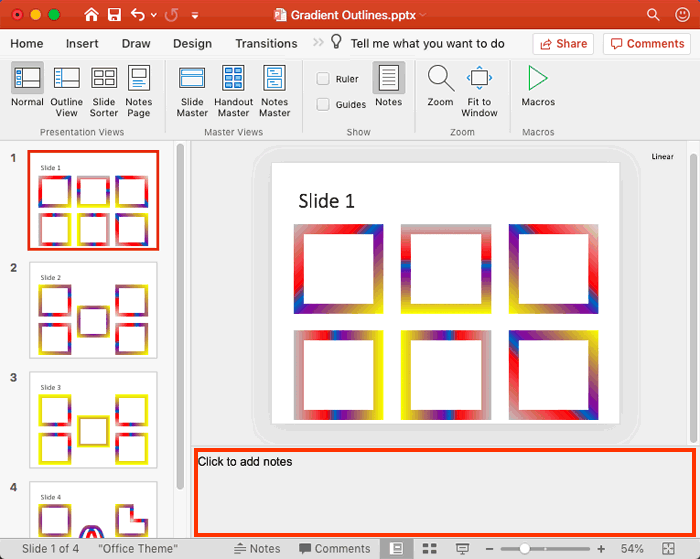
Learn about the Notes pane in PowerPoint 365 for Mac.
Filed Under:
PowerPoint 365
Tagged as: Interface, Microsoft Windows, Notes Pane, Office 365, PowerPoint 365, Tutorials
Comments Off on Notes Pane in PowerPoint 365 for Mac
In this issue, we first feature Mike Power of Neuxpower, who talks about the new Analysis feature in WeCompress, that quickly give you a breakdown of the content within, showing how the file size is distributed between images, videos, audio, fonts, and other document properties—for PowerPoint, other Office files and PDFs. In another feature, Simon Day of Toastmasters finds it very surprising that so little attention is paid to how effectively we deliver, receive and act on feedback at work, and elsewhere. We also feature two speakers from the upcoming Presentation Summit in San Antonio, TX. This week we bring up Ilene Bergelson and Tom Howell.
PowerPoint users can explore the evolution of Office Themes. PowerPoint 2019 for Windows can learn about the Notes Pane. PowerPoint 365 for Windows users can find out about the Presentation Gallery. And if that wasn’t enough for this week, make sure you do not miss the quotes, press releases, and templates featured in the last week.
Stay informed about updated tutorials and happenings related to PowerPoint and presenting.
Filed Under:
Ezine
Tagged as: Ezine, Indezine, News, PowerPoint
Comments Off on PowerPoint and Presenting News: August 27, 2019
For over a decade, Tom Howell has been crafting innovative and engaging designs for a host of different industries. Since establishing his boutique design agency, Synapsis Creative, Tom has developed a streamlined design process that eliminates the hassle of editing. By delivering gorgeously designed products as editable PowerPoint documents, his clients can edit and reuse these assets for a variety of formats and audiences. Tom often writes and regularly speaks at conferences and businesses across the globe, demonstrating the endless design possibilities available through PowerPoint.
In this conversation, Tom talks about the Presentation Summit, being held in San Antonio, TX this year from October 6 to 9, 2019.
Filed Under:
Events
Tagged as: Events, Interviews, Presentation Summit, San Antonio, Synapsis Creativ, Tom Howell
Comments Off on Presentation Summit 2019: Conversation with Tom Howell

Ilene Bergelson is an NYC-based, presentation coach who loves adventure and has supported speakers from six out of the seven continents to embrace their adventurous side. Boutique firms, as well as Fortune-500 companies have sought Ilene’s expertise to optimize presentation content, increase confidence and prepare keynote speakers, panel groups and moderators alike to deliver excellence, improve outcomes through facilitated discussion, and enhance interpersonal communication within teams. Upon noticing that many brilliant people undermine their expertise by the way they communicate, Ilene developed EmpowerSpeak™ with the intention of elevating the level of effective and conscious communication in the workplace.
In this conversation, Ilene talks about the Presentation Summit, being held in San Antonio, TX this year from October 6 to 9, 2019.
Filed Under:
Events
Tagged as: Events, Ilene Bergelson, Interviews, Presentation Summit, Rick Altman, San Antonio
Comments Off on Presentation Summit 2019: Conversation with Ilene Bergelson
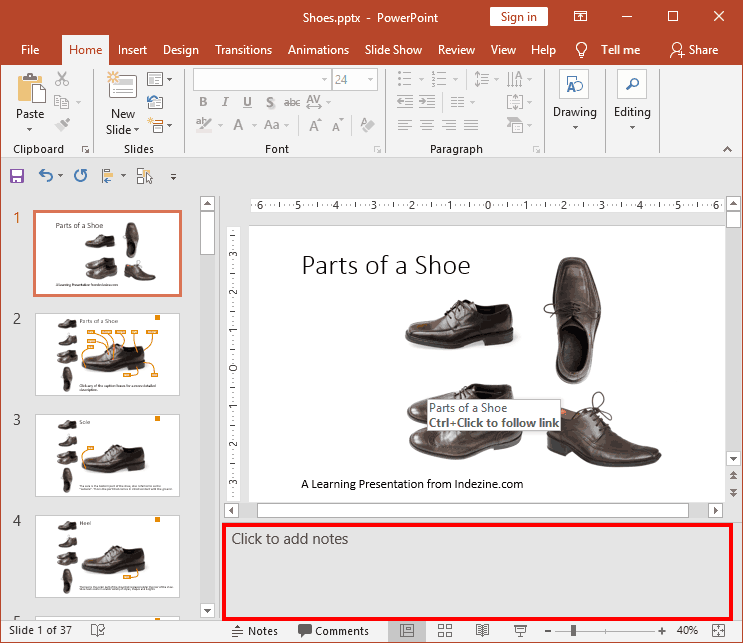
PowerPoint 2019 for Windows’s tri-paned interface has three regions: the Slides Pane, the Slide Area, and the Notes Pane. The Notes Pane is placed right below the Slide Area. The Notes Pane provides space to add speaker’s notes that can be so helpful to the presenter while presenting. You can also add any text here that contains any sort of information about the presentation or individual slide.
Learn about the Notes pane in PowerPoint 2019 for Windows.
Filed Under:
PowerPoint 2019
Tagged as: Interface, Microsoft Windows, Notes Pane, Office 2019, PowerPoint 2019, Tutorials
Comments Off on Notes Pane in PowerPoint 2019 for Windows
Microsoft and the Office logo are trademarks or registered trademarks of Microsoft Corporation in the United States and/or other countries.