
This is the print version of this page. All content is copyright Indezine.com 2000-2026.
Thoughts and impressions of happenings in the world of PowerPoint and presentations, continuously updated since 2003.
See Also:
PowerPoint and Presenting Notes
PowerPoint and Presenting Glossary
You may create the best presentation in the world, but what happens after the presentation has been delivered? Don’t you want to provide the information you presented in a document that you can distribute to attendees, or even send them a recap via email? Handouts are meant for such occasions, and PowerPoint lets you create some amazing handouts from your slides, that can also contain extra notes that were not visible on the slides. In this tutorial, we will explore an amazing option that creates handouts for PowerPoint presentations in Microsoft Word.

Learn how to export handouts to Word from PowerPoint 2013 for Windows.
Filed Under:
PowerPoint 2013
Tagged as: Export, Handouts, Microsoft Windows, Office 2013, PowerPoint 2013, Share, Tutorials, Word
Comments Off on Export Word Handouts in PowerPoint 2013 for Windows
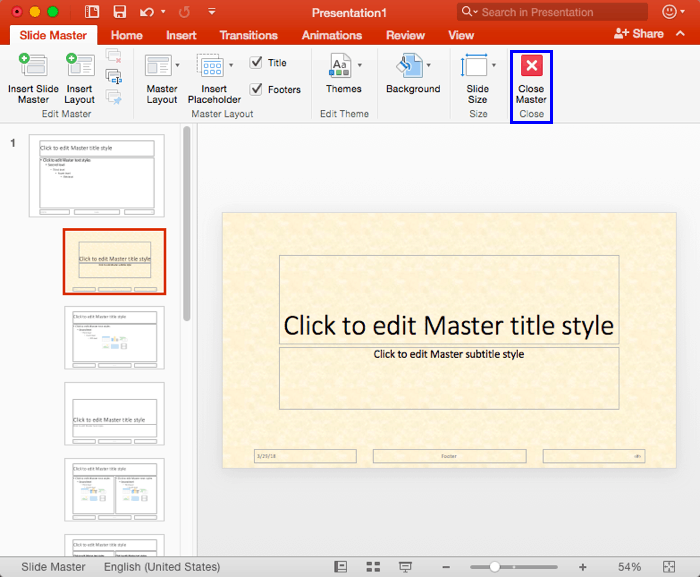
Content and appearance are the two major components of presentation slides. Among them, the former is always more significant than the latter. But that does not mean you should neglect the latter. A simple looking presentation with a clean background is always a great idea since that doesn’t overpower your message. Yet, there are plenty of opportunities to go beyond a plain background and use a less restrained background instead. Your choice for a slide background should complement the content of your presentation. For example, you’ll want a flashier background for slides created for kindergarten students, or if you were creating a PowerPoint greeting card. On the other hand, you may want a washed out, faded, or even a subtle patterned picture for a typical business presentation.
Filed Under:
PowerPoint 2016
Tagged as: Background, Mac, Office 2016, Office for Mac, PowerPoint 2016, PowerPoint for Mac, Slide Layouts, Slide Masters, Tutorials
Comments Off on Custom Backgrounds for Slide Master and Layouts in PowerPoint 2016 for Mac
Removing an animation in PowerPoint is a simple select-and-delete task, but even before you remove any animation, do ascertain why you want to remove it. Here are some obvious questions to consider before removing animations: Do you want to remove both the animation and the slide object that is animated? Or do you want to just remove the animation, and let the slide object be? Or maybe, you don’t want to remove the animation or the slide object. You just want to change the animation? Now that you have established what you want to do, removing an animation is very easy.

Learn to remove animations from slide objects in PowerPoint 2016 for Windows.
Filed Under:
PowerPoint 2016
Tagged as: Animation, Microsoft Windows, Office 2016, PowerPoint 2016, Tutorials
Comments Off on Remove Animations in PowerPoint 2016 for Windows
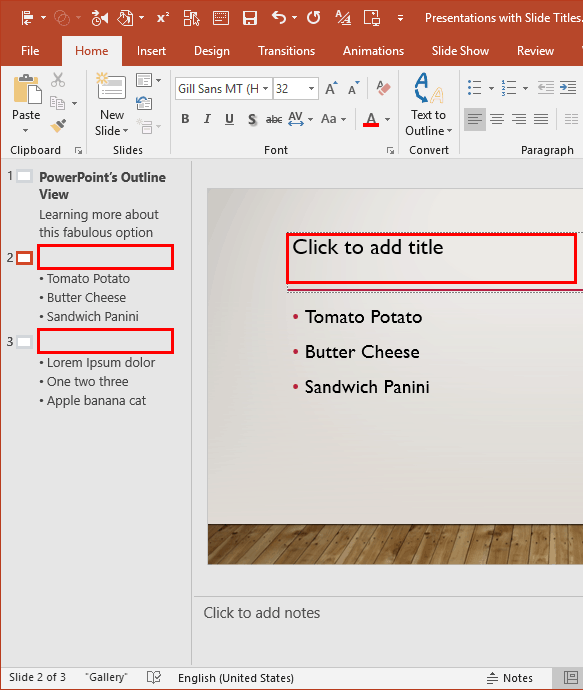
We feature Doug Thomas, who created training content for the Office Training Center, including the Office 15-Minute Webinars and Doug from Office video series. In this feature, Doug explores the right approach to using PowerPoint more effectively. We also bring you the exclusive Pslides offer for lifetime access to over 10,000 PowerPoint presentation templates for just $150. We then explore reasons why you may want to hide slide titles and learn two ways to hide them. This is a much better option than deleting slide titles!
PowerPoint 2016 for Windows users can learn about editing points in Motion Path animations, position previews, and packaging a presentation to a CD or a folder. The latter tutorial is also available for PowerPoint 2013 for Windows users. PowerPoint 2016 for Mac users can explore changing Background Styles for Slide Layouts. Plus, we also have a tutorial on Slide Layouts within Slide Master view. And if that wasn’t enough for this week, make sure you do not miss the quotes, press releases, and templates released in the last seven days.
Stay informed about updated tutorials and happenings related to PowerPoint and presenting.
Filed Under:
Ezine
Tagged as: Ezine, Indezine, News, PowerPoint
Comments Off on PowerPoint and Presenting News: April 17, 2018
You may create the best presentation in the world, but what happens after the presentation has been delivered? Don’t you want to provide the information you presented in a document that you can distribute to attendees, or even send them a recap via email? Handouts are meant for such occasions, and PowerPoint lets you create some amazing handouts from your slides, that can also contain extra notes that were not visible on the slides. In this tutorial, we will explore an amazing option that creates handouts for PowerPoint presentations in Microsoft Word.
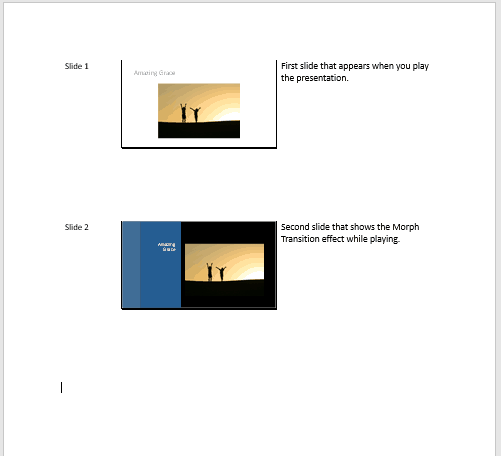
Learn how to export handouts to Word from PowerPoint 2016 for Windows.
Filed Under:
PowerPoint 2016
Tagged as: Export, Handouts, Microsoft Windows, Office 2016, PowerPoint 2016, Share, Tutorials
Comments Off on Export Word Handouts in PowerPoint 2016 for Windows
Microsoft and the Office logo are trademarks or registered trademarks of Microsoft Corporation in the United States and/or other countries.