
This is the print version of this page. All content is copyright Indezine.com 2000-2026.
Thoughts and impressions of happenings in the world of PowerPoint and presentations, continuously updated since 2003.
See Also:
PowerPoint and Presenting Notes
PowerPoint and Presenting Glossary

Kurt Dupont is a solution provider who would go out of his way just to ensure he brings out the best when it comes to issues that has to deal with data-driven presentations, data visualization, and digital signage software. He started by working at airports worldwide to set up airport databases and flight information screens. This evolved to became the basis for PresentationPoint.
In this conversation, Kurt talks about showing tweets within PowerPoint slides.
Filed Under:
Interviews
Tagged as: Add-in, Dashboards, Data, DataPoint, Interviews, Kurt Dupont, PowerPoint, PresentationPoint, Presenting Data
Comments Off on Tweeting Inside PowerPoint: Conversation with Kurt Dupont
Enabling Guides for your presentation slides helps ensure that your objects are easily aligned, and also in the same relative position in successive slides. But just enabling Guides is more like getting started. There’s so much more you can do, such as customizing the Guides themselves using hierarchical options. PowerPoint 2016 also lets you work with Guides on a higher hierarchical level within the Slide Master and individual Slide Layouts. Depending on whether you added Guides within the Slide Master, an individual Slide Layout, or even a normal slide, your Guides are color-coded for easy identification.
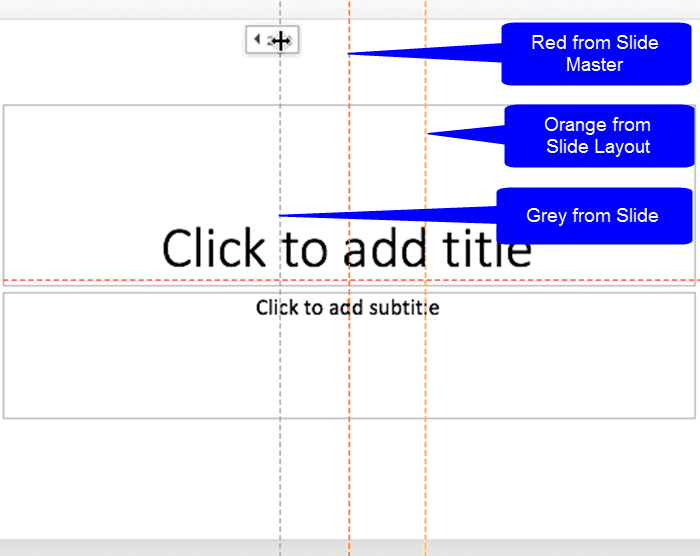
Learn about the hierarchical Guide options in PowerPoint 2016 for Mac.
Filed Under:
PowerPoint 2016
Tagged as: Guides, Mac, Office 2016, Office for Mac, PowerPoint 2016, PowerPoint for Mac, Tutorials
Comments Off on Hierarchical Guide Options in PowerPoint 2016 for Mac
Have you wondered where all the feedback that you provide to Microsoft about PowerPoint goes? Does anyone see it? What happens after the feedback is sent? It seems quite a bit happens, and you need to read this interesting story to learn more. We also look at the topic of overcoming clichés in pictures. How many times have you seen the same globe visual used within a slide or even a picture of shaking hands? Or a picture of a phone operator, or even some people smiling while working in an office? Let’s explore how you can tackle these clichés. We also look at the topic of non-existent keyboard shortcuts for PowerPoint views, and how keyboard sequences are the next best option to resolve this problem.
PowerPoint 2016 for Windows users can learn about creating PowerPoint handouts in Word, the Info tab of Backstage view, and removing animations. PowerPoint 2016 for Mac users can explore custom backgrounds for Slide Masters and Layouts. PowerPoint 2013 for Windows users can learn about exporting Word Handouts in PowerPoint. And if that wasn’t enough for this week, make sure you do not miss the quotes, press releases, and templates released in the last seven days.

Stay informed about updated tutorials and happenings related to PowerPoint and presenting.
Filed Under:
Ezine
Tagged as: Ezine, Indezine, News, PowerPoint
Comments Off on PowerPoint and Presenting News: April 24, 2018
While working in PowerPoint and other Office applications, you will see the concept of “Office Background”, which essentially indicated the small image strip visible on the top right area of the program interface. You’ll see the PowerPoint 2016 interface with Office Background applied. It does look like PowerPoint just got tattooed!

Learn how to change the Office Background in PowerPoint 2016 for Windows.
Filed Under:
PowerPoint 2016
Tagged as: Interface, Microsoft Windows, Office 2016, Office Background, PowerPoint 2016, Tutorials
Comments Off on Office Background in PowerPoint 2016 for Windows
You can export your presentation slides created within PowerPoint into a video clip in either WMV or MP4 formats. This is probably the easiest way to create quick videos from your slides and is best suited for converting photo slides to video clips. You can also use this technique to create video clips from PowerPoint that can be uploaded to YouTube or other video sharing sites.

Learn how to export a presentation to a video clip in PowerPoint 2016 for Windows.
Filed Under:
PowerPoint 2016
Tagged as: Export, Microsoft Windows, MP4, Office 2016, PowerPoint 2016, Tutorials, Video, WMV
Comments Off on Export a Presentation to a Video Clip in PowerPoint 2016 for Windows
Microsoft and the Office logo are trademarks or registered trademarks of Microsoft Corporation in the United States and/or other countries.