
This is the print version of this page. All content is copyright Indezine.com 2000-2026.
Thoughts and impressions of happenings in the world of PowerPoint and presentations, continuously updated since 2003.
See Also:
PowerPoint and Presenting Notes
PowerPoint and Presenting Glossary
While working with Motion Paths, especially after drawing a Custom Motion Path to animate your slide object, you may feel that the path drawn is not very smooth. Or you may have used one of the Preset Motion Paths to animate your slide object, and now you want to make some changes. Maybe you want to extend the path or use smoother corners rather than the default pointed ones. Drawing with a mouse typically does result in paths that don’t look too good! Since Motion Paths are essentially lines drawn in PowerPoint, you can always edit them using the Edit Points option, and reorient them as required.

Learn to edit motion paths using the Edit Points option in PowerPoint 2016 for Windows.
Filed Under:
PowerPoint 2016
Tagged as: Animation, Microsoft Windows, Motion Path, Office 2016, PowerPoint 2016, Tutorials
Comments Off on Edit Points in Motion Paths of Animations in PowerPoint 2016 for Windows
Animated GIFs aren’t as omnipresent as they once were. In a bandwidth starved world, they were an easy way to add impact to a webpage. Bandwidth issues are still relevant. But nowadays many mainstream sites only use animated GIFs if they can add value to a design. That doesn’t mean that animated GIFs aren’t popular. There are whole sites online which are dedicated only to animated GIFS and a slew of new software which make creating them very easy.

Explore animated GIFs and resources to create and download them.
Filed Under:
Clip Media
Tagged as: Animated GIFs, Clip Media, PowerPoint, Resources
Comments Off on Resources: Animated GIFs
When most people use Motion Path animations, the feature they probably use the least is locking and unlocking the Motion Paths. That may be because these options are not too well documented. But that’s no reason to ignore this option. Especially, since locking and unlocking Motion Paths can help you create better animations.

Learn to lock and unlock motion paths in PowerPoint 2016 for Windows.
Filed Under:
PowerPoint 2016
Tagged as: Animation, Microsoft Windows, Motion Path, Office 2016, PowerPoint 2016, Tutorials
Comments Off on Lock and Unlock Paths for Motion Path Animations in PowerPoint 2016 for Windows
While changing the Slide Layout for any given slide(s) in PowerPoint 2016 for Mac, you typically access the Home tab of the Ribbon and click the Layout button. This brings forth the Layout drop-down gallery. The number of Slide Layouts that you see within this gallery may differ depending upon the Theme of your active presentation. However, with PowerPoint’s default Office Theme applied, you may see 11 layouts. So, where do these Slide Layouts come from? What influences how they look, or how the placeholders within them are laid out? To find out answers to these questions, you need to access Slide Master view within PowerPoint.

Explore Slide Layouts within Slide Master view in PowerPoint 2016 for Mac.
Filed Under:
PowerPoint 2016
Tagged as: Mac, Office 2016, Office for Mac, PowerPoint 2016, PowerPoint for Mac, Slide Layouts, Slide Master View, Tutorials
Comments Off on Slide Layouts within Slide Master View in PowerPoint 2016 for Mac
To begin, let’s start with the basics. What are Guides in PowerPoint? Consider Guides as individual lines from a grid on your slide that you create. Every single Guide can be moved, added, or deleted. Guides also have snap options that are always on. Once the Guides are made visible on the slide, all objects that venture close enough to them just snap. Along with Rulers, Guides help you position your slide objects with more precision, and you can make them work for you using techniques explained on this page.
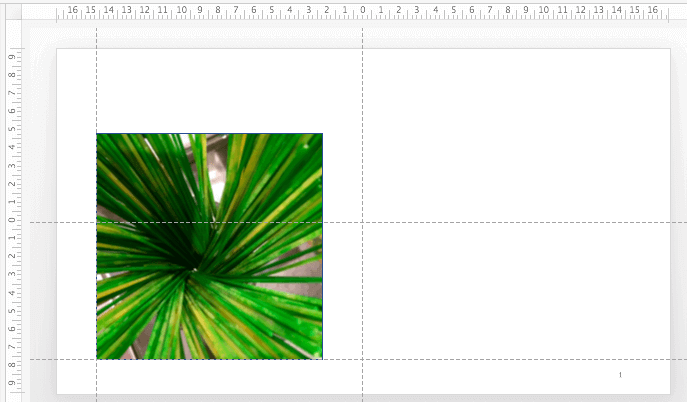
Learn how to work with Guides in PowerPoint 2016 for Mac.
Filed Under:
PowerPoint 2016
Tagged as: Guides, Mac, Office 2016, Office for Mac, PowerPoint 2016, PowerPoint for Mac, Tutorials
Comments Off on Working with Guides in PowerPoint 2016 for Mac
Microsoft and the Office logo are trademarks or registered trademarks of Microsoft Corporation in the United States and/or other countries.