
This is the print version of this page. All content is copyright Indezine.com 2000-2026.
Thoughts and impressions of happenings in the world of PowerPoint and presentations, continuously updated since 2003.
See Also:
PowerPoint and Presenting Notes
PowerPoint and Presenting Glossary
Our next option within the Insert Online Pictures in PowerPoint 2016 series of tutorials is exploring how you can insert pictures from your OneDrive account. Note that you must have some pictures already uploaded to your OneDrive folders for working with this tutorial. Luckily with OneDrive’s camera upload options for all phone platforms, most of us possibly already have tons of pictures in our OneDrive folders.
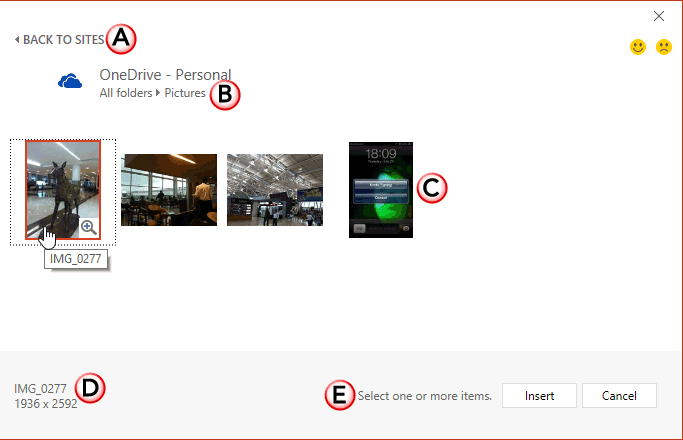
Learn how to insert pictures from your OneDrive account in PowerPoint 2016 for Windows.
Filed Under:
PowerPoint 2016
Tagged as: Graphics, Microsoft Windows, Office 2016, OneDrive, Pictures, PowerPoint 2016, Tutorials
Comments Off on Insert Picture from OneDrive in PowerPoint 2016 for Windows
One of PowerPoint’s amazing options is the feature that lets you convert your existing bulleted text to a SmartArt graphic. Many times, though, you might want to do the reverse; that is converting SmartArt back to bulleted text. When Microsoft introduced SmartArt in PowerPoint 2007, this reverse conversion was not possible but in later versions, Microsoft added this ability. Do note though that you will be left with just plain text rather than any shapes or visuals.
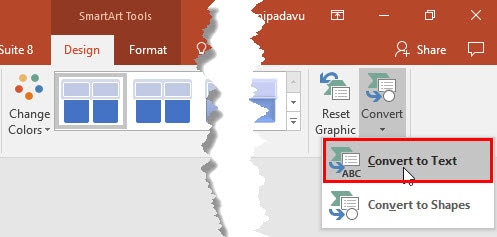
Learn how to convert text within SmartArt graphics to bulleted text in PowerPoint 2016 for Windows.
Filed Under:
PowerPoint 2016
Tagged as: Diagrams, Graphics, Infodiagram, Infographics, Microsoft Windows, Office 2016, PowerPoint 2016, SmartArt, Text, Tutorials
Comments Off on Convert SmartArt Graphic to Text in PowerPoint 2016 for Windows
We start with something unusual: how you can draw a petal shape in PowerPoint. This result is very easy to achieve, and yet not so obvious. We also provide a video tutorial on creating a petal shape in PowerPoint. We then bring you a review of Wondershare Filmora, a new video editing program. You can also learn how to identify the version and license of the PowerPoint instance installed on your computer. We cover this tutorial for Windows users; a similar tutorial for Mac users has already been provided. And finally, PowerPoint MVP Nolan Haims pays his tribute to Hans Rosling by sharing a technique that lets you morph between bubble charts in PowerPoint.
In the Tutorials section, PowerPoint 2016 users can learn about the types of vertexes, also known as points. You will encounter points when you edit shapes. In this same series, we also show opening and closing paths, and curved/straight line segments. We also show you how you can insert pictures from Bing and Flickr, right inside PowerPoint. Finally, do not miss the new press releases and templates of this week.
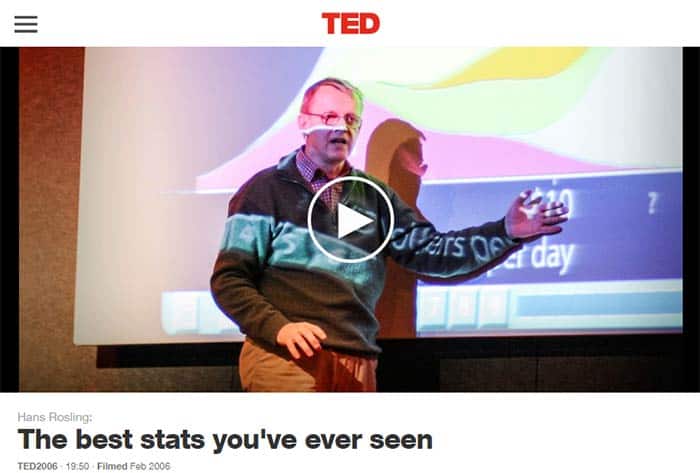
Read Indezine’s PowerPoint and Presenting News.
Filed Under:
Ezine
Tagged as: Ezine, Indezine, News, PowerPoint
Comments Off on PowerPoint and Presenting News: February 28, 2017
Pictures have an important role in presentation slides since they add imagination and visualization to your slides. To make pictures more impactful, you can even apply borders and effects to them, and also try some Picture Styles that PowerPoint offers. Other than these options, there is one more option that works in the same way as how you convert text to SmartArt. This is the Picture Layout option that similarly converts selected pictures into SmartArt.

Filed Under:
PowerPoint 2016
Tagged as: Diagrams, Layouts, Microsoft Windows, Office 2016, Pictures, PowerPoint 2016, SmartArt, Tutorials
Comments Off on Picture Layouts in PowerPoint 2016 for Windows
OK, the title of this post is missing an important word, but I won’t tell you about the missing word right away. First, let us remember Hans Rosling, who passed away on February 7th 2017, at the age of 68. He was an amazing speaker, and his TED talks have been viewed many times. He was also known for his non-profit organization, Gapminder, which he founded with his son Ola and daughter-in-law Anna. Hans Rosling played with data by literally moving data with his hand gestures in fascinating ways.
And that’s the topic of today’s post. Fellow MVP, Nolan Haims created this amazing tribute video, in which he also shares a Rosling-inspired PowerPoint technique.
 I put forth some questions to Nolan:
Geetesh: Nolan, what inspired you most about Hans Rosling?
Nolan: The thing that continually inspired me (and probably most people) about Hans Rosling was his unbridled enthusiasm and passion for data and being able to bring it to life visually to tell a story.
Geetesh: What was your Eureka moment like when you realized that you could create Hans Rosling like charts with PowerPoint’s Morph transition?
Nolan: I have for a while been breaking charts apart for various reasons including breaking bubble charts apart to make use of the proportionally sized circles. As soon as Morph was introduced, I immediately tried it out on charts and was disappointed to learn that it only really worked on shapes. But then I quickly thought that if you could turn a chart into shapes, Morph would work. A couple of quick tests later I was morphing bubble charts. Interestingly, it is harder to break apart simpler charts like bar and columns into separate shapes to do something similar with them, but I’m working on it…
And that’s the reason I mentioned that the title is misleading. It should have read, “Animate Fake Bubble Charts in PowerPoint with Morph!”
See Also: Talk Like a Rosling: Conversation with Rob Dysell
The views and opinions expressed in this blog post or content are those of the authors or the interviewees and do not necessarily reflect the official policy or position of any other agency, organization, employer, or company.
Filed Under:
Thoughts
Tagged as: Interviews, Morph, Nolan Haims, PowerPoint, Video
Comments Off on Animate Bubble Charts in PowerPoint with Morph
Microsoft and the Office logo are trademarks or registered trademarks of Microsoft Corporation in the United States and/or other countries.