
This is the print version of this page. All content is copyright Indezine.com 2000-2026.
Thoughts and impressions of happenings in the world of PowerPoint and presentations, continuously updated since 2003.
See Also:
PowerPoint and Presenting Notes
PowerPoint and Presenting Glossary
Although the default colors of an inserted SmartArt graphic may work the best, you may also want to change the colors of the shapes comprising the SmartArt graphic. You change the colors of everything within the SmartArt graphic at one go or change colors of individual shapes within the SmartArt graphic. Follow these steps to learn how you can change colors of your SmartArt graphic in PowerPoint 2013 for Windows.
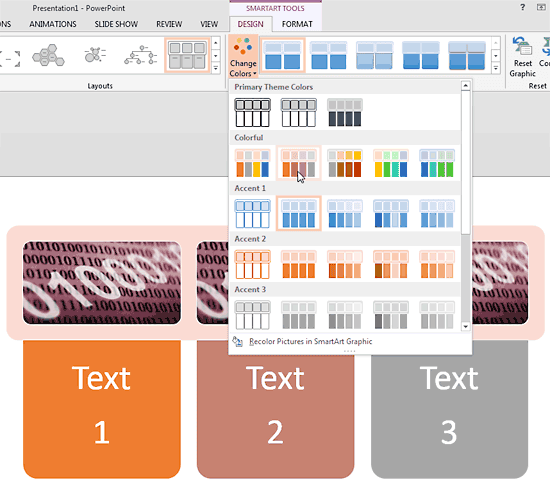
Learn how to change colors for a SmartArt graphic in PowerPoint 2013 for Windows.
Filed Under:
PowerPoint 2013
Tagged as: Diagrams, Graphics, Microsoft Windows, Office 2013, PowerPoint 2013, SmartArt, Tutorials
Comments Off on Change Colors for a SmartArt Graphic in PowerPoint 2013 for Windows

Nova Fisher has worked within communications with Xara for over 15 years. She has previously founded and managed some successful early-to-market businesses including an internet service provider (ISP) which was founded in 1994, and the creation of one of the earliest online web authoring solutions in 1996, that enabled anyone to create a professional website without the need for any design or technical skills.
In this interview, Nova talks about the new Xara Designer Pro X product.
Geetesh: Nova, Xara Designer Pro X365 is the newest version of an amazing, capable graphic program—but with so many features already built-in, how do you decide which features you will introduce in a new version?
Nova: It’s a combination of customer requests and features that we want to see ourselves. We all use the program a lot of course, and so there are always ideas for new features and improvements – in fact, we always have way, way more ideas and wish list items that we can do. And that’s part of the reason we went to the 365-update model, which means no more yearly releases with a ton of features in, but more regular updates, maybe three or four a year, so users do not have to wait a whole year to get new features or a new version.
Geetesh: Can you tell us about Xara SmartShapes? Also, tell us about your favorite idea that involves SmartShapes.
Nova: SmartShapes are a very useful range of everyday shapes that users can drop right into their documents or websites and then edit in a simple and intuitive way. The dimensions of the SmartShape can be adjusted and also it will automatically stretch or contract as more or less text is included. For example, with the Speech Bubble, the edit handles enable users to change the dimensions of the bubble, add curvature, control the text area, and also tweak the size and orientation of the bubble’s arrow.
SmartShapes include Speech Bubbles, Arrows, Text boxes, Polygons, Stars, and many other shapes. New in Xara Designer Pro X365 are more complex objects, such as smart charts for percentage rings, bar charts and column charts. It’s amazingly quick and easy to add these professionally designed SmartShapes to a document or website.
I find the SmartShapes extremely useful, in particular, the Text Panels and Photo Panels that contain text and photos. I just enter my text /photo and the panel adjusts accordingly or I can select one of the side or corner handles and stretch or reduce, or change the shape and rotate it as required. I use them on my websites, leaflets, and posters. The Speech Bubbles are really useful when annotating a document or drawing. It’s so easy to change the curvature and direction of the pointer.
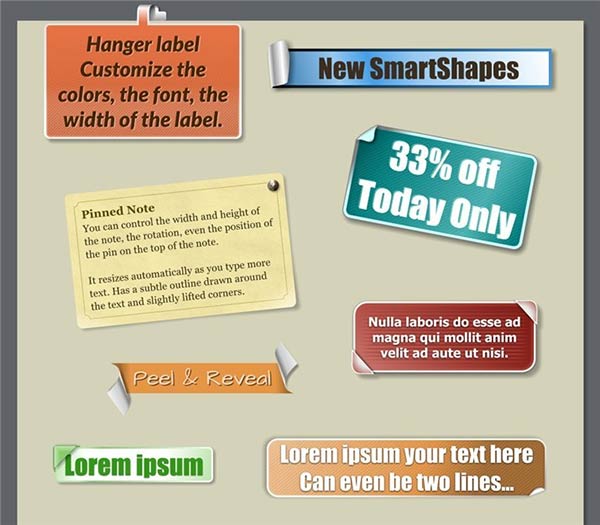
Geetesh: What are Smart Photo Grids?
Nova: ‘Smart’ Photo Grids smartly resize to fill the rectangles as photos are added or deleted, and users can swap the positions of the photos, and adjust the number of rows and columns and the border/gap between all the photos. Xara also provides ‘Static’ Photo Grids that are simple, fixed, visually attractive grids of photos onto which users can drag & drop their own photos.
Geetesh: What makes Xara Designer Pro X so powerful?
Nova: Xara Designer Pro X is the ultimate all-in-one creative software, that provides powerful vector illustration, photo editing, page layout, and website design, in one unrivalled WYSIWYG design tool.
At its heart, Xara Designer Pro X is a vector-based program, and unusually, uses vector graphics even for editing photos. This has significant benefits in that all the edits are retained, everything is resolution-independent and it is object-orientated editing. So, a user can revert to the original at any stage of editing.
By combining all these tools in one program, Xara Designer Pro achieves faster performance with no program switching, lower memory and computing requirements, an easier learning curve, higher productivity, and significantly better value for money.
See Also: Xara Product Reviews on Indezine
The views and opinions expressed in this blog post or content are those of the authors or the interviewees and do not necessarily reflect the official policy or position of any other agency, organization, employer, or company.
Filed Under:
Interviews
Tagged as: Graphics, Interviews, Nova Fisher, Xara
Comments Off on Xara Designer Pro X: Conversation with Nova Fisher
After inserting a SmartArt graphic within PowerPoint or converting some bulleted text to SmartArt, you might want to change the layout of the SmartArt. You can choose from various SmartArt graphics variations available within PowerPoint 2013. In this tutorial, we’ll show you how to change any existing SmartArt graphic to any other layout (type).
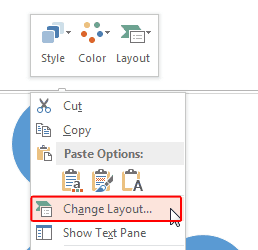
Learn how to change from one SmartArt graphic layout to another in PowerPoint 2013 for Windows.
Filed Under:
PowerPoint 2013
Tagged as: Microsoft Windows, Office 2013, PowerPoint 2013, SmartArt, Tutorials
Comments Off on Change between SmartArt Graphic Layouts (Types) in PowerPoint 2013 for Windows
After inserting a SmartArt graphic within PowerPoint (or converting some bulleted text to SmartArt), you can easily add more shapes to your SmartArt graphics with just a click or two. You can even delete shapes from any existing SmartArt graphic.
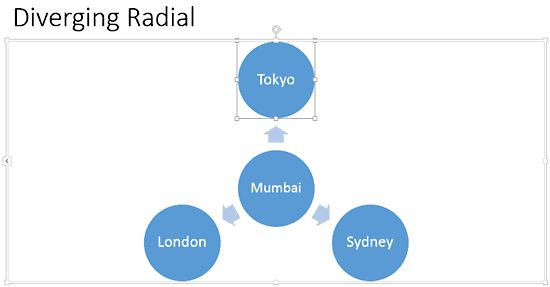
Learn how to delete shapes from existing SmartArt graphics in PowerPoint 2013 for Windows.
Filed Under:
PowerPoint 2013
Tagged as: Microsoft Windows, Office 2013, PowerPoint 2013, SmartArt, Tutorials
Comments Off on Delete Shapes from an Existing SmartArt Graphic in PowerPoint 2013 for Windows
Humor is an integral part of presenting, and Marshall Chiles, author of Your Presentation is a Joke talks about how can incorporate humor in your presentations. Noted speakers at the upcoming Presentation Summit in Las Vegas talk about their sessions — we feature Ric Bretschneider this week. Make sure you read what they say, even if you won’t attend the conference! We also feature Jerry Weissman this week who authors a guest column, The Sixth Success Factor for Startups: The Perfected Pitch. Do you want to create your own music with nothing but just your computer? Nova Fisher of Magix talks about the Magix Music Maker Premium product.
In the Tutorials section, we explore Backstage View options in PowerPoint 2013 for Windows–we cover Save, Save As, Open, and Close options. We also look at SmartArt topics: inserting SmartArt, converting bulleted text to SmartArt, and the Text Pane for SmartArt graphics. Finally, do not miss the new press releases and templates of this week.

Read Indezine’s PowerPoint and Presenting News.
Filed Under:
Ezine
Tagged as: Ezine, Indezine, News, PowerPoint
Comments Off on PowerPoint and Presenting News: September 13, 2016
Microsoft and the Office logo are trademarks or registered trademarks of Microsoft Corporation in the United States and/or other countries.