
This is the print version of this page. All content is copyright Indezine.com 2000-2026.
Thoughts and impressions of happenings in the world of PowerPoint and presentations, continuously updated since 2003.
See Also:
PowerPoint and Presenting Notes
PowerPoint and Presenting Glossary
Text Boxes in PowerPoint need to be moved and resized within different areas of the slide. While you may think that selecting and resizing is all that is to be done, that’s not the entire truth because there’s so much more you can do even with mere resizing — if you know that these options exist! In a previous tutorial, you learnt how to move text boxes on a slide. As emphasized within that tutorial, you should only resize Text Boxes, and not Text Placeholders most of the time since the size of the latter in best controlled by the Slide Master.

Learn how to resize Text Boxes on a slide in PowerPoint 2016 for Windows.
Filed Under:
PowerPoint 2016
Tagged as: Microsoft Windows, Office 2016, PowerPoint 2016, Text, Text Boxes, Text Placeholders, Tutorials
Comments Off on Resize Text Boxes on a Slide in PowerPoint 2016 for Windows

Chantal Bossé got hooked on PowerPoint while doing instructional design in the mid-90s. Convinced there was a better way to present, she started CHABOS in 2004 and became a presentations & visual communications expert. She helps entrepreneurs, speakers, and trainers improve their presentations’ impact by having a clear message, great visuals, and a memorable delivery, whether in French or English. Chantal has been a speaker at various business events and a few international webinars, she is a presentation coach for the TEDxQuebec event.
In this conversation, Chantal discusses her tricks on working with multiple proofing languages within PowerPoint.
Geetesh: Chantal, you work with both English and French PowerPoint slides. What are the frustrations you face with multiple proofing languages, and how do you cope up with and overcome these issues?
Chantal: My operating system and Office installations are in French, but I regularly need to work in English too, and it can sometimes be a challenge. There are many variables at stake, like the language the file was created in, and a mysterious mix of your operating system and Office user interface language, and your keyboard language. I say “mysterious” because many times I have seen the proofing language switched in my file without doing changes myself. For a while, I just thought that I had to be lucky to set all language parameters the right way, and that was really frustrating.
Besides the fact that this language mess was making me less productive, the most important element was that I did not want my clients wondering why they had so many red-underlined words in their file. Knowing regular users will not always look for complicated solutions, I tried to find what could be done within Windows & Office. I first tried using Microsoft’s Language Interface Pack – LIP – for Office, but it became a nightmare because I would need to save all my user customization before I changed the interface language. And that still meant battling with my default keyboard language.
Then I stumbled on the feature allowing us to change the default input language in Windows. With my LIP installed that meant I could simply configure Office so it would display in the same language than Windows. What a relief! I stopped losing my customizations and my work became more effective when working on English files.
As long as we respect the order of the two-step process, it works like a charm. But you are still required to switch back and forth every time you are changing project language, which is still a waste of time if you need to do it often in a day. But it is way better than trying to manually fix the language on all slide objects one by one!
Readers should read these two Support articles from the Microsoft site to help them determine how to proceed, according to their Windows and Office versions.
Geetesh: How has your experience been using Steve Rindsberg’s Language Selector add-in for PowerPoint? Also, are there any other products that help you working with multiple proofing languages?
Chantal: When Steve contacted me to help him test his add-in, I definitely wanted to pitch in! Changing Windows’ default input language and Office’s display language is simple, but it still requires downloading additional language packs if they are not present on our computer. And it requires swapping the UI language every time I change from one language to the other.
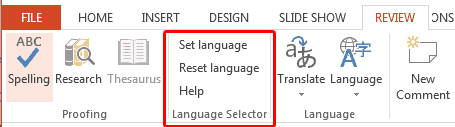
With the Language Selector, I don’t need to do that anymore. Whatever the language the file was created with, I can simply go to my Review tab, and choose Set Language. I would say that I like this solution far more than having to fiddle in my Windows settings every time I need to work in a different language.
I have been using the Language Selector for a few years now, and it works so well that I have not searched the web for any other tool. In just a few seconds, it changes the language setting of most editable objects on slides AND in the notes pane. If I would have to describe it in two words, I would say Fast and Efficient.
View this feature in French on Chantal’s site.
You May Also Like: Chantal Bossé on Indezine | Language Selector: Conversation with Steve Rindsberg | What is Your Body Language Saying About You?: by Sandra Schrift
The views and opinions expressed in this blog post or content are those of the authors or the interviewees and do not necessarily reflect the official policy or position of any other agency, organization, employer, or company.
Filed Under:
Interviews
Tagged as: Chantal Bossé, Interviews, Language Selector, PowerPoint, Proofing
Comments Off on Working with Multiple Proofing Languages in PowerPoint: Conversation with Chantal Bossé
PowerPoint allows you to save your slides to many graphic file formats, which can later be used in other applications as required. One of the most popular graphic formats that you can export your slides to is PNG. This tutorial will show you how you can export slides to PNG, but using the same process, you can also export to other graphic file formats such as JPG, GIF, TIFF, BMP etc. Follow these steps to export some or all of your slides to a picture file format such as PNG in PowerPoint 2011.

Filed Under:
PowerPoint 2011
Tagged as: Export, Mac, Office 2011, Pictures, PNG, PowerPoint 2011, Tutorials
Comments Off on Exporting PNGs and other Graphic File Formats (JPG, GIF, TIFF, BMP) in PowerPoint 2011 for Mac
We start with another story on how POPcomms, a UK based design agency used the Morph transition to add interactivity to slides! TJ Walker answers more questions–this time he responds to: What’s the best thing to do after a mistake — maybe even a pronunciation mistake that you are immediately aware of? Should we correct ourselves, or move ahead? Spoken words and visual images do go hand in hand, and the sum of both in a presentation scenario is often larger than their individual scores. Do you have any thoughts about how presenters can best combine words and images? Also, Steve Rindsberg talks about his Language Selector add-in for PowerPoint, a must if you use more than one language while creating your slides.
PowerPoint 2016 for Windows users can learn more about aspect ratios, Smarter guides, duplicating Slide Masters, and applying Themes. Finally, do not miss the new discussions and templates of this week!

Read Indezine’s PowerPoint and Presenting News.
Filed Under:
Ezine
Tagged as: Ezine, Indezine, News, PowerPoint
Comments Off on PowerPoint and Presenting News: April 19, 2016
This video came about when a few questions were sent to TJ Walker, who responded with answers via a video podcast.
Here are the questions answered by TJ:
TJ Walker is the founder of Media Training Worldwide and has been conducting media training workshops and seminars since 1984. Walker has trained Presidents of countries, Prime Ministers, Nobel Peace Prize winners, Super Bowl winners, U.S. Senators, Miss Universes and Members of Parliament. His book, Secret to Foolproof Presentations was a USA Today #1 Bestseller, as well as a Wall Street Journal, and Business Week Bestseller.

You May Also Like:
Indezine Questions 01: Conversation with TJ Walker
Indezine Questions 02: Conversation with TJ Walker
Indezine Questions 04: Conversation with TJ Walker
The views and opinions expressed in this blog post or content are those of the authors or the interviewees and do not necessarily reflect the official policy or position of any other agency, organization, employer, or company.
Filed Under:
Thoughts
Tagged as: Podcast, PowerPoint, Presentation Skills, TJ Walker
Comments Off on Indezine Questions 03: Conversation with TJ Walker
Microsoft and the Office logo are trademarks or registered trademarks of Microsoft Corporation in the United States and/or other countries.