
This is the print version of this page. All content is copyright Indezine.com 2000-2026.
Thoughts and impressions of happenings in the world of PowerPoint and presentations, continuously updated since 2003.
See Also:
PowerPoint and Presenting Notes
PowerPoint and Presenting Glossary
Slide Layouts are a very useful feature because they let you use a preset arrangement of placeholders repeatedly, resulting in consistent looking slides. And yes, you can also create your own custom Slide Layouts. While very few users create their own custom Slide Layouts, even fewer will create a custom Slide Layout for pictures! That’s regrettable since Picture Slide Layouts can make your slides look so unique. In this tutorial, we will show you how easy it is to create your own Picture Slide Layout in PowerPoint 2016.

Learn how to work with Picture Slide Layouts in PowerPoint 2016 for Windows.
Filed Under:
PowerPoint 2016
Tagged as: Microsoft Windows, Office 2016, Pictures, PowerPoint 2016, Slide Layouts, Tutorials
Comments Off on Working with Picture Slide Layouts in PowerPoint 2016 for Windows
Essentially Themes are like a style sheet for your Office documents — they define how your text appears, where it appears, and also the layouts of your slides. Themes also influence how charts look within Excel and PowerPoint — and also how your tables appear in all Office programs. You can also change the Theme for an Office document, sheet, or slide and watch how this simple task can change the overall appearance of your content.

Learn how to apply Themes in PowerPoint, Word, and Excel 2016 for Windows.
Filed Under:
PowerPoint 2016
Tagged as: Microsoft Windows, Office 2016, PowerPoint 2016, Templates, Themes, Tutorials
Comments Off on Applying Themes in PowerPoint, Word, and Excel 2016 for Windows
A while ago, we showed you how POPcomms, a presentation design firm based in Bristol, UK used the new Morph transition effect in PowerPoint to create an amazing demo.
To follow up, they have now created a new demo with Morph that uses the transition effect more as an interactive navigation tool. Take a look at this YouTube embed:
I asked POPcomms‘ Damjan Haylor: You have used Morph to create a navigation between slides, and also to create a more effective touch experience. What motivated you to use Morph to create something completely different than a regular morph?
 Here’s Damjan’s answer: In the above video, we have used PowerPoint’s new Morph tool with some of PowerPoint’s other interactive features to show you how you can use Morph to develop more creative tools in your presentations. We developed a credentials presentation using Morph to create an image carousel to show off some of our creative work. You can tap through the images or scroll through the carousel to bring in as many images as you need, interactive navigation then allows you to drill into that image to get further detail.
We have used interactive navigation to move around the pages and used Morph as the transition tool to make for a more fluid and seamless presentation. Using a touchscreen with the presentation makes for a more engaging experience for the audience and invites them to come up to the screen and tap through the content they are interested in allowing them to steer the conversation.
The Morph tool combined with navigation really does take PowerPoint and presentations to another level and allows you to develop more creative features to help you tell a more persuasive story. We’ll be releasing some more video examples in the coming weeks.

You May Also Like: POPcomms on Indezine
The views and opinions expressed in this blog are those of the authors and do not necessarily reflect the official policy or position of any other agency, organization, employer, or company.
Filed Under:
Case Studies
Tagged as: Case Studies, Interactivity, Interviews, Morph, POPcomms, PowerPoint, Transitions
Comments Off on POPcomms: Using PowerPoint’s Morph Transition Effect for Interactive Slide Navigation
Duplicating a Slide Master is a little different than adding a new Slide Master from scratch. And it is a smarter option because you do not have to make the same changes all over again. Let’s explain this with a scenario. Imagine you have formatted your existing Slide Master by applying a Background Style, adding a logo, or even adding your own Picture placeholder layout. And now you want a new Slide Master that’s almost the same as your existing one — but you want a different Theme Colors set to be used. For such a small change, it is advisable that you duplicate your existing Slide Master and make the small changes instead of starting all over again with a new Slide Master.

Learn how to duplicate Slide Masters in PowerPoint 2016 for Windows.
Filed Under:
PowerPoint 2016
Tagged as: Microsoft Windows, Office 2016, PowerPoint 2016, Slide Masters, Templates, Themes, Tutorials
Comments Off on Duplicate Slide Masters in PowerPoint 2016 for Windows

Steve Rindsberg has been associated with PowerPoint since the product originated more than two decades ago. His PowerPoint FAQ site is a treasure trove of PowerPoint information. When he’s not updating his site, he’s creating new PowerPoint add-ins that expand possibilities within PowerPoint. Steve’s also into a lot of print technology related stuff.
In this conversation, Steve discusses PPTools Language Selector, his new PowerPoint add-in that changes your proofing languages.
Geetesh: Steve, can you tell more about Language Selector, your PowerPoint add-in. What motivated you to create Language Selector?
Steve: Like many of my other add-ins, the idea arose from assisting other PowerPoint users on help forums like Microsoft’s Answers and discussing the problem with the other PowerPoint MVPs. We’re lucky to have MVPs who routinely produce and translate presentations in multiple languages. They all share a common set of problems.
They complain about The Red Squiggly Underline Problem. If the presentation’s language settings don’t match the language they’re typing in, most of the words get underlined in red, indicating that PowerPoint considers them misspelled. And of course, if you’re handed an English presentation and asked to translate it to, say, French, the presentation is still set to English, so all of your French text gets the Dreaded Red Squigglies.
So not only do you get no spelling (or grammar) help from PowerPoint, your presentation gets littered with Red Squigglies. You may understand why it’s happening, but you certainly don’t want to hand your client a presentation that looks like it’s riddled with errors.

Geetesh: For a typical user who needs to switch between languages in PowerPoint, how useful is Language Selector?
Steve: PowerPoint lets you select and set text shapes to any language you like, but that gets tedious quickly. You can select all the text in the outline and set it all to your target language in one go, but that leaves a lot of text in the original language. There are macros on the web that do a more thorough job but still don’t get everything. And finally, even if you set every last bit of text to the desired language, you still have a problem: when you hand the presentation over to your client or another user and they add new text, the Red Squigglies are back. PowerPoint still thinks the text is in the original language, so it gets flagged as misspelled.
Language Selector does everything a user could do on their own to set the proper language on shapes and text. Then it goes deeper, into areas that have no user interface, or that a user wouldn’t think to do. It sets the default for each slide and indeed the entire presentation to the chosen language, so even new text added later is automatically set to the correct language. No more Red Squgglies. Unless, of course, the user misspells something, in the correct language.
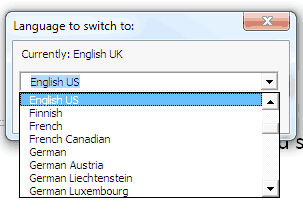
And of course, Language Selector does its work in seconds, and not many of those, even for large presentations. Typically, it’s done converting an entire presentation in the time it’d take a skilled user to select all of the text on a single slide and find the dialog to change it to the correct language.
The views and opinions expressed in this blog post or content are those of the authors or the interviewees and do not necessarily reflect the official policy or position of any other agency, organization, employer, or company.
You May Also Like: Working with Multiple Proofing Languages in PowerPoint: Conversation with Chantal Bossé
Filed Under:
Interviews
Tagged as: Add-in, Interviews, Language Selector, PowerPoint, Steve Rindsberg
Comments Off on Language Selector: Conversation with Steve Rindsberg
Microsoft and the Office logo are trademarks or registered trademarks of Microsoft Corporation in the United States and/or other countries.