
This is the print version of this page. All content is copyright Indezine.com 2000-2026.
Thoughts and impressions of happenings in the world of PowerPoint and presentations, continuously updated since 2003.
See Also:
PowerPoint and Presenting Notes
PowerPoint and Presenting Glossary
Do you notice that any object you move, resize, or align in PowerPoint 2016 actually helps make your task easy! Move it a little closer, resize a wee bit, or even try spacing slide objects and the screen shows all sorts of helpful indicators in the form of dotted lines. The red, dotted lines that show up and then disappear are Smart Guides. These made their debut in PowerPoint 2010 and allowed you to position objects easily. More improvements were added in PowerPoint 2013 that enabled you to see how much further you need to drag so that one object on the slide is as wide as another adjacent object. In fact, you can also evenly space out objects without accessing any Ribbon tabs or typing a number within a dialog box!

Learn about Smarter Guides in PowerPoint 2016 for Windows.
Filed Under:
PowerPoint 2016
Tagged as: Guides, Interface, Microsoft Windows, Office 2016, PowerPoint 2016, Tutorials
Comments Off on Smart Dynamic Guides in PowerPoint 2016 for Windows
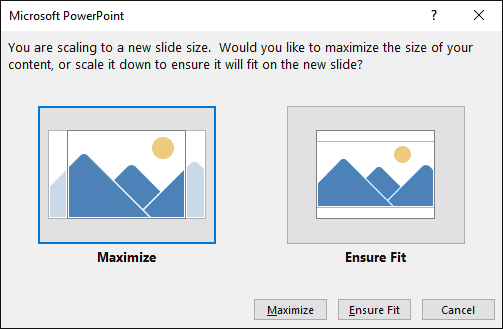
We already explored how PowerPoint 2016 defaults to Widescreen slides in all new presentations. However, you can change your presentation’s aspect ratio from Widescreen (16:9) to Standard (4:3) — and also do the reverse. PowerPoint 2016 has some features up its sleeve that make these changes of aspect ratios easier to understand — and some quirks too! This tutorial will help you understand both scenarios better.
Filed Under:
PowerPoint 2016
Tagged as: Aspect Ratio, Microsoft Windows, Office 2016, PowerPoint 2016, Slide Size, Tutorials
Comments Off on Change Presentation Aspect Ratio from Widescreen to Standard (and Vice Versa) in PowerPoint 2016 for Windows
Do you know which transition effect is most effective–more than even no transition effect at all? Yes, it is the Fade effect, and we explore this Fade effect this week.
PowerPoint 2016 for Windows users can learn more about types of shapes, and how you can resize shapes. PowerPoint 2013 users can learn about exporting slides as pictures from their presentation. Finally, do not miss the new discussions and templates of this week!

Read Indezine’s PowerPoint and Presenting News.
Filed Under:
Ezine
Tagged as: Ezine, Indezine, News, PowerPoint
Comments Off on PowerPoint and Presenting News: April 12, 2016
This video came about when a few questions were sent to TJ Walker, who responded with answers via a video podcast.
Here are the questions answered by TJ:
TJ Walker is the founder of Media Training Worldwide and has been conducting media training workshops and seminars since 1984. Walker has trained Presidents of countries, Prime Ministers, Nobel Peace Prize winners, Super Bowl winners, U.S. Senators, Miss Universes and Members of Parliament. His book, Secret to Foolproof Presentations was a USA Today #1 Bestseller, as well as a Wall Street Journal, and Business Week Bestseller.

You May Also Like:
Indezine Questions 01: Conversation with TJ Walker
Indezine Questions 03: Conversation with TJ Walker
Indezine Questions 04: Conversation with TJ Walker
The views and opinions expressed in this blog post or content are those of the authors or the interviewees and do not necessarily reflect the official policy or position of any other agency, organization, employer, or company.
Filed Under:
Thoughts
Tagged as: Podcast, PowerPoint, Presentation Skills, TJ Walker
Comments Off on Indezine Questions 02: Conversation with TJ Walker
We explored and complained about how PowerPoint 2016 has made widescreen (16:9) as the default aspect ratio for new presentations. Although you can change all these new presentations from Widescreen (16:9) to Standard (4:3) aspect ratio quite easily, it can be a pain to remember doing so each time you create a new presentation! Of course, if you are happy with 16:9 slides, then you need not read the rest of this tutorial — for everyone else, we’ll show how you can set your default aspect ratio to Standard (4:3).

Filed Under:
PowerPoint 2016
Tagged as: Aspect Ratio, Microsoft Windows, Office 2016, PowerPoint 2016, Standard, Tutorials, Widescreen
Comments Off on Set Standard 4:3 Aspect Ratio as Default in PowerPoint 2016 for Windows
Microsoft and the Office logo are trademarks or registered trademarks of Microsoft Corporation in the United States and/or other countries.