
This is the print version of this page. All content is copyright Indezine.com 2000-2026.
Thoughts and impressions of happenings in the world of PowerPoint and presentations, continuously updated since 2003.
See Also:
PowerPoint and Presenting Notes
PowerPoint and Presenting Glossary
Microsoft provides many online and desktop programs that let you do so much — you can edit and create Office files, run an entire Operating System known as Windows, and also store and share files. In today’s connected world, all these programs need to link to external “services” for sharing and using your personal documents. So what are these services? Well, most of these may be something you use everyday such as Facebook, LinkedIn, Flickr, etc. Microsoft also has its own services such as OneDrive from where you can use files which are saved online, and Skype through which you can make calls.

Learn how to connect various services to your Microsoft account.
Filed Under:
PowerPoint for the Web
Tagged as: Microsoft Account, PowerPoint for the Web, Tutorials
Comments Off on Connect Services to Microsoft Account

Steven Memel is an internationally renowned High-Performance Consultant and award-winning actor, director and producer of film, television, stage and music. Through his powerful Peak Performance program, The Science of Switching On, he has helped in the development of top performers ranging from the silver screen to the corporate boardroom. Clients include Grammy award winners Adam Levine and Maroon 5, Academy Award nominee Drew Barrymore, actor Justin Long, Tony Award winner Lauren Bacall as well as CEOs, entrepreneurs, professionals, and consultants. As a keynote speaker, trainer, and seminar leader, Steven Memel demonstrates a deep commitment and unshakeable belief that you are here to truly shine and manifest your own personal greatness.
In this conversation, Steven discusses his upcoming webinar tomorrow, which he will present as part of the Outstanding Presentations 2015 series.
Geetesh: Steven, tell us more about what you do, and your “Science Of Switching On” system?
Steven: When you watch someone who consistently and unfailingly delivers powerfully, confidently, calmly and with clarity, it can seem like magic. You imagine they must have always been like that. A natural.
I’m here to tell you, from personal experience, that that is not always the case. It certainly wasn’t the case for me. There were times when it seemed I could do no wrong. And then the next time I could do no right. And in addition to driving me crazy, it terrified me and was extremely painful.
I wanted to be able to depend on myself. I wanted to be able to put an end to feeling continuously at risk. And I did.
The Science of Switching On is the result of my many years of relentless search to solve that problem and my long career of coaching everyone from beginners to top celebrities in the entertainment industry. I also now have years of experience expanding the reach of those I work with to leaders in business and professionals of all types.
My work is dedicated to helping my clients and those I serve to develop the ability to “hit the zone” consistently and reliably while having an awesome time.
The reason you can learn to do that with absolute consistency is that it is not just an art, but there is a science to it as well. When you learn the elements that make up a great performance and learn how to integrate them, what you end up with is a sense of wholeness, unity, and freedom that is almost indescribable.
Nothing pleases me more than watching the light go on for someone because they KNOW, without asking, that they hit the bullseye.

Geetesh: What will you speak about in your session as part of the Outstanding Presentations series – and what would be the takeaway for attendees?
Steven: The title of my session is The Hidden Pitfalls (you want to avoid) to Delivering “Knock Their Socks Off” Stellar Presentations, and that’s what I’ll be covering.
Have you ever felt that bummed out feeling after a presentation? A sense of disappointment in “how it went”? Most of us have.
But you’ve probably also had that experience of feeling mystified about what went wrong.
You did all that preparation, but you still ended up with that yucky feeling in the pit of your stomach. That sinking sense that “it’s going down the tubes.” You tried to get yourself back on track, but couldn’t. You felt like you were fighting through quicksand, barely making sense, or couldn’t wait to get off the stage, out of the conference room, or off the webinar.
OK… maybe your experience wasn’t that extreme. But we’ve all had those times that we were not at our best.
Well, I’m going to solve some of those mysteries for you. Uncover some traps that the “conventional wisdoms” are not getting down to. And after the light goes on and you get the “A-ha!,” I’m going to give you tactics and strategies that most presenters will never know. You’ll walk away with concrete steps to take and concepts to put into practice that will increase your confidence and make you bulletproof whenever you walk in front of an audience whether on stage, in the boardroom, or online.
Since 6 years, Ellen Finkelstein has been hosting her immensely popular webinar series on presentation skills called Outstanding Presentations Workshop, or OPW for short.
Days: Tuesdays, starting September 8, 2015 ending October 20, 2015. Each webinar lasts approximately 1 hour.
Time: At 11am PT / 2pm ET / 7pm GMT / 11:30pm IST / 4am AEST
Each webinar will be recorded so you can view it later (for 2 weeks after the session). Sign up for the webinars now!
You must sign up, even to view the recordings.
The views and opinions expressed in this blog post or content are those of the authors or the interviewees and do not necessarily reflect the official policy or position of any other agency, organization, employer, or company.
Filed Under:
Events
Tagged as: Interviews, Outstanding Presentations Workshop, PowerPoint, Steven Memel, Webinar
Comments Off on Outstanding Presentations 2015: Conversation with Steven Memel
How many times have you seen slides that include pictures of targets and darts, especially when the presenter wanted to emphasize that targets need to be met, or wanted to celebrate the success of a target met? OK, that last sentence itself sounded so clichéd! Imagine how clichéd that slide must appear to the audience?
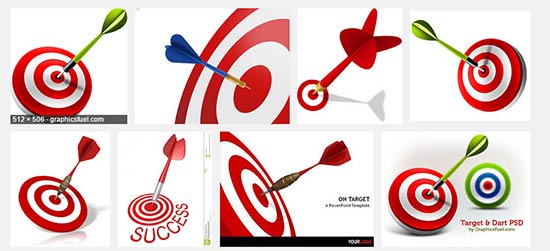
Not another target with darts! So what visual do you use instead?
Filed Under:
Clip Media
Tagged as: Clichés, Design, Graphics, Opinion, Pictures, Presentation Skills, Visuals
Comments Off on Clichés: Target and Dart Pictures in PowerPoint
You can create a new Sway or import existing files into Sway. Whatever option you choose, you customize your Sways thereafter in the same way. There are many options that enable you to do so but in this tutorial we’ll explore the Insert options that Sway provides.

Explore Insert options in Sway.
Filed Under:
Sway
Tagged as: Docs.com, PowerPoint for the Web, Sway, Tutorials
Comments Off on Insert Options in Sway

Born in England, Nigel Holmes studied illustration at the Royal College of Art in London and then freelanced for magazines and newspapers for 12 years in London before going to New York in 1977 to work for Time Magazine. He became graphics director and stayed there for 16 years. He has written eight books on aspects of information design. The latest is Instant Expert, a sequel to The Book of Everything. (He knows that both titles are not to be taken too literally.) With his son Rowland, Holmes makes short animated films. Clients have included the TED conference, Fortune Magazine conferences, Good Magazine, and the National Geographic Society.
In this conversation, Nigel discusses his keynote at the upcoming Presentation Summit 2015 series.
Geetesh: Nigel, you are doing a keynote this year at the Presentation Summit called Lighten Up, Will Ya??: The role of humor in presentations. Can you tell us more about this session, and what takeaways can the audience expect?
Nigel: I’ve always believed that if you can make people smile when you are trying to explain something, you are halfway to helping them understand exactly what it is you are trying to explain. And that’s because if your listeners are in a good mood, they are much more receptive. But it’s not enough to tell a funny joke at the start of a presentation, and then drone on about leveraging a new vertically integrated paradigm by empowering scalable best practice ecosystems (oh, please drop corporate jargon!). However, I’m not advocating that you aspire to be a stand-up comedian; in this presentation, I’ll be extending the idea of “humor” to include its old-fashioned meaning: being in a good humor…with good feelings and emotions.

Most of my work has been explaining difficult concepts, whether medical, or scientific (or just complicated, in any field), and also helping people put large numbers into an understandable context. During the presentation I’ll play music, include some examples of bad design, and show ways to include audience participation: to get you out of your chairs (and possibly your comfort zones).
This 2,500-year-old quote from Confucius sums it up pretty well:
“Tell me and I will forget; show me and I may remember; involve me and I will understand.”

Geetesh: You’ve been an inspiration to so many others as far as design is concerned – can you share thoughts on what a design trend signifies, and should one try and keep oneself updated?
Nigel: I had a great shop window at Time Magazine. I went there before computers, or the internet as we know it today, but Time’s readership was huge and lots of people saw what I did in the field of information graphics. But all I was really doing was carrying on a great illustrative tradition of the magazine, and of Fortune, another magazine in the Time Inc. stable, that had started in the 30s with wonderful reader-friendly, illustrated, graphic explanations of, for instance, the progress of WW2. (Everything that the maps and charts department created was carefully kept in large albums.) When Walter Bernard, the art director who changed the face of the magazine, invited me to work with him in 1977, he championed my illustrated style (sometimes in the face of opposition from some of Time’s more entrenched editors), giving me more space on the page than had previously been given to graphics. Soon we were copied by, most notably, USA Today, which was launched in 1982. The trouble was that while I might have been doing five or six pieces a week, the designers at USA Today were doing twice as many as that every day, and they didn’t have the requisite time to check and consider their work…some of them were copying the look of my stuff, but not the substance. (I had a dedicated team of researchers and an assistant: what luxury!)
But things changed; by the late 80s, I had moved up the masthead and was urging the magazine to move away from the kind of highly illustrated charts that I was doing, towards a more straightforward style. Editors hated it. “So now we’re going to have boring charts?” they complained. No, we are going to take the readers more seriously, was my reply. They don’t need as much titillation to get them to read nowadays. But I felt that my time was running out there; after 16 years I resigned, and they hired a graphics editor who was an expert in highly-rendered 3-D graphics. After a few years, the magazine was again redesigned, and the 3-D graphics were replaced by a starkly minimal style. So, in the space of about twenty years, there were three distinctly different graphic trends.
Should a designer keep up with all the trends? My answer lies in the beautiful work of a team working in the 1930s. Otto Neurath, his wife Marie, and Gerd Arntz produced information graphics that look as modern today as they did when they were made. Although drawn by hand, they would fit perfectly into the computer age. Much of my work is influenced by their ideas about statistical accountability, and their use of pictures to attract readers. The “good humor” that their work engendered in their intended audiences was contagious. Some trends shouldn’t be messed with! (But yes, you should keep up to date with what everyone is doing—just don’t copy it!)
For many years now, Rick Altman has been hosting the Presentation Summit, a highly popular event that is geared towards users of PowerPoint and other presentation platforms.
Date: September 27 to 30, 2015
Location: Astor Crowne Plaza, New Orleans, USA
The views and opinions expressed in this blog post or content are those of the authors or the interviewees and do not necessarily reflect the official policy or position of any other agency, organization, employer, or company.
Filed Under:
Events
Tagged as: Interviews, Nigel Holmes, PowerPoint, Presentation Summit
Comments Off on Presentation Summit 2015: Conversation with Nigel Holmes
Microsoft and the Office logo are trademarks or registered trademarks of Microsoft Corporation in the United States and/or other countries.