
This is the print version of this page. All content is copyright Indezine.com 2000-2026.
Thoughts and impressions of happenings in the world of PowerPoint and presentations, continuously updated since 2003.
See Also:
PowerPoint and Presenting Notes
PowerPoint and Presenting Glossary
Connectors are essentially some of the shapes found within the Lines category of the Shapes gallery in PowerPoint 2013. To understand why only some of these lines can work as connectors, we first need to understand what a connector is. A connector is a line that creates a link that joins two shapes or any other slide objects to create a relationship. These connectors are linked to the slide objects they are connected — this means that they move automatically when the linked objects are moved. That’s the reason why they are called “Smart connectors” — you’ll learn more about all the other smart things these connectors do in subsequent tutorials of this series.

Filed Under:
PowerPoint 2013
Tagged as: PowerPoint 2013, Shapes, Tutorials
Comments Off on Learn PowerPoint 2013 for Windows: Smart Connectors
When PowerPoint 2013 is launched, do you see an empty presentation with just one slide? This template influences the default look that PowerPoint provides — the first slide typically has placeholders for the slide’s title and subtitle. The text typed within these placeholders shows up in black over a white slide background. Although this default look works most of the time, you don’t have to stick with these defaults. You can easily change the default look to something else — for example, use your custom PowerPoint template or Theme as the default? Or even any of the other templates / Themes built within PowerPoint.

Learn how to change the default template or Theme in PowerPoint 2013 for Wiindows.
Filed Under:
PowerPoint 2013
Tagged as: PowerPoint 2013, Templates, Themes, Tutorials
Comments Off on Learn PowerPoint 2013 for Windows: Change the Default Template or Theme
 As the VP of Development for SoftArtisans, Sam Haddad leads a team of developers to bring enterprise software to a global customer base. With a degree in Information Technology from Rochester Institute of Technology, Sam’s expertise lies in .NET programming. In the past Sam has worked with both web and desktop applications, ranging from e-commerce sites to Office document processing tools.
In this conversation, Sam discusses PowerPointWriter.
Geetesh: What is PowerPointWriter? Is it a desktop application or is it a code-driven program.
Sam: In its simplest form, PowerPointWriter is a tool that allows you to take data from any data source and integrate it with your PowerPoint files. PowerPointWriter is a .NET library and API. With a little bit of code, it allows you to dynamically populate PowerPoint presentations on the fly from your own applications. You design the presentation in PowerPoint, and then merge data using the PowerPointTemplate object, just like using Word’s mail merge. PowerPointTemplate lets you do a Word mail merge type of behavior without the need to actually have Microsoft Office on your server. Microsoft recommends avoiding automating Office on the server, so this is a great alternative. Since we are designed to run on servers you get great performance and stability.
To help customers gain a better understanding of what this all means, we put together a quick video overview of the product and what it does.
Geetesh: What motivated you to create this product?
Sam: A lot of our customers have their data in several different data sources, such as SQL and Oracle databases, Office Documents, and other existing applications. We wanted to provide an easy way for them to export their data into PowerPoint.
We were currently doing this with our ExcelWriter and WordWriter tools, and so brought that same technology to PowerPoint. We focused on bringing our template model to PowerPoint because that meant customers could get their reports up and running with as little as 5 lines of code. This means less coding and development time, less maintenance of the code, and more time designing your report in an application with which you are already familiar, such as Excel, Word, or in this case PowerPoint.
Overall the final process looks like this:

Geetesh: What’s the profile of a typical PowerPointWriter user? And is there a learning curve?
Sam: PowerPointWriter users are typically those who need to make data-driven PowerPoints on a consistent basis. For instance, say you have a client presentation and need to update your slide deck with the most current numbers from the database minutes before the meeting. PowerPointWriter will provide that capability without much time or effort involved. Often those that use this product are sales representatives, financial analysts, project managers, and any professional who needs a great visual display of data. The best part is the learning curve is short as there are only a few concepts you would need to learn in order to start producing numbers-focused slide decks.
The views and opinions expressed in this blog post or content are those of the authors or the interviewees and do not necessarily reflect the official policy or position of any other agency, organization, employer, or company.
Filed Under:
Interviews
Tagged as: Interviews, PowerPoint
Comments Off on PowerPointWriter: Conversation with Sam Haddad
There are various fills that you can apply to the Plot Area of a chart — and a texture can often work surprisingly well. For those who want to know what a texture is, it’s essentially a picture that tiles across an area. We have explored other fills for chart Plot Areas, such as a solid color, a gradient, a picture, or a pattern. In this tutorial, we will explore texture fills.
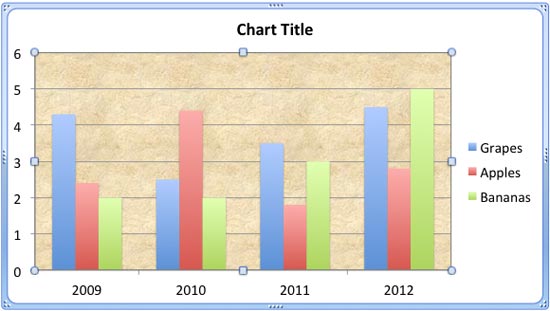
Learn how to apply texture fills to the Plot Area of a chart in PowerPoint 2011 for Mac.
Filed Under:
PowerPoint 2011
Tagged as: Charting, Office for Mac, PowerPoint 2011, Tutorials
Comments Off on Learn PowerPoint 2011 for Mac: Texture Fills for Plot Area of Charts
Inserting online videos was one of the new key features Microsoft introduced in PowerPoint 2010. However, you really won’t find the exact equivalent options in PowerPoint 2013 — in fact, it has since been also removed from PowerPoint 2010! Fortunately, you can still add online videos from YouTube to your PowerPoint 2013 slides by following a manual process.

Learn how to manually embed a YouTube video in PowerPoint.
Filed Under:
PowerPoint 2013
Tagged as: PowerPoint 2010, Tutorials, Video, YouTube
Comments Off on Learn PowerPoint 2013 for Windows: Manually Embed YouTube Video
Microsoft and the Office logo are trademarks or registered trademarks of Microsoft Corporation in the United States and/or other countries.