
This is the print version of this page. All content is copyright Indezine.com 2000-2026.
Thoughts and impressions of happenings in the world of PowerPoint and presentations, continuously updated since 2003.
See Also:
PowerPoint and Presenting Notes
PowerPoint and Presenting Glossary
Shapes may look basic or even primitive, but they are the building blocks of almost anything you create on your PowerPoint slides. Fortunately, you are not deprived of choices because PowerPoint provides plenty of shapes, neatly categorized into nine types. Among all the shape types, Action Buttons behave differently. These are essentially rectangular shapes that are used as navigation aids to navigate between slides, or even another presentation, document, or a web URL. You insert an Action Button in almost the same way as you insert any other shape.

Learn how to insert an Action button on a slide in PowerPoint 2013 for Windows.
Filed Under:
PowerPoint 2013
Tagged as: PowerPoint 2013, Shapes, Tutorials
Comments Off on Action Buttons in PowerPoint 2013 for Windows
Did you ever draw a line in PowerPoint that was slanted or sloped — and then you wanted to know the length of your line? Believe it or not, there is no option to do this within the program! For all practical purposes, a slanted or sloped line is essentially a diagonal line, and the only attributes that PowerPoint provides for this line is a Length and a Width! You might be curious about how a line can have a Height and a Width rather than just a Length?

Learn how to find out the length of a diagonal line in PowerPoint 2011 for Mac.
Filed Under:
PowerPoint 2011
Tagged as: Office for Mac, PowerPoint 2011, Shapes, Tutorials
Comments Off on Learn PowerPoint 2011 for Mac: Finding Length of a Diagonal Line
Here are a bunch of Countdown Timer slides that you can use to create or embed in your own PowerPoint presentation slides. This entire kit contains 5 different styles of Countdown Timer. We made these available in two slide sizes for both standard (4:3) and widescreen (16:9) resolutions. You can get this kit for only $5.
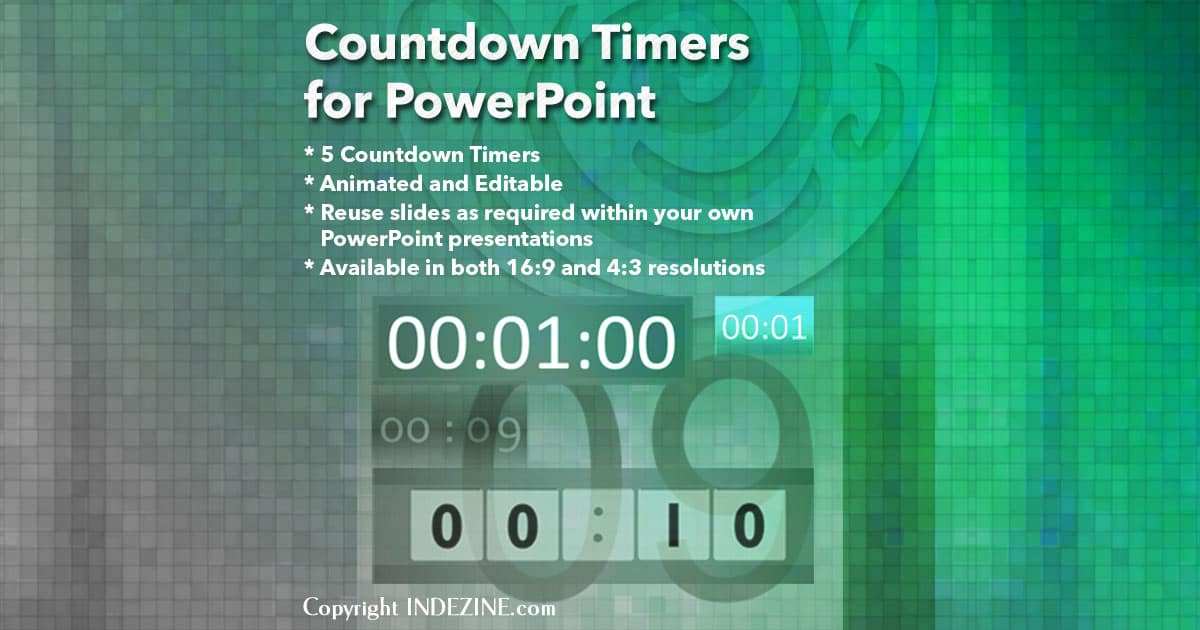
Download and use in your slides.
Filed Under:
Presentation Bank
Tagged as: Animation, Countdown, Design, Graphics, PowerPoint, Presentation Samples
Comments Off on Countdown Timers for PowerPoint
Tap on a selected picture on a Touch device and you will see a floatie spawning right there — in this case you see the Picture floatie that provides formatting options for the tapped picture. In this tutorial, we’ll explore various options within this floatie.

Explore various options within the picture floatie in PowerPoint 2013.
Filed Under:
PowerPoint 2013
Tagged as: PowerPoint 2013, PowerPoint Touch, Tutorials
Comments Off on PowerPoint 2013 on Touch: Picture Floatie
In this issue, we review Flip PowerPoint Professional, a product that creates flipping ebooks from your PowerPoint slides. We then have an exclusive conversation with Chris Finneral of SketchDeck who discusses their new service that can convert sketches into PowerPoint slides. We start exploring the special features that PowerPoint provides on Touch devices such as the Microsoft Surface.
PowerPoint 2013 for Windows users can learn about creating half circles, adding text to shapes, and also how they can align text within those shapes. PowerPoint 2011 for Mac users can learn about attributing and positioning Callout shapes, and how you can format them.
And finally, do not miss the new discussions and templates of this week!

Read Indezine’s PowerPoint and Presenting News.
Filed Under:
Ezine
Tagged as: Ezine, Indezine, News, PowerPoint
Comments Off on PowerPoint and Presenting News: February 18, 2014
Microsoft and the Office logo are trademarks or registered trademarks of Microsoft Corporation in the United States and/or other countries.