
This is the print version of this page. All content is copyright Indezine.com 2000-2026.
Thoughts and impressions of happenings in the world of PowerPoint and presentations, continuously updated since 2003.
See Also:
PowerPoint and Presenting Notes
PowerPoint and Presenting Glossary
Whenever a new shape is inserted on a slide in PowerPoint 2013, it is filled by default with a solid color (or something else depending on the Theme your presentation is based on). Other than a solid fill type, PowerPoint 2013 provides several more options that let you fill a shape with a picture, a gradient, a pattern, or a texture — and we have explored these other fill options in our Fills for Shapes in PowerPoint 2013 tutorial. In this tutorial, we’ll show you how you can work with solid color fills.

Add solid color fills to shapes in PowerPoint 2013 for Windows.
Filed Under:
PowerPoint 2013
Tagged as: Fills, PowerPoint 2013, Shapes, Tutorials
Comments Off on Add Solid Color Fills to Shapes in PowerPoint 2013 for Windows
In PowerPoint even though you can use Category or Series names as Data Labels, most of the time users tend to use Values as Data Labels. Values are typically numbers, and there are many ways in which you can format these Data Labels. You may want to do so for several reasons such as limiting or expanding the number of decimal digits shown, or to show a currency symbol along with the values, or even to show the value in percentage etc. Do note that these format changes can be made both within Excel and PowerPoint — in this tutorial, we explore how you do so in Excel at the data level (all data for PowerPoint charts resides in Excel).
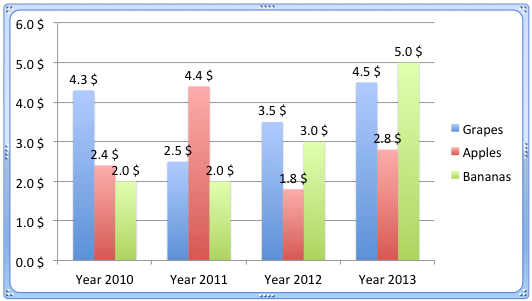
Learn how to format numbers used as Chart Data Labels using Excel in PowerPoint 2011 for Mac.
Filed Under:
PowerPoint 2011
Tagged as: Charting, Office for Mac, PowerPoint 2011, Tutorials
Comments Off on Learn PowerPoint 2011 for Mac: Format Chart Data Labels in Excel
When you insert shapes within a PowerPoint 2013 slide, you will notice that all shapes you insert contain the same fill. Most of the time, the shapes may contain a solid color fill. Similarly, you may insert hundreds of shapes and they all have this same default fill — have you ever wanted to change this fill to something else? Before we explore changing fills, it is important to understand that the default fill you see for new, inserted shapes is influenced by the Theme applied to your presentation — all new presentations have a simple Theme applied to them — this Theme decides the default color or style for the new shape. Thus, all new shapes that you insert will have the same fill.

Learn about different fills types for shapes in PowerPoint 2013 for Windows.
Filed Under:
PowerPoint 2013
Tagged as: Fills, PowerPoint 2013, Shapes, Tutorials
Comments Off on Learn PowerPoint 2013 for Windows: Fills for Shapes

Kurt Dupont, based out of Belgium heads PresentationPoint, a company that creates several amazing PowerPoint add-ins. After his Computer Science studies, Kurt started with Andersen Consulting (Accenture nowadays) in Brussels. After 3 years he moved to the Brussels Airport Terminal Company that runs the Brussels airport – this last placement inspired the start-up of Take-off (now known as PresentationPoint) in 1998.
In this conversation, Kurt discusses DataPoint 2, the new version of his flagship product that lets you integrate data from external sources within PowerPoint slides.
Geetesh: DataPoint is already a very capable PowerPoint add-in that displays updated data streams on slides – what’s been updated for the new version 2 release?
Kurt: Well, in this major update of our DataPoint product we’ve completely rewritten the code based on the latest technologies and also based on the latest Microsoft PowerPoint versions, especially Office 2010 and 2013. So we are now fully using the Ribbon. We have made an inventory of all user comments and with that list in mind we have built DataPoint 2.0.
One important change for database connections is that a DataPoint connection is now split up in a connection and a query. So now you first set up your connection (server name, database, username and password) and afterwards you set up one or multiple SQL statements or queries collecting different information. The big advantage here is that you do not have to maintain the connection information at every DataPoint connection. So when your password changes, you only have to modify this on the connection level and it will work for all queries.
Also interesting is that you now can put rules on a textbox or a table. First of all, you define a rule or condition. Then you specify an action. So when a certain value of your database returns negative values, then DataPoint can display the value or the background of the textbox in red. With these dynamic rules you can better emphasize the dynamic content of your presentation so that the viewers can take appropriate actions.
You can now also display some additional information next to your database content. You can set a text that should be shown before or after your database value. For example when you have a price column in your database, then you will of course display the price of a given product, but automatically you will add $-sign before the number. DataPoint can execute these repetitive tasks for you. Furthermore you can display a custom text e.g. ‘There is a problem with our database‘ whenever network or database errors are encountered.

But best of all is now the new charting object of Microsoft that is now fully open and operational as before with the older Microsoft Graph object. Now again you can create real-time charts within PowerPoint with the new charting look which is much cleaner than before.
We have spent time on additional connections for DataPoint like we now directly support XML, Twitter feeds, MySQL, Oracle and now you can also display a real-time RSS feed of your favorite news channel directly in your presentation.
Now you will have no reason anymore to interrupt your running slide show and to modify its content
Geetesh: Who is the typical DataPoint user — can you share some success stories?
Kurt: Everyone that has news, information, figures, targets, etc. can use DataPoint. Think about a school announcing class room changes or school messages. Factories displaying safety instructions or just the ‘number of days without an accident’ is frequently seen. Police stations displaying images of missing people, announcements of speeding controls. Hospitals displaying welcome information and guidance.
But next to online information as a real-time presentation, we also have customers that use DataPoint for statistics and reporting. For example you can run a customized proposal for your potential customer for insurances. Or generate a large product catalogue with our data scrolling feature. So DataPoint will create a slide for each product that you have in your product catalogue.
The best reference of DataPoint is Sotheby’s, a multinational corporation operating as a broker of fine and decorative art. We regularly see them in the news when they have set another record selling e.g. the most expensive diamante ring. They use DataPoint for their auctions where they display in real-time an image of the object they are selling currently, accompanied with the hot pricing information of their bidders. That’s DataPoint in action there.
See Also: NewsPoint: Conversation with Kurt Dupont
The views and opinions expressed in this blog post or content are those of the authors or the interviewees and do not necessarily reflect the official policy or position of any other agency, organization, employer, or company.
Filed Under:
Interviews
Tagged as: Add-in, Interviews, PowerPoint, PresentationPoint
Comments Off on DataPoint 2: Conversation with Kurt Dupont
In this issue, we bring you the fantastic Halloween PowerPoint Kit that contains everything you need to create Halloween themed picture slides. Chris Caruso of Brainshark discusses how you can use Embedly with Brainshark content to share it so much more elegantly on Facebook and LinkedIn. Dave Paradi discusses the fascinating results of his 2013 Annoying PowerPoint Survey. PowerPoint 2013 for Windows users can learn about various Chart Elements, including the Legend. PowerPoint 2011 for Mac users can also explore charting stuff such as Quick Layouts, Chart Titles and Data Labels. And finally, do not miss the new discussions and templates of this week!

Read Indezine’s PowerPoint and Presenting News.
Filed Under:
Ezine
Tagged as: Ezine, Indezine, News, PowerPoint
Comments Off on PowerPoint and Presenting News: October 15, 2013
Microsoft and the Office logo are trademarks or registered trademarks of Microsoft Corporation in the United States and/or other countries.