
This is the print version of this page. All content is copyright Indezine.com 2000-2026.
Thoughts and impressions of happenings in the world of PowerPoint and presentations, continuously updated since 2003.
See Also:
PowerPoint and Presenting Notes
PowerPoint and Presenting Glossary
The fact that you can customize options within the menus and toolbars in PowerPoint 2011 for Mac may mean that sometimes you may just get carried away and make more changes than you intended — or you made some changes for an important project that’s over — and now you want the menus and toolbars to go back to their pristine, default state. Whatever your intent may be, PowerPoint’s Reset option lets achieve this default state with a couple of clicks, as we explain on this page.

Learn how to reset Toolbars and Menu Bar in PowerPoint 2011 for Mac.
Filed Under:
PowerPoint 2011
Tagged as: Office for Mac, PowerPoint 2011, Tutorials
Comments Off on Learn PowerPoint 2011 for Mac: Reset Toolbars and Menus
Have you seen slides that include a cool “map pin” graphic? These are typically placed on a map to show a location – and similarly multiple map pins can be placed to show multiple locations. Do you want to create the same visual experience on your slides to show to your audiences? It’s easy with this complete collection of map pins (more than 300 map pins in this collection – only 10 of these are shown on this page). The map pin graphics are already placed in PowerPoint slides you will download – just copy the individual pin you want, and then paste the pin within your own slides that already contain a map. Beyond maps, you can also use these map pins like regular push pins so that a picture, shape, or anything else appears as if it has been pushed onto a surface, board, or wall with a pin!

Download and use these map pins in your slides.
Filed Under:
Presentation Bank
Tagged as: Design, Graphics, PowerPoint, Presentation Samples
Comments Off on Handmade Slides: Map Pins for PowerPoint – 10
The various flowchart symbols available within the Shapes galleries of Microsoft Office applications can represent different concepts. On this page, we show you a visual representation of each of these flowchart symbols along with their names and a brief description.

Explore various flowchart symbols, and learn about what they represent.
Filed Under:
PowerPoint All Versions
Tagged as: Diagrams, Flowcharts, Graphics, Office 2013, PowerPoint 2013, Tutorials
Comments Off on Flowchart Symbols: What They Represent?
Working with the Ribbon in PowerPoint 2011 is intuitive to a very large extent — and it certainly involves a little more than just learning to minimize and maximize the Ribbon tabs. In fact, you can customize to the extent of hiding the entire Ribbon altogether — or changing the Ribbon tab color from orange and a more muted gray. You can also show or hide group headings within individual tabs, etc.
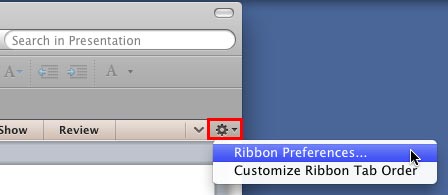
Learn about preferences that allow you to customize your Ribbon in PowerPoint 2011 for Mac.
Filed Under:
PowerPoint 2011
Tagged as: Office for Mac, PowerPoint 2011, Tutorials
Comments Off on Learn PowerPoint 2011 for Mac: Ribbon Preferences
In this issue, we first look at three fonts that can add a cool, handmade look to your slides! We then bring you two more sets of map pins — you can now get over 300 map pins in one combo offer. We then explore some often asked questions about Office Mobile for the iPhone. PowerPoint 2013 for Windows users can learn about file formats that you can open and save — you can then learn about flowcharts. PowerPoint 2011 for Mac users can learn how you add and remove menus, and populate these menus with commands. And finally, do look at discussions and templates of this week!

Read Indezine’s PowerPoint and Presenting News.
Filed Under:
Ezine
Tagged as: Ezine, Indezine, News, PowerPoint
Comments Off on PowerPoint and Presenting News: July 16, 2013
Microsoft and the Office logo are trademarks or registered trademarks of Microsoft Corporation in the United States and/or other countries.