
This is the print version of this page. All content is copyright Indezine.com 2000-2026.
Thoughts and impressions of happenings in the world of PowerPoint and presentations, continuously updated since 2003.
See Also:
PowerPoint and Presenting Notes
PowerPoint and Presenting Glossary
You can crop a movie clip on your PowerPoint slide in almost the same way you crop a picture. Before you crop though, ascertain whether PowerPoint’s Crop option will help enhance your inserted movie — don’t just do a crop if it adds no extra value to your movie clip. The Crop option allows you to remove non-required areas of a movie — for example, if the subject of your movie is a person speaking who is surrounded by a large, distracting background of other people or moving objects, you may want to crop the movie so that the cropped movie now focuses more on the speaker, and gets rid of all the extra distractions.

Learn how to crop a movie clip in PowerPoint 2011 for Mac.
Filed Under:
PowerPoint 2011
Tagged as: Movies, Office for Mac, PowerPoint 2011, Tutorials, Video
Comments Off on Learn PowerPoint 2011 for Mac: Crop Movie Clips
 Patrice-Anne Rutledge is a business technology author and journalist who specializes in web-based applications, presentation technology, and social media. She is the author of several books for Pearson Education, including PowerPoint 2013 Absolute Beginner’s Guide. Patrice is also the founder of Rutledge Communications, a professional writing and editing firm. You can reach Patrice at her website, PatriceRutledge.com.
In this conversation, Patrice talks about her new book, PowerPoint 2013 Absolute Beginner’s Guide.
Geetesh: Can you share some thoughts about the new PowerPoint 2013 — and what is your favorite, new feature in this version?
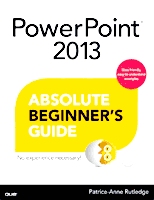
Patrice: There’s a lot to like about PowerPoint 2013. One of the great new features is that you can easily insert online media from sites such as YouTube, Flickr, Office.com, or your SkyDrive account. You can even search Bing for pictures licensed under Creative Commons. I also enjoy the new theme variants, which provide even more color and design options for each theme. The ability to create MP4 videos from your presentations is another welcome addition to PowerPoint 2013.
Geetesh: Tell us about your new book, PowerPoint 2013 Absolute Beginner’s Guide –- who is your typical reader?
Patrice: PowerPoint 2013 Absolute Beginner’s Guide is my sixth book on PowerPoint (Indezine publisher Geetesh Bajaj served as technical editor) and the first for the Absolute Beginner’s Guide series. Although this book is great for beginners, as the title states, it’s an ideal resource for intermediate PowerPoint users as well. The typical reader is anyone who wants to go beyond the basics and learn about all of PowerPoint 2013’s many features. Because PowerPoint seems like such a simple, intuitive program, many users rarely scratch the surface of what you can do with it. I’ve received emails from readers of the book who were surprised at all the other things you can do with PowerPoint beyond creating a basic presentation — such as creating videos, web graphics, eLearning programs, and more.
The views and opinions expressed in this blog are those of the authors and do not necessarily reflect the official policy or position of any other agency, organization, employer, or company.
Filed Under:
Interviews
Tagged as: Books, Interviews, PowerPoint 2013
Comments Off on PowerPoint 2013 Absolute Beginner’s Guide: Conversation with Patrice-Anne Rutledge
Microsoft has some amazing options for sharing Office documents online. We have explored sharing PowerPoint presentations using the Microsoft Office Web Viewer and OneDrive. There is a third option also on OneDrive that lets you share presentations on social sites such as Facebook, Twitter, and LinkedIn. You share these presentations via a link with your friends, colleagues, and family.

Filed Under:
PowerPoint for the Web
Tagged as: Online Presentations, PowerPoint, Tutorials
Comments Off on Share PowerPoint Presentations on Social Sites (Facebook, Twitter, and LinkedIn) using OneDrive
Each PowerPoint presentation contains several slides which many users believe are akin to a blank canvas or an empty sheet of paper! You can thereafter add content to the slides in much the same way as you use brushes to create strokes of paint to color a canvas. For example, do you want some text — you add a text box. Want a picture — just insert a picture and place it anywhere on your slide! Wait — this is not really the way that you work with PowerPoint!

Learn how to change slide layouts in PowerPoint 2013 for Windows.
Filed Under:
PowerPoint 2013
Tagged as: PowerPoint 2013, Tutorials
Comments Off on Learn PowerPoint 2013 for Windows: Change Slide Layout
In PowerPoint, your inserted movie clip is always placed as in a traditional rectangular shape, which is exactly what most users expect since it does seem safe and conventional. However, PowerPoint 2011 allows you to crop your movie to various shapes such as a circle, an oval, a wave, a triangle, or any of PowerPoint’s default shapes. However, while selecting shapes for your movie clips, do remember that most of the shapes other than a Rectangle may crop out some parts of your movie clips. That’s why you can play around with shapes such as a rounded rectangle — but ponder a lot before you place a movie within a semi-circle or a pointed star!

Learn about Movie Shapes in PowerPoint 2011 for Mac.
Filed Under:
PowerPoint 2011
Tagged as: Movies, Office for Mac, PowerPoint 2011, Tutorials, Video
Comments Off on Learn PowerPoint 2011 for Mac: Movie Shape
Microsoft and the Office logo are trademarks or registered trademarks of Microsoft Corporation in the United States and/or other countries.