
This is the print version of this page. All content is copyright Indezine.com 2000-2026.
Thoughts and impressions of happenings in the world of PowerPoint and presentations, continuously updated since 2003.
See Also:
PowerPoint and Presenting Notes
PowerPoint and Presenting Glossary
These Seven Petals Circle graphics are part of our Petal Circles series that add stylized tips to your circle shapes. These two tip styles: Rounded and Pointed make your circles look different from conventional segmented circle graphics. They also break the monotony of text heavy slides, and help you explain concepts better to your audiences. Using these circle shapes also convinces your audiences that you care enough about them to make the slides look appealing and comprehensible. What’s more, these shapes are also so much fun to use!

Buy and download these slides now.
Filed Under:
Presentation Bank
Tagged as: Design, Graphics, PowerPoint, Presentation Samples
Comments Off on PowerPoint Concept Slides: Seven Petals Circle
 Peter Watts helps sales people around the world to take to the stage with confidence, and with presentation content that makes the sale by directly addressing the needs of the audience. His weekly blog of ideas for presenters can be found at The Presenters’ Blog, and his daily Twitter feed of presentation skills tips can be followed @speak2all
In this conversation, Peter discusses how slides, presenters, and audiences sync to each other.
Geetesh: How important is it for a presenter to be synced to their slides.
Peter: When I was a schoolboy quaking about end-of-year exams, the teacher would always remind me that “the clue is in the question”; if I could sit back and look at the question, then the answer would be sitting there ready for me.
It’s the same case here. “How important is it for a presenter to be synced to their slides?” The answer is that it isn’t, and that it would be a horrible mistake for a presenter to ever attempt to be synced to their slides.
Since the invention of PowerPoint, a new generation of presenters has entered the business world. These presenters have only ever known presenting via PowerPoint, and the software has become synonymous with the act. A belief has taken hold that it can’t be a good presentation unless you have a good PowerPoint deck to deliver. The slides have become the presentation, hence the tell-tale clue within the question: How important is it for the presenter to be synced with their slides? It absolutely isn’t.
The slides must be synced to the audience.
Geetesh: Sometimes being synced to the slides can prevent presenters from being synced with their audiences, for example presenters use the content on their slides as a crutch, and rarely like to discuss something that’s not on their slides. Yet the audience may have some questions that differ from the slide content. How can a presenter provide a balanced presentation in such a scenario?
Peter: Again, there’s a clue in the question.
A presenter who is synced to the slides will inevitably drift from the audience, for a whole number of reasons:
This final point, about treating audiences as generic groups, can lead directly to encouraging audience members to ask questions that are different from the slide content. This can be because they want to test the knowledge of the robotic presenter, or it can simply be because the presentation is completely missing their specific interest areas.
When I train presenters, the first thing we focus on is how to make every presentation specific for that audience. Start with a simple MindMap. If you’re not already familiar with the concept of MindMaps then I’d recommend any of the excellent books on the subject by Tony Buzan.
Write in the centre of your MindMap two considerations: a) who is the audience? b) what is the key message that I want them to take from the presentation?
Once you have those areas clear, brainstorm onto the MindMap all the topics that you could possibly wish to include in the presentation. Let your marker pen go crazy on the page, and if possible, use a flip-chart. You’ll need space!
Next, re-arrange all your ideas into three clear sections, each with three sub-sections. Scribble out anything extraneous that can’t be logically merged into your sections.
You now have a unique presentation structure created specifically for this audience, and because all the content came from your own mind and is linked directly to your audience and to your key message, there’s a much higher chance that it will be content that is relevant, and that you’ll feel confident delivering.
Only when you’ve got your structure mapped out, should you turn to your PowerPoint decks. Find slides that match the structure, and then build the presentation using the discipline that each slide must enable you at least three minutes of talk time.
When presenting, always remember who is the star. It’s you! Slides are simply the supporting cast, and they need to be synced to your style, not the other way around!
The views and opinions expressed in this blog are those of the authors and do not necessarily reflect the official policy or position of any other agency, organization, employer, or company.
Filed Under:
Interviews
Tagged as: Interviews, Presentation Skills
When you insert an audio clip on your slide, PowerPoint represents the clip by a sound icon. You can change the sound icon to any other picture you want — and you can also change the appearance of the sound icon or the other picture using options found in the Format tab, as explained in this tutorial.
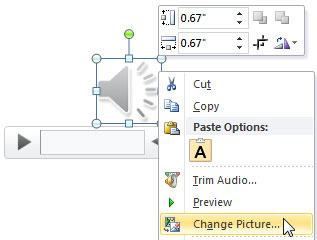
Explore the Format tab for audio clips in PowerPoint 2010 for Windows.
Filed Under:
PowerPoint 2010
Tagged as: Music, PowerPoint 2010, Sounds, Tutorials
Comments Off on Learn PowerPoint 2010 for Windows: Format Tab for Audio Clips
Text in PowerPoint is usually either black or white. Sometimes, it may sport another color depending upon the Theme applied to the presentation. While these defaults work very well most of the time, there may be instances when you want the text to convey a mood or express more than the words it contains. Yes, you can apply a WordArt Style to your text but even that option uses presets that you choose from — and those same presets are available to anyone who uses PowerPoint! To stand apart, you can use PowerPoint’s Text Fill options that provides you with plenty of choices that you customize — these text fill options include solid colors, gradients, textures, and also pictures.

Learn about various fill options for text in PowerPoint 2011 for Mac.
Filed Under:
PowerPoint 2011
Tagged as: Office for Mac, PowerPoint 2011, Text, Tutorials
Comments Off on Learn PowerPoint 2011 for Mac: Text Fills
 Sunil Chandna is the CEO of Stellar Information Systems Ltd. He heads the Sales and Marketing operations for Stellar, a company involved with data recovery software solutions and services business since 1993. Stellar develops data recovery software across different categories, such as hard disk recovery, database recovery, email recovery, password recovery, and Microsoft Office file recovery.
In this conversation, Sunil discusses Stellar’s Phoenix PowerPoint Repair product.
Geetesh: Why do perfectly good PowerPoint presentations get corrupt, and what can everyday users do to prevent their presentation files from getting corrupt?
Sunil: There are dozens of things that can corrupt even your perfectly fine PowerPoint presentations. Typical symptoms include mis-positioning of objects in your PowerPoint slides, missing or overlapped images, animations not working as expected. Often, it is not possible to open a corrupt PowerPoint presentation. Some known reasons for damage to your PPT/PPTX files are virus infection, abrupt termination of the program, enabling “Allow fast saves” option, and the like. You can prevent PowerPoint file corruption in the first place and safeguard your valuable data by considering the following options when dealing with these files:

Geetesh: Your Stellar Phoenix PowerPoint Repair retrieves corrupt PowerPoint files — can you share some info about your product, and also give us a few examples where it helped users salvage their content?
Sunil: Stellar Phoenix PowerPoint Repair is a smart, user-friendly tool that repairs PowerPoint file corruption and resurrects the file with all its original formatting and attributes. The software fixes the file header and repairs corruption in individual objects used in your presentation. The competent tool can safely restore header/footer/slide number, charts, comments, hyperlinks, AutoShapes, OLE objects, Notes page, forms, modules, and more.
Here are a few common PowerPoint file corruption scenarios:
As the PowerPoint file travels through the cyberspace, there is a good chance it might get corrupt midway. Stellar Phoenix PowerPoint Repair can easily repair PowerPoint files damaged during transfer over the Internet or any other network.
If you open a file in a different version of PowerPoint application, it might get damaged due to compatibility issues. More often than not, this action introduces minor corruptions in your PowerPoint presentation. Stellar Phoenix PowerPoint Repair can resolve almost any type of corruption, ranging from minor to severe file damage.
Some viruses are intentionally designed to target PowerPoint files. Viruses usually corrupt the file header. Stellar Phoenix PowerPoint Repair can rebuild the corrupt header to make the file usable again. It restores all objects to a new PowerPoint presentation.
The views and opinions expressed in this blog are those of the authors and do not necessarily reflect the official policy or position of any other agency, organization, employer, or company.
Filed Under:
Interviews
Tagged as: Add-in, Interviews, PowerPoint
Comments Off on Stellar Phoenix PowerPoint Repair: Conversation with Sunil Chandna
Microsoft and the Office logo are trademarks or registered trademarks of Microsoft Corporation in the United States and/or other countries.