
This is the print version of this page. All content is copyright Indezine.com 2000-2026.
Thoughts and impressions of happenings in the world of PowerPoint and presentations, continuously updated since 2003.
See Also:
PowerPoint and Presenting Notes
PowerPoint and Presenting Glossary
In this issue, we showcase Star shapes from our Organic Shapes series. Carmen Taran of Rexi Media discusses how much of any given presentation the audience recollects — she does have some counterintuitive findings! Claudyne Wilder delves into an important topic — about properly answering questions from your audience. PowerPoint 2013 users should read our coverage on the new Resume Reading feature that lets you edit your presentation from the slide you edited last! We also have tutorials that show you how to trim audio in PowerPoint 2010, and on working with bullets and indents in PowerPoint 2011 for Mac. Finally, learn how you can tame notifications in Windows 8.

Read all this and more in Indezine News.
Filed Under:
Ezine
Tagged as: Ezine, Indezine, News, PowerPoint
Comments Off on Indezine News: March 12, 2013
When you insert an audio clip into a PowerPoint slide, you can control its volume, set it to play looped, or even hide the audio icon. These are some of the advanced options available for any inserted audio clip in PowerPoint. Remember that these advanced options only exist so that you can use them when they are required, rather than using them just because they exist! Let us now explore all these options.
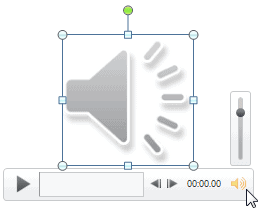
Explore advanced audio options in PowerPoint 2010 for Windows.
Filed Under:
PowerPoint 2010
Tagged as: Music, PowerPoint 2010, Sounds, Tutorials
Comments Off on Advanced Audio Options in PowerPoint 2010 for Windows
In PowerPoint, WordArt is a very powerful tool that can make the text in your presentation look awesome or out-of-place, depending upon how you have used it. Before we proceed further, you must know that WordArt has nothing to do with Microsoft Word and is a totally independent feature in PowerPoint. Word Art is a collection of text styles that plays with text in a way similar to how PowerPoint’s Shape Styles play with shapes. WordArt Styles, also known as Quick Styles, are a collection of some prebuilt text styles which you can instantly apply to your text. These WordArt Styles are all Theme-specific, so if the presentation’s Theme is changed, any WordArt applied also reflects the changes accordingly. Follow these steps to learn how to apply Quick Styles to selected text.

Learn how to apply WordArt Styles in PowerPoint 2011 for Mac.
Filed Under:
PowerPoint 2011
Tagged as: Office for Mac, PowerPoint 2011, Text, Tutorials
Comments Off on Learn PowerPoint 2011 for Mac: WordArt Styles
Stars are often associated with skies, or as ornaments hanging from a festive tree. Additionally, most stars we doodle with a pen or a marker tend to have five points. And of course there’s something about hand drawn stars – they look warm, independent, and different — just like these organic star shapes. Stars are just one of the 8 shape types we have included in this Organic Shapes collection – and each of these 8 shape types have 10 variants each – so you end up with 80 hand-drawn shape options! These shapes will help break the monotony of text heavy slides, and assist you in explaining difficult concepts better to your audiences. Using these organic shapes also convinces your audiences that you care enough about them to make the slides look appealing and comprehensible. What’s more, these shapes are also so much fun to use!


Buy and download these slides now.
Filed Under:
Presentation Bank
Tagged as: Design, Graphics, PowerPoint, Presentation Samples
Comments Off on PowerPoint Concept Slides: Organic Stars
Windows 8 introduces a different type of notification compared to what you saw in previous versions of Windows — you see a small rectangle pop up with a message. These messages may be from different applications you have installed, and you can set those permissions individually. However, all notifications use the same appearance style. While these notifications may be helpful in most scenarios, they can be irritating and even embarrassing when showing your PowerPoint slides to an audience. There is no way PowerPoint can automatically disable them while in slide show view. Fortunately, there is a way to disable them temporarily — and you should remember to do so each time you need to show a presentation!

Learn how to turn off the notification in Windows 8.
Filed Under:
Microsoft Office
Tagged as: Microsoft Windows, PowerPoint
Comments Off on Turn Off Notifications in Windows 8
Microsoft and the Office logo are trademarks or registered trademarks of Microsoft Corporation in the United States and/or other countries.