
This is the print version of this page. All content is copyright Indezine.com 2000-2026.
Thoughts and impressions of happenings in the world of PowerPoint and presentations, continuously updated since 2003.
See Also:
PowerPoint and Presenting Notes
PowerPoint and Presenting Glossary
The various Slide Layouts in PowerPoint help you choose placeholder arrangements for your slide. Using these layouts, it’s easy to create good looking slides. There are ready-made layouts available for slides that contain pictures or charts, and even a separate layout for your opening slide. These layouts can be edited (or duplicated / renamed) within Slide Master view to create even more Slide Layouts. While duplicating and editing Slide Layouts is a great way to make small changes, it’s not the best way to create a Slide Layout from scratch. As an analogy, duplicating and editing a Slide Layout is more like using a coloring book to fill color between the lines of pre-drawn art — but creating your Slide Layout from scratch is more like starting with a blank sheet of paper and drawing your art before you start coloring between the lines. You can decide which of these approaches works best for you.

Learn how to add a new slide layout with placeholders in PowerPoint 2010 for Windows.
Filed Under:
PowerPoint 2010
Tagged as: Masters, PowerPoint 2010, Templates, Tutorials
Comments Off on Learn PowerPoint 2010 for Windows: Add New Slide Layouts

Jamie Garroch, CEO of GMARK Ltd., founded the company in 2009 to provide presentation professionals with PowerPoint software, content and training. Jamie uses PowerPoint for most of his graphic needs, for everything from designing logos to creating web banners and even printed marketing collaterals. He also uses PowerPoint as a programming environment to create custom programming procedures and PowerPoint add-ins.
In this conversation, Jamie discusses the new Auto Color option in his vMaps add-in for PowerPoint.
Geetesh: Tell us more about vMaps, what is does and how it helps presentation authors build content using geographical based graphics?
Jamie: vMaps is an add-in for PowerPoint 2013, 2010 and 2007. It adds a deceptively simple single button in the Insert tab of the Ribbon which provides access to a huge array of thousands of maps. These maps are provided as native PowerPoint [vector] shapes so can be resized without loss of quality, recolored and styled with various PowerPoint effects such as shadow, glow, 3D, and more. The primary purpose of vMaps is to solve the problem of “where did I save that slide with that map?”. There are lots of sources for maps but finding them weeks, months or even years after you bought them is time-consuming and frustrating. By adding this simple button to your Ribbon, maps are always available for your presentation. Maps include a full World map with more than 200 individually named shapes which can be selected using the Selection pane in PowerPoint. Other maps range include multiple levels of detail such as the USA outline, regions, states, and even all 3000+ counties.

Geetesh: How does the Auto Color feature help presenters to build smarter information graphics?
Jamie: The obvious next step to creating a useful map based info-graphic is by coloring the shapes representing the geographical areas. Lets say for example that you wanted to represent the population of the World by country. You could show a very boring table. Or, you could color a World map with various shades of a chosen color which represented the number of people in that country. That would be a great visual to show your audience but with more than 200 shapes to fill, most people wouldn’t even start such a tedious task. That’s where the new Auto Color feature comes into play. Auto Color provides you with a simple way to use Excel to define the color for each row/shape in your map. You can use one of two methods:
The video below shows how the Auto Color feature uses each of these two modes to automatically recolor a map of the World.
vMaps is published by GMARK and a free trial is available here.
The views and opinions expressed in this blog post or content are those of the authors or the interviewees and do not necessarily reflect the official policy or position of any other agency, organization, employer, or company.
Filed Under:
Interviews
Tagged as: Add-in, Interviews, Jamie Garroch, Maps, PowerPoint
Comments Off on vMaps’ Auto Color Feature: Conversation with Jamie Garroch
The Ribbon is the long strip comprising tabs with buttons across the top of the main window within the PowerPoint interface. Since PowerPoint 2007, the Ribbon has replaced all the menus and toolbars that were found in PowerPoint 2003 and older versions. The Ribbon contains almost all the commands you need to work with your slides, and is designed in a way that helps you quickly find the commands that you need to complete a task. You no longer have to search commands endlessly through many menus and sub-menus.
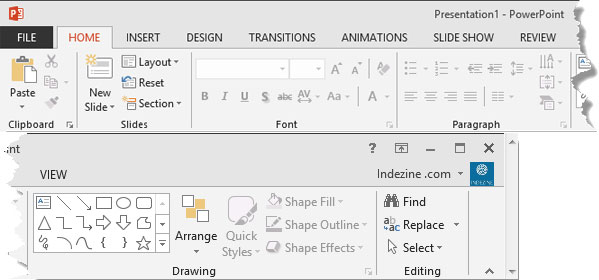
Learn about the Ribbon in PowerPoint 2013 for Windows.
Filed Under:
PowerPoint 2013
Tagged as: PowerPoint 2013, Tutorials
Comments Off on Learn PowerPoint 2013 for Windows: Ribbon and Tabs
Yes, you insert a chart on your slide, and then you spend an hour slaving over this chart to get it just perfect! You really do not want to spend a few more hours creating more charts just like the one you created. It’s only fair to have to do this task once — and then easily replicate your chart formatting thereafter for any new charts you may want to create. You can actually attain this objective by saving your chart’s formatting attributes as a chart template. Saving a chart template saves all the tweaks and formatting you made — thereafter you can use the chart template as a starting point to create a new chart. And you can make multiple chart templates and save them to use later.

Learn how to save chart templates in PowerPoint 2011 for Mac.
Filed Under:
PowerPoint 2011
Tagged as: Charting, Office for Mac, PowerPoint 2011, Tutorials
Comments Off on Learn PowerPoint 2011 for Mac: Saving Chart Templates
How people use PowerPoint is entirely dependent on how intuitive and easy-to-discover the interface elements are — in this respect, Microsoft has fine-tuned and improved the interface further in PowerPoint 2013. Introduced in PowerPoint 2010, the Backstage view has had its own share of improvements in PowerPoint 2013 — we will explore the new and existing features in this series of tutorials. You access Backstage view from the File menu. The File menu is actually a tab (highlighted in red) that’s placed at the left extreme of the Ribbon.

Explore the Backstage view in PowerPoint 2013 for Windows.
Filed Under:
PowerPoint 2013
Tagged as: PowerPoint 2013, Tutorials
Comments Off on Learn PowerPoint 2013 for Windows: File Menu and Backstage View
Microsoft and the Office logo are trademarks or registered trademarks of Microsoft Corporation in the United States and/or other countries.