
This is the print version of this page. All content is copyright Indezine.com 2000-2026.
Thoughts and impressions of happenings in the world of PowerPoint and presentations, continuously updated since 2003.
See Also:
PowerPoint and Presenting Notes
PowerPoint and Presenting Glossary
Axis Title is the text used to label the axis of a chart. All chart types other than Pie and Doughnut have axes — and although Radar charts have an axis, there is no provision to add axis title for them. In all other chart types such as Column, Line, etc., axis titles don’t show up by default. You have to make them visible first, and then edit them as required — that’s exactly what you are going to learn in this tutorial.
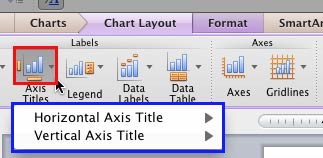
Learn how to add and edit axis titles in PowerPoint 2011 for Mac.
Filed Under:
PowerPoint 2011
Tagged as: Charting, Office for Mac, PowerPoint 2011, Tutorials
Comments Off on Learn PowerPoint 2011 for Mac: Axis Titles
In this issue, we start with exploring the different types of axes that you see in PowerPoint’s charts. Then Jamie Garroch explains how you can color your maps using dynamic colors right inside PowerPoint — learn more about vMaps’ Auto Color feature. If you plan to upgrade to PowerPoint 2013, do read our tutorials explaining this new version’s interface options. PowerPoint 2011 for Mac users can learn about advanced charting concepts — and PowerPoint 2010 users continue working with Slide Layouts.

Read all this and more in Indezine News.
Filed Under:
Ezine
Tagged as: Ezine, Indezine, News, PowerPoint
Comments Off on Indezine News: January 15, 2013
Before we get into how you can add a placeholder within individual slide layouts, let us first explore what a placeholder is. A placeholder is a boilerplate container that you can use to fill in with some sort of content. When you launch PowerPoint, you will see those distinctive boxes that invite you to add some content — haven’t you noticed the “Click to add title” suggestions? All these boxes are placeholders — when selected, these boxes have a dotted border around them.

Learn how to add new placeholders within Slide Layouts in PowerPoint 2010 for Windows.
Filed Under:
PowerPoint 2010
Tagged as: Masters, PowerPoint 2010, Templates, Tutorials
Comments Off on Inserting New Placeholders Within Slide Layouts in PowerPoint 2010 for Windows
When you save CRTX chart templates, PowerPoint saves them into a default folder location. As long as you are using these templates only on the computer where they are saved, there is no need to worry about this default location. However, if you need to share these CRTX chart templates with other users — or, if you received a CRTX chart template from someone else, then you need to make sure that these CRTX files are saved in the designated folder where PowerPoint expects them to be placed.

Learn about the default location to save chart templates in PowerPoint 2011 for Mac
Filed Under:
PowerPoint 2011
Tagged as: Charting, Office for Mac, PowerPoint 2011, Tutorials
Comments Off on Learn PowerPoint 2011 for Mac: Where are Chart Templates Saved?
The Developer tab of the Ribbon is typically not visible — and you have to enable it within the PowerPoint Options dialog box. This tab provides options that most PowerPoint users don’t use. However, if you are a programmer or developer — or even someone who wants to explore options that let you take PowerPoint further — then you will love the advanced options within the Developer tab that let you work with VBA content and macros. Additionally you can use this tab to access options that allow you to insert ActiveX controls on your slides. Follow these steps to enable the Developer tab of the Ribbon.

Learn how to enable the Developer tab in PowerPoint 2013 for Windows.
Filed Under:
PowerPoint 2013
Tagged as: PowerPoint 2013, Tutorials
Comments Off on Learn PowerPoint 2013 for Windows: Enable The Developer Tab in the Ribbon
Microsoft and the Office logo are trademarks or registered trademarks of Microsoft Corporation in the United States and/or other countries.