
This is the print version of this page. All content is copyright Indezine.com 2000-2026.
Thoughts and impressions of happenings in the world of PowerPoint and presentations, continuously updated since 2003.
See Also:
PowerPoint and Presenting Notes
PowerPoint and Presenting Glossary
Shape fills such as solid color, gradients, pictures, and textures can have a transparency attribute that lets you reduce the opacity of a fill so that the slide object or background behind shows through. Transparency is calculated in percentages and you can change its value all the way from 0 to 100%. Some fill options, such as pattern and slide background have no transparency options.

Learn how to apply transparency to shape fills in PowerPoint 2011 for Mac.
Filed Under:
PowerPoint 2011
Tagged as: Fills, Mac, Office 2011, Office for Mac, PowerPoint 2011, PowerPoint for Mac, Tutorials
Comments Off on Learn PowerPoint 2011 for Mac: Transparency for Shape Fills
Let’s imagine that you need to create a chart from data where values are not too different. Our sample data explores how people of different age brackets choose their favorite colors. If you look closely at the data, you will realize that all values span from between 285 and 365. Essentially, it makes no sense to even discuss any value lower than 250 or above 370 for this data set. Yet when you create sample column and bar charts from this data using PowerPoint’s defaults, you’ll end up with a column chart that shows columns that are very similar in their heights — there really is no contrast highlighting the findings of our data. It’s the same story with bar charts where the bars look almost similar.

Learn how to set the Minimum and Maximum values on Value Axis of Charts in PowerPoint 2011 for Mac.
Filed Under:
PowerPoint 2011
Tagged as: Charting, Office for Mac, PowerPoint 2011, Tutorials
Comments Off on Learn PowerPoint 2011 for Mac: Set Minimum and Maximum Values on Value Axis
Shape fills such as solid colors, gradients, pictures, and textures can have a transparency attribute that lets you reduce the opacity of a fill so that the slide object or background behind shows through. Transparency is calculated in percentages and you can change its value all the way from 0 to 100%. Some fill options, such as pattern and slide background have no transparency options.
Learn how to apply transparency to shape fills in PowerPoint 2010 for Windows.
Filed Under:
PowerPoint 2010
Tagged as: Fills, Microsoft Windows, Office 2010, PowerPoint 2010, Tutorials
Comments Off on Learn PowerPoint 2010 for Windows: Transparency for Shape Fills
There are times when you want a different picture on each slide — yet although the pictures need to be different, their position, formatting, and size may be required to be the same in successive slides. While you can achieve this manually, you will spend an inordinate amount of time making sure that the pictures look consistent slide after slide — and even then, you may not be too happy with the results or the time it takes to make changes. You can get over this problem by using a new slide layout with a picture placeholder. As we learnt in previous tutorials, a placeholder is a boilerplate container that you can use to fill in with all sorts of content types such as text, pictures, charts, SmartArt graphics, etc. In this tutorial we’ll explore how to work with a picture placeholder you add to a new slide layout.
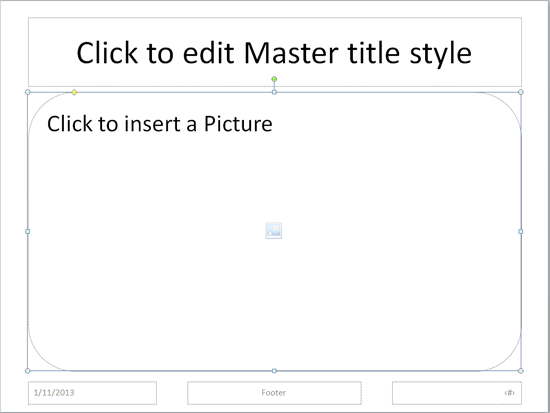
Learn how to format picture placeholder in PowerPoint 2010 for Windows.
Filed Under:
PowerPoint 2010
Tagged as: Masters, PowerPoint 2010, Templates, Tutorials
Comments Off on Learn PowerPoint 2010 for Windows: Formatting Picture Placeholders
Soon after a power user installs a new application, he or she wants to customize their menus and toolbars so that their most often used features are accessible with fewer clicks — or even custom keyboard shortcuts. And even if you are not a power user, you should explore this very useful option that we explain in this tutorial — this will make your tasks easier, and quicker. While PowerPoint’s recent versions, including the new PowerPoint 2013 on Windows have almost no menus and toolbars, they do have a single toolbar called the Quick Access Toolbar.

Learn about the Quick Access Toolbar in PowerPoint 2013 for Windows.
Filed Under:
PowerPoint 2013
Tagged as: PowerPoint 2013, Tutorials
Comments Off on Learn PowerPoint 2013 for Windows: Quick Access Toolbar
Microsoft and the Office logo are trademarks or registered trademarks of Microsoft Corporation in the United States and/or other countries.