
This is the print version of this page. All content is copyright Indezine.com 2000-2026.
Thoughts and impressions of happenings in the world of PowerPoint and presentations, continuously updated since 2003.
See Also:
PowerPoint and Presenting Notes
PowerPoint and Presenting Glossary
In this issue, we have two sets of shape graphics — these graphics behave like native PowerPoint shapes — that means you can select them and choose your own fills and effects — and animate them like any other PowerPoint shape. You can even type text inside them! The One Petal circle is a subtle variation of the common circle — and the Three Hearts circle comprises three hearts — it may look like something you can use in a business presentation, but look closer — those hearts do seem perfect for Valentine’s Day too. We have so many tutorials covering PowerPoint 2013, 2011, and 2010 too.

Read all this and more in Indezine News.
Filed Under:
Ezine
Tagged as: Ezine, Indezine, News, PowerPoint
Comments Off on Indezine News: January 22, 2013
Charts are a visual representation of data, and when seen on a PowerPoint slide from afar, you make out the value of a series by exploring where exactly it’s placed vis-à-vis the axis. Of course, if your chart has data labels, then this is less of an issue — however, typical charts may have no data labels. For such a chart, the Tick Marks placed on the axis will help us get a better idea. Most chart types show two types of tick marks on axes — Major and Minor.

Learn about the Tick Marks, both Major and Minor on chart axes in PowerPoint 2011 for Mac.
Filed Under:
PowerPoint 2011
Tagged as: Charting, Office for Mac, PowerPoint 2011, Tutorials
Comments Off on Learn PowerPoint 2011 for Mac: Tick Marks on Chart Axes
The Quick Access Toolbar, known as the QAT is the only toolbar available for customization in PowerPoint 2013 — here you can place your most used commands so that they are accessible to you with just a single click. You already learned how you can change the location of the QAT in our Quick Access Toolbar in PowerPoint 2013 tutorial. There are two ways in which you can add your favorite commands to the QAT. The easier way is to right-click any button on the Ribbon tabs, and choose the Add to Quick Access Toolbar option. Alternatively, follow these steps to customize the QAT by adding your frequently used commands — this process is longer, but shows you all commands available in PowerPoint — including some that are not available on the Ribbon tabs.

Learn how to customize the Quick Access Toolbar in PowerPoint 2013 for Windows.>
Filed Under:
PowerPoint 2013
Tagged as: PowerPoint 2013, Tutorials
Comments Off on Learn PowerPoint 2013 for Windows: Customize Quick Access Toolbar
These One Petal Circle graphics are part of our Petal Circles series that add stylized tips to your circle shapes. These two tip styles: Rounded and Pointed make your circles look different from conventional segmented circle graphics. They also break the monotony of text heavy slides, and help you explain concepts better to your audiences. Using these circle shapes also convinces your audiences that you care enough about them to make the slides look appealing and comprehensible. What’s more, these shapes are also so much fun to use!
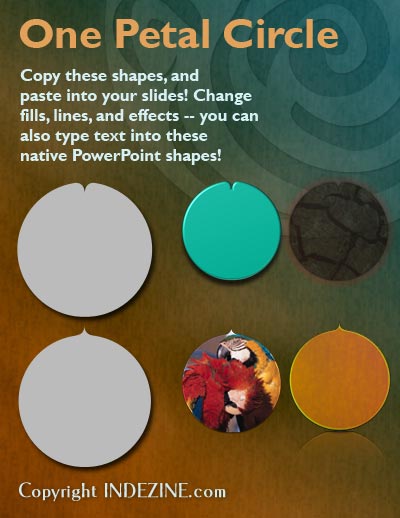
Buy and download these slides now.
Filed Under:
Presentation Bank
Tagged as: Design, Graphics, PowerPoint, Presentation Samples
Comments Off on PowerPoint Concept Slides: One Petal Circle
Do you want your pictures to be contained within shapes that look like frames? Or maybe you want to use silhouette style placeholders for your pictures? Yes, this is possible! Yes, this process is a little involved — but we’ll hold your hand if you promise to follow all our steps in sequence!

Learn how to create custom shaped picture placeholders in PowerPoint 2010 for Windows.
Filed Under:
PowerPoint 2010
Tagged as: Masters, Pictures, PowerPoint 2010, Tutorials
Comments Off on Learn PowerPoint 2010 for Windows: Create Custom Shaped Picture Placeholders
Microsoft and the Office logo are trademarks or registered trademarks of Microsoft Corporation in the United States and/or other countries.