
This is the print version of this page. All content is copyright Indezine.com 2000-2026.
Thoughts and impressions of happenings in the world of PowerPoint and presentations, continuously updated since 2003.
See Also:
PowerPoint and Presenting Notes
PowerPoint and Presenting Glossary
A Slide Master is the part of your presentation that influences everything from the slide background to the fonts used for text. All slides in your presentation may have different layouts but they all share a common look — that look is provided by the Slide Master. Every presentation has at least one Slide Master. However, if you constantly keep adding slides from other presentations, you may or may not have added more Slide Masters to your presentation. So how do you know how many Slide Masters your presentation contains? And how do you add another one? In fact, why do you need another Slide Master at all?
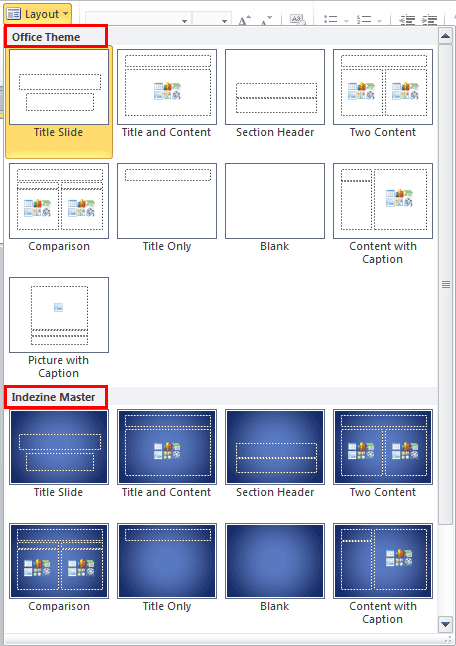
Learn how to add and rename Slide Masters in PowerPoint 2010 for Windows.
Filed Under:
PowerPoint 2010
Tagged as: Masters, PowerPoint 2010, Templates, Tutorials
Comments Off on Add and Rename Slide Masters in PowerPoint 2010 for Windows
The Ribbon that you see within the PowerPoint 2013 user interface was designed to solve a problem — older versions of PowerPoint that were populated with menus and toolbars ended with so many submenus and toolbars that many users did not know if a specific feature even existed in PowerPoint. Even worse, the toolbars could occupy so much screen real estate that you would be left with a much smaller area for your slide! Enter the Ribbon which did help resolve some of these problems — but it came with a problem of its own: it did not provide customization options when first introduced in PowerPoint 2007. This was quickly rectified in PowerPoint 2010 and 2013.

Learn how to add and rename Ribbon tabs in PowerPoint 2013 for Windows.
Filed Under:
PowerPoint 2013
Tagged as: PowerPoint 2013, Tutorials
Comments Off on Learn PowerPoint 2013 for Windows: Add and Rename Ribbon Tabs

Adam Noar is founder of Presentation Panda, a presentation design firm that specializes in creating and delivering professional presentations for startups, large businesses and individuals. Adam has been designing professional presentations for 10 years, delivering hundreds along the way to senior executives at Fortune 500 companies, and to large and diverse audiences at marketing events around the world.
In this conversation, Adam discusses his Slides Made Simple book.
Filed Under:
Interviews
Tagged as: Adam Noar, Books, Interviews, PowerPoint, Presentation Skills
Comments Off on Slides Made Simple: Conversation with Adam Noar
Major and Minor units are the intervals at which the axis spaces itself. As the name itself suggests, you can choose to space the axis at two levels: Major and Minor. By default, PowerPoint sets the Major and Minor units on its own — many times, this may be exactly what you need. At other times, you may want to set your own intervals for the Major and Minor units. Before you do so, a word of caution — do remember that any of these changes can have three implications.

Learn how to change the Major and Minor units of Value axis in PowerPoint 2011 for Mac.
Filed Under:
PowerPoint 2011
Tagged as: Charting, Mac, Office 2011, Office for Mac, PowerPoint 2011, PowerPoint for Mac, Tutorials
Comments Off on Learn PowerPoint 2011 for Mac: Change Major and Minor Units of Value Axis
You may have observed an omnipresent company logo in many slides — and that raises a question: do you really need to have a company logo on all your slides? First, it takes a fair amount of space. Secondly, the audience knows which company the speaker belongs to since that information is almost always placed on the first slide. Also speakers do introduce themselves and their companies — so do all slides need that extra branding? All these questions are fair, and there are equally fair answers for them. You should certainly add a company logo to your first slide, and then place a more subtle or watermarked logo on the rest of the slides — or even no logo at all. Fortunately, PowerPoint makes it easy to add a logo to all your slides — and then make sure that some slides have no logo at all or even a more understated version of the logo.
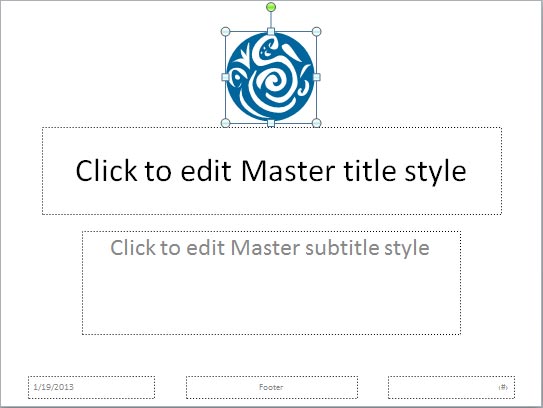
Learn how to add logo or graphic to slide master in PowerPoint 2010 for Windows.
Filed Under:
PowerPoint 2010, Uncategorized
Tagged as: Masters, Pictures, PowerPoint 2010, Tutorials
Comments Off on Learn PowerPoint 2010 for Windows: Add Your Logo or Graphic to the Slide Master
Microsoft and the Office logo are trademarks or registered trademarks of Microsoft Corporation in the United States and/or other countries.