
This is the print version of this page. All content is copyright Indezine.com 2000-2026.
Thoughts and impressions of happenings in the world of PowerPoint and presentations, continuously updated since 2003.
See Also:
PowerPoint and Presenting Notes
PowerPoint and Presenting Glossary
We already showed how you can add connected services in PowerPoint 2013. Although it may seem that you are adding these services to PowerPoint, you are essentially connecting them to all programs and platforms connected with your Microsoft account — including SkyDrive, all of Office 2013, and even Windows 8. Wherever used, these connected services help you access your settings and recent files or templates across all your devices, including laptops, tablets and even smartphones. Additionally, some services allow you to access media and document files.

Learn how to manage and remove a connected added service in PowerPoint 2013 for Windows.
Filed Under:
PowerPoint 2013
Tagged as: PowerPoint 2013, Tutorials
Comments Off on Learn PowerPoint 2013 for Windows: Manage and Remove Connected Services
Here’s another set of pushpin graphics that look like real pushpins on your slides! These ready-made pushpin graphics are contained within the presentation you will download and can be used within your slides to create a look that makes a picture, shape, or anything else appear as if it has been pushed onto a surface, notice-board, or wall with a pin! You’ll see them in five colors. Just copy them and paste them on the edges of pictures in your presentation.

Download and use these pushpins in your slides.
Filed Under:
Presentation Bank
Tagged as: Design, Graphics, PowerPoint, Presentation Samples
Comments Off on Handmade Slides: Pushpins for PowerPoint – 03
We have already explored the Adjust Picture options and how you apply Picture Styles, Picture Effects, and Picture Borders within PowerPoint. These options can help you to enhance the look of your inserted pictures. Other than these enhancement options, there are some very significant yet basic picture editing options that you should consider — these include learning how you can resize, rotate, and flip pictures.

Learn how to Resize, Rotate, and Flip pictures in PowerPoint 2010 for Windows.
Filed Under:
PowerPoint 2010
Tagged as: Pictures, PowerPoint 2010, Tutorials
Comments Off on Learn PowerPoint 2010 for Windows: Resize, Rotate, and Flip Pictures
By Nolan Haims
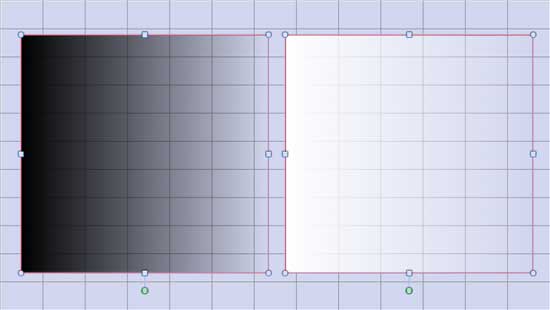
Photoshop and Illustrator are forever open on my computer, and yet I am a big proponent of doing as much design as possible directly in PowerPoint. Very often, adding an effect or editing an image in PowerPoint is actually quicker than doing the same in Photoshop. And even more importantly, effects created natively in PowerPoint are almost always non-destructive, which means adjustments are far easier as presentation content continually shifts (because it always does…)
One of my favorite techniques in PowerPoint is to place a semi-transparent gradient box over full-page imagery. This is a way of “editing” the photo to make it fade out on an edge or to reduce the opacity over a part of the image and to allow for the placement of text on top of it.
Filed Under:
Guest Posts
Tagged as: Guest Post, Nolan Haims, PowerPoint
Text can be imported as an outline from an external file, or copied from another source. Of course, you can also type text straight inside PowerPoint. Whichever option you use, you will invariably have to format your text, especially if your text is sourced from multiple sources. This may happen because some text that you have copied or imported may be in small case, or even ALL CAPS — clearly you need to make all your text look the same! Rather than retyping the whole text again, you can use PowerPoint’s Change Case option to quickly change the case of selected text on your slide.

Learn how to change text case to lowercase, uppercase, etc. in PowerPoint 2011 for Mac.
Filed Under:
PowerPoint 2011
Tagged as: Office for Mac, PowerPoint 2011, Text, Tutorials
Comments Off on Learn PowerPoint 2011 for Mac: Change Text Case
Microsoft and the Office logo are trademarks or registered trademarks of Microsoft Corporation in the United States and/or other countries.