
This is the print version of this page. All content is copyright Indezine.com 2000-2026.
Thoughts and impressions of happenings in the world of PowerPoint and presentations, continuously updated since 2003.
See Also:
PowerPoint and Presenting Notes
PowerPoint and Presenting Glossary
Imagine you have inserted a picture, and then applied various picture editing options to enhance its appearance. You may find yourself often doing these same tasks: adding all sorts of picture edits and animating them. And then you realize that you have a better picture, or your boss asked you to change to another picture but with all the same effects and animations! You could delete the original picture and start all over again, and yes, that is a long process! Or you can change any existing picture into another with just a couple of clicks — retaining all effects and animations.

Learn how to change one picture into another in PowerPoint 2010 for Windows.
Filed Under:
PowerPoint 2010
Tagged as: Pictures, PowerPoint 2010, Tutorials
Comments Off on Learn PowerPoint 2010 for Windows: Change Picture
 Ashley Farmer is the associate director of communications at Heartbeat Ideas, a privately held, full service agency grounded in technology-enabled strategy and recognized for breakthrough creative. A crusader for superior presentation work, Ashley works alongside all Heartbeaters to ensure their stories are delivered thoughtfully and powerfully. When she’s not waist-deep in a Microsoft Office program, you can find her wandering the streets of New York City in search of her next great meal.
In this conversation, Ashley discusses Heartbeat Ideas, the importance of presentations to its business and its use of SlideShark (Brainshark’s app for viewing and sharing PowerPoints on the iPad and iPhone).
Geetesh: Tell us about Heartbeat Ideas, and the types of presentations you create and deliver.
Ashley: In the simplest of terms, Heartbeat generates differentiating marketing ideas for our clients. We are a tight group of marketers — strategists, creatives, technologists — who are focused on producing the best and brightest marketing campaigns for the worlds of healthcare, wellness and beauty.
 Thus, our presentations are the storybooks for those ideas and we don’t take them lightly. We are incessantly refining them — from the narrative to the slide design — and ensuring that they are compelling and impactful for our clients and industry audiences.
Geetesh: What role does SlideShark and the iPad play in your presentations, and why do you prefer this combination?
Ashley: For the past year or so, a significant portion of our business has been the development of iPad apps for our clients’ marketing needs. So, it made perfect sense for us to not only share that work with them from the iPad, but to present new ideas from it as well. We are a mixed bag of Mac and PC users, so we prefer PowerPoint over Keynote — but there wasn’t a fully baked solution for presenting PowerPoint files on the iPad until SlideShark popped onto our radar. It’s an excellent solution for many reasons, but here are my top 3:
The views and opinions expressed in this blog are those of the authors and do not necessarily reflect the official policy or position of any other agency, organization, employer, or company.
Filed Under:
Interviews
Tagged as: Brainshark, Interviews, iPad, iPhone, Online Presentations, PowerPoint
This time, we have an amazing Christmas PowerPoint Kit for you that will help you create picture slides, PowerPoint greeting cards, and more. We also have more pushpin graphics for your slides. Learn about PowerPoint 2013 — Ric Bretschneider discusses his favorite new features and we also explore the somewhat annoying Office Background option, and how this can be turned off. Dag Hendrik Lerdal discusses SlideDog, a product that lets you mix PowerPoint, Prezi, and several other file types in a seamless presentation. PowerPoint 2010 users can learn more about pictures and Mac users can learn about text options in PowerPoint 2011.

Read all this and more in Indezine News.
Filed Under:
Ezine
Tagged as: Ezine, Indezine, News, PowerPoint
Comments Off on Indezine News: December 4, 2012
You might have made all formatting changes to a text box such as setting Autofit options, tweaking margins, etc. At this point of time, you are so happy with your settings that you want to use the same settings for any other text boxes you will add within the same presentation. The good news is that you most certainly do not have to change all settings again for all new text boxes. You can indeed change the defaults within the active presentation so that any new text box you insert has the format abilities you want.

Learn how to set a formatted text box as your default text box in PowerPoint 2011 for Mac.
Filed Under:
PowerPoint 2011
Tagged as: Office for Mac, PowerPoint 2011, Text, Tutorials
Comments Off on Learn PowerPoint 2011 for Mac: Set as Default Text Box
There are many ways to change the appearance of inserted pictures within PowerPoint — you can use the various Adjust Picture options, and can also add distinctive borders to your pictures. And yes, you can directly apply preset Picture Styles. These Picture Styles are based on PowerPoint’s Picture Effects capabilities and add some effects with a click. Most of the time, this means that a single Picture Style adds a reflection, a glow, and a border to your picture. However, you can also apply any of these effects individually to your pictures. In all, PowerPoint provides 6 effects: shadow, reflection, glow, soft edges, bevel, and 3-D rotation.
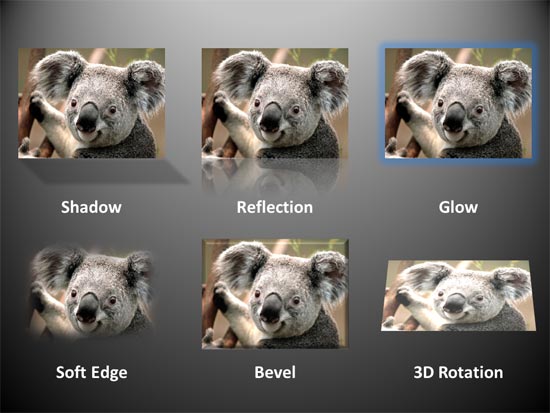
Learn about Picture Effect options in PowerPoint 2010 for Windows.
Filed Under:
PowerPoint 2010
Tagged as: Pictures, PowerPoint 2010, Tutorials
Comments Off on Learn PowerPoint 2010 for Windows: Picture Effects
Microsoft and the Office logo are trademarks or registered trademarks of Microsoft Corporation in the United States and/or other countries.