
This is the print version of this page. All content is copyright Indezine.com 2000-2026.
Thoughts and impressions of happenings in the world of PowerPoint and presentations, continuously updated since 2003.
See Also:
PowerPoint and Presenting Notes
PowerPoint and Presenting Glossary

Tim Stumbles is the co-founder of Office Timeline, a small start-up on a mission to rid the world of project presentations that make audiences yawn. Office Timeline makes the world’s most popular timeline presentation tool, built as an add-in for Microsoft PowerPoint 2007, 2010, and 2013.
In this conversation, Tim discusses how Office Timeline evolved and how typical users work with the product.
Geetesh: What motivated you to create Office Timeline? Also, tell us what do you mean by the “freemium” model?
Tim: My partner and I came from enterprise careers where we frequently presented projects to teams, customers, partners, and our managers. We found that making a good timeline presentation in PowerPoint was time consuming and painful. Also, the presentations we ended up creating always seemed a bit too complex and difficult for our audiences to follow. In hindsight, we probably bored them out of their chairs…or at least we missed an opportunity to really distinguish our work and ourselves. Wanting a better way led to the creation of Office Timeline.
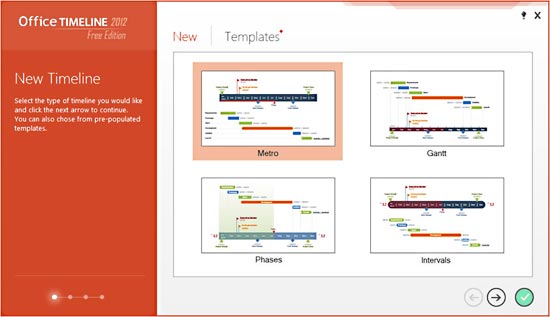
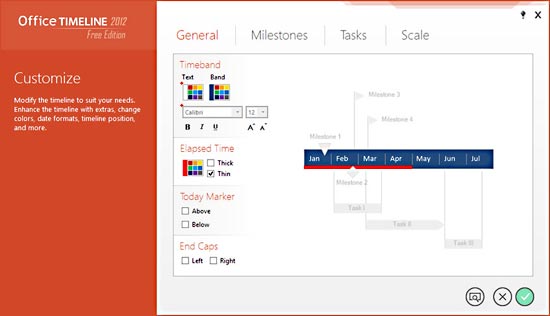
In the enterprise and beyond, PowerPoint is the vehicle for business communication, so we built a free timeline maker in it. The fast adoption and overwhelmingly positive feedback of our initial release was quite surprising. It became obvious very quickly that we were not the only ones struggling to make professional-looking timelines and gantt presentations. Based on this feedback, we improved the design and have just released a new enhanced version called Office Timeline 2012, which makes it even simpler to create beautiful project presentations in just a few clicks. A new workflow and the smart wizards guide users through each step within PowerPoint. They select the type of project or timeline they want to build, enter their data, customize the look, and feel and then click finish. Office Timeline builds and manages all the graphics of their project presentation…it is really that simple!
Geetesh: Can you share typical uses and scenarios for a timeline in a PowerPoint slide?
Tim: Project managers, planners, consultants, marketers, and business leads use Office Timeline for project presentations and proposals with their teams and customers. They also mention using it for business reviews with management and for communicating to sales and marketing groups. Educators and trainers are using Office Timeline because it makes it easier for them to present historical information in a visual way. That kind of feedback has been really great and has motivated us to keep improving.

See Also: Office Timeline: The Indezine Review
The views and opinions expressed in this blog post or content are those of the authors or the interviewees and do not necessarily reflect the official policy or position of any other agency, organization, employer, or company.
Filed Under:
Interviews
Tagged as: Add-in, Interviews, PowerPoint, Tim Stumbles
Comments Off on Office Timeline: Conversation with Tim Stumbles
The biggest changes in Microsoft Office 2013 stem for the additional cloud capabilities. While SkyDrive integration at a basic level existed in previous versions, Office 2013 takes this integration so much further. Additionally, the new roaming capabilities are enabled when you are logged into your Microsoft account within Office applications such as PowerPoint. Once logged in, all your settings, including your recent files or templates, will be synced across all your devices, including laptops, tablets and even smartphones. Additionally, you can link your Microsoft accounts to various services (third party sites) to get pictures, videos, or documents immediately.
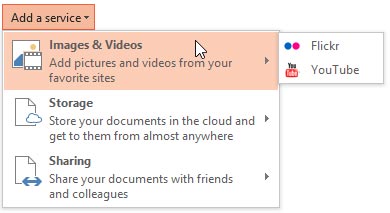
Learn how to add various services in PowerPoint 2013 that extend your user experience.
Filed Under:
PowerPoint 2013
Tagged as: PowerPoint 2013, Tutorials
Comments Off on Learn PowerPoint 2013 for Windows: Add Services
The Indezine Christmas Kit is a self-contained set of slides and other goodies that provides you with everything you need to create Christmas picture slides within PowerPoint. This kit contains a Christmas PowerPoint Theme, a star font, some silhouette pictures, scrapbook style embellishments, some textures, and even a few sample slides to get you started. Use this kit as a starting point to create your own picture slides! Then you can email your creations, or share them as a movie clip using PowerPoint’s Create a Video option. You can also upload the presentation to online sharing sites.

Download and use this Christmas PowerPoint Kit.
Filed Under:
Presentation Bank
Tagged as: PowerPoint, Presentation Samples
Comments Off on Indezine Christmas PowerPoint Kit
While working in PowerPoint you might have noticed that you resize text boxes almost the same way as you would resize shapes or any other slide object — select the slide object and you will see eight handles, four on the corners and four on the sides — you then drag any of these corners to resize. The problem with this approach is that there is no accuracy in resizing. There might be times when you need your text box to be resized to some particular size — for example, you want it to be exactly as wide as a picture you have inserted.

Learn how to resize text boxes accurately on a slide in PowerPoint 2011 for Mac.
Filed Under:
PowerPoint 2011
Tagged as: Office for Mac, PowerPoint 2011, Text, Tutorials
Comments Off on Learn PowerPoint 2011 for Mac: Resize Text Boxes Accurately
You have used and seen real pushpins on notice boards — now use these pushpin graphics to create the same look on your slides! The presentation you will download includes “pushpin” graphics that can be used within your slides to create a look that makes a picture, shape, or anything else appear as if it has been pushed onto a surface, board, or wall with a pin! These ready-made pushpins have been provided in five colors. Just copy them and paste them on the pictures in your presentation.


Download and use these pushpins in your slides.
Filed Under:
Presentation Bank
Tagged as: Design, Graphics, PowerPoint, Presentation Samples
Comments Off on Handmade Slides: Pushpins for PowerPoint – 02
Microsoft and the Office logo are trademarks or registered trademarks of Microsoft Corporation in the United States and/or other countries.