
This is the print version of this page. All content is copyright Indezine.com 2000-2026.
Thoughts and impressions of happenings in the world of PowerPoint and presentations, continuously updated since 2003.
See Also:
PowerPoint and Presenting Notes
PowerPoint and Presenting Glossary
You have already learned about how to use a picture as a bullet. Other than using the preset picture bullets offered by PowerPoint 2011, you can also create your own picture bullets to use in presentations, and these can be created right within PowerPoint! Follow these steps to learn how to create your own bullets in PowerPoint.
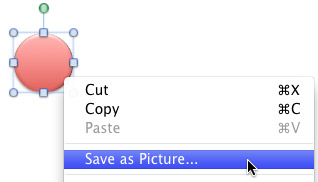
Learn how to create your own picture bullets in PowerPoint 2011 for Mac.
Filed Under:
PowerPoint 2011
Tagged as: Office for Mac, PowerPoint 2011, Text, Tutorials
Comments Off on Learn PowerPoint 2011 for Mac: Create Your Own Picture Bullets
PowerPoint provides umpteen Themes that can be applied to enhance the look of your slides. However, you’ll soon get tired of all the ready-made Themes and their associated Background Styles because not only is everyone using the same Themes, but most of these verge on the geometric rather than organic look. The key is to make your slides appear “handmade” so that they stand apart. This tutorial leads you steps to change a plain background into something that’s more personal.
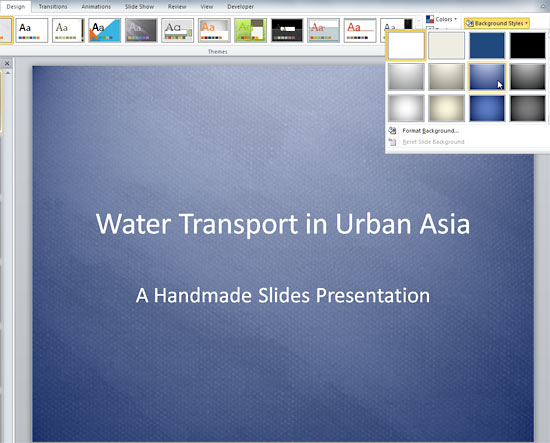
Explore how you can apply a transparent texture background in PowerPoint 2010 for Windows.
Filed Under:
PowerPoint 2010
Tagged as: Design, Graphics, PowerPoint 2010, Presentation Samples
Comments Off on Handmade Slides: Transparent Texture Backgrounds in PowerPoint 2010
If it’s Halloween time, then it has to be when the annual Duarte Pumpkin Contest shows up! And true to the time, it has shown up again this year. This is the 17th year in succession for this annual event. For those of you who are not aware, these pumpkins are created by Duarte employees. In earlier years, the contest winners were judged internally at Duarte. Then they started inviting others to judge them online and in the last few years, the contest is polled via a site where anyone can vote for their favorite pumpkins!

I asked Ashley Faus of Duarte about how do entries shown within the Duarte Halloween Pumpkin contest gets better each year, and when do the contestants start planning their pumpkins? Ashley responded:
We usually announce the contest 4-6 weeks before the pumpkins are due, and many people start planning their design immediately. However, there’s a short window for the actual carving, because we’re working with material that will rot within a day or two. Of course, seeing all the creative carvings on the day of the pumpkin submission might spark an idea for next year!
Want to see all these pumpkins and vote? Go ahead. Also, read what Nancy Duarte reminisced about two years ago:
The contest has been going for 15 years and each year as I’m working on mine I think, “for sure this time I’ll win” but I never have. So this year as I was working on my pumpkin I kept telling the poor thing that “I think you’re pretty but you’re not a winner” knowing that freakin’ brilliant pumpkins were being worked on at the same time.
You May Also Like: Duarte’s 16th Annual Pumpkin Contest: Conversation with Nancy Duarte
Filed Under:
Case Studies
Tagged as: Contest, Design, Duarte Design, Nancy Duarte
Comments Off on 17th Annual Duarte Pumpkin Contest
You have already learned about how you can apply and change the outline around your text — this outline is the thin line that spans the perimeter of the font characters. In this tutorial, you will learn about an attribute that’s rarely associated with text outlines but can provide a surprisingly different look, especially when applied to the text with thicker outlines. This attribute, called the Gradient Outline is not accessible from within the Text Outline gallery, but has been included within the Format Text Effects dialog box.

Learn how to apply Gradient Outline for text in PowerPoint 2010 for Windows.
Filed Under:
PowerPoint 2010
Tagged as: Lines, PowerPoint 2010, Text, Tutorials
Comments Off on Learn PowerPoint 2010 for Windows: Gradient Outline for Text
The Indezine Halloween PowerPoint Kit is a self-contained set of content that provides everything you need to create picture slides for PowerPoint. This kit contains a Halloween PowerPoint Theme, a scary font, some silhouette pictures, scrapbook style embellishments, some pictures, and even a few sample slides. Use this kit as a starting point to create your own picture slides! Then you can email your creations, or share them as a movie clip using PowerPoint’s Create a Video option. You can also upload the presentation to online sharing sites.

Download and use this Halloween PowerPoint Kit.
Filed Under:
Clip Media
Tagged as: Halloween, Kit, PowerPoint, Presentation Samples
Comments Off on Indezine Halloween PowerPoint Kit
Microsoft and the Office logo are trademarks or registered trademarks of Microsoft Corporation in the United States and/or other countries.