
This is the print version of this page. All content is copyright Indezine.com 2000-2026.
Thoughts and impressions of happenings in the world of PowerPoint and presentations, continuously updated since 2003.
See Also:
PowerPoint and Presenting Notes
PowerPoint and Presenting Glossary
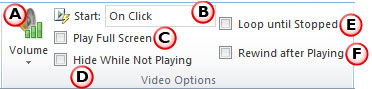
After inserting a video clip into PowerPoint, you can play the clip with minute control over its volume, looping, rewinding, etc. Rather than create smaller tutorials that explore these options, we are exploring them all on this page. Before we do so, it’s important to understand that these abilities only exist so that you can use them when they are required, rather than using them just because they exist! In this tutorial, we’ll explore all these advanced options for video clips in PowerPoint 2010.
Filed Under:
PowerPoint 2010
Tagged as: PowerPoint 2010, Tutorials, Video
Comments Off on Learn PowerPoint 2010 for Windows: Advanced Video Options
Several times in my training sessions, I have been asked how one can create a flag in a PowerPoint slide? Of course, you can just use some clip art or, if you are good at Adobe Illustrator or some other similar graphic software, creating a flag is a piece of cake. However, the challenge is to how one can create a flag in PowerPoint – this is a very relevant question since most business users, who need stuff such as flags don’t have access to dedicated graphic programs.

Learn how to use default shapes in PowerPoint to draw a flag.
Filed Under:
PowerPoint All Versions
Tagged as: Drawing, Graphics, PowerPoint, Tutorials
Comments Off on Drawing a Flag in PowerPoint
You can give it a name — call it a maze? Or call it a puzzle, a riddle, or even something as broad-defined as a question? What’s common between all these words? They all have an answer or a solution. Would we be interested in questions or mazes that had no answers or solutions? Probably not — and all audiences that attend your presentations will have the same answer. The thought for this week is to never highlight a problem that you do not have a solution for.
Filed Under:
Ezine
Tagged as: Ezine, Indezine. News, PowerPoint
Comments Off on Indezine News: Problems and Solutions
The main difference between Motion Path animations and other animations in PowerPoint (Entrance, Emphasis, and Exit animations) is that Motion Path animations allow you to cause any slide object to move along a path you choose. PowerPoint provides dozens of preset motion paths — and you can also create your own paths as required. To add a Motion Path animation to any object on a PowerPoint slide, follow these steps.

Learn how to add Motion Path animations to slide objects in PowerPoint 2011 for Mac.
Filed Under:
PowerPoint 2011
Tagged as: Animation, Office for Mac, PowerPoint 2011, Tutorials
Comments Off on Learn PowerPoint 2011 for Mac: Getting Started with Motion Path Animations
When you insert a video clip in PowerPoint, you may find that the inserted video starts playing instantly causing a jarring interruption to the flow of your slides. Not only can the sudden movement within the video clip area disrupt the flow, but the sudden sound from the video clip may take the audience unaware. This sort of disruption can be worse if you have trimmed your video clip. Clearly this is not a very professional or acceptable state of affairs. Fortunately, this is avoidable if you opt to add a Fade In or Fade Out effect to the beginning and end of your video clip. This option, which is new in PowerPoint 2010 not only edits your video clips to make them appear and finish smoothly, but also provides a more enhanced look.
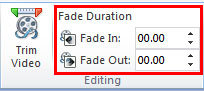
Learn how to fade in or fade out your video clip in PowerPoint 2010 for Windows.
Filed Under:
PowerPoint 2010
Tagged as: PowerPoint 2010, Tutorials, Video
Comments Off on Learn PowerPoint 2010 for Windows: Fade Effect for Video Clips
Microsoft and the Office logo are trademarks or registered trademarks of Microsoft Corporation in the United States and/or other countries.